

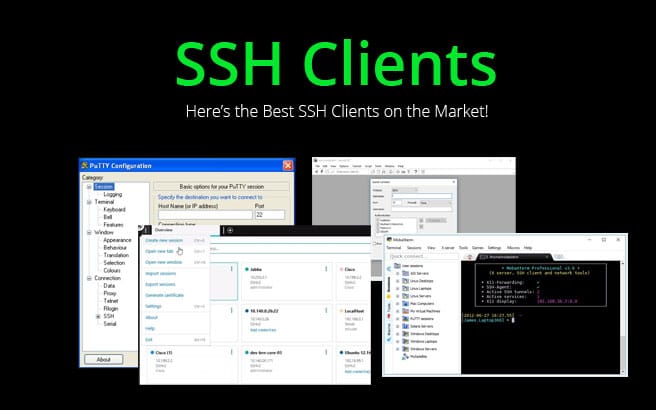
An SSH client is a command-line tool that can be used to access to a remote system running the SSH server.
You can manage switches, routers and Linux-based systems from the centralized location using an SSH client.
If you are a system administrator, network administrator or your task is to manage secure connections then you must know the best SSH client to make your process easier.
As of now, there are lots of SSH clients available in the market and each has its own pros and cons.
In this tutorial, we will dive into some SSH clients for Windows, along with some screenshots of each product, as well as where to download them.
Here’s the Best SSH Clients of 2025:
1. Putty
Putty is a free and one of the best SSH client for Windows operating system. It is used to connect and manage routers, switches and Linux-based operating systems over the internet. It supports SSH1, SSH2, Telnet, SFTP, rlogin and compatible with 32 and 64 bits machines. It is simple, easy to install and set up like FileZilla. You just need to add an IP address, set a port, connect to the remote server, enter the credentials and establish the connection.

Why do we recommend it:
Putty is recommended as a reliable and free SSH client for Windows, excelling in connecting and managing routers, switches, and Linux-based systems. It effectively addressed the need for secure connections, allowing users to manage diverse systems over the internet. Its ability to save sessions, store configurations, and customize the screen enhanced the overall management of remote servers. Its simplicity, ease of installation, and support for various protocols, including SSH1, SSH2, Telnet, and SFTP, make it a go-to choice for users seeking a straightforward solution.
Who is it recommended for:
Putty is an excellent choice for beginners and users who prioritize simplicity and functionality. It caters to system administrators, network administrators, and anyone tasked with managing secure connections. Its compatibility with both 32-bit and 64-bit machines adds to its versatility.
Visit Website: https://www.putty.org/
Download for Free: https://www.chiark.greenend.org.uk/~sgtatham/putty/latest.html
2. SecureCRT
SecureCRT is an SSH client developed in New Mexico by VanDyke Software. It is a commercial product and compatible with SSH2, SHH1, Rlogin, serial and TAPI protocol. SecureCRT trial version is available free for 30 days. SecureCRT provides terminal emulation for system administrators with advanced session management capability that helps you to save time and streamline repetitive tasks. It comes with a rich set of features, including, line rewrapping, color customization, drag and drop sessions, paste confirmations, list recent sessions, encryption enhancements, file transfer, data tunneling and many more.

Why do we recommend it:
SecureCRT is recommended for its advanced features and capabilities, making it a powerful SSH client for Windows. It stands out with its commercial offering, supporting SSH2, SSH1, Rlogin, serial, and TAPI protocols. SecureCRT efficiently addressed the challenge of time-consuming tasks for system administrators. Its advanced session management, encryption enhancements, and automation through scripting (VBScript, JScript, PerlScript, or Python) streamlined repetitive tasks, saving valuable time.
You can configure and manage all your sessions with full control over colors, fonts, scrollback, key mappings and many more. SecureCRT also allows you to automate repetitive tasks by running scripts using VBScript, JScript, PerlScript, or Python. It has a built-in TFTP server that provides additional file transfer flexibility.
Who is it recommended for:
SecureCRT is recommended for users seeking an SSH client with extraordinary features. It caters to system administrators who require full control over colors, fonts, scrollback, key mappings, and more. Its automation capabilities, including running scripts, make it suitable for those managing complex and repetitive tasks. The built-in TFTP server adds to its flexibility in file transfers.
Visit Website: https://www.vandyke.com/products/securecrt/
Download Trial Version: https://www.vandyke.com/cgi-bin/releases.php?product=securecrt
3. KiTTY
KiTTY is a free and fork of PuTTY. Developers have copied the source code of PuTTY, added some features and develop a KiTTY. KiTTY has some advanced functionality than PuTTY including, automatic username and password entry, transparency options, hyperlinking compatibility, send to tray option and many more.
Features
- Portable
- Manage Hyperlinks
- Automatic username, password and commands
- Run the local script on remote devices
- Ability to create Shortcuts for Pre-Defined Commands
- Integrated ZModem
- Save sessions automatically with Windows Registry
- Quick start of a duplicate session
- Configuration box
- Font management

Why do we recommend it:
KiTTY is recommended as a free and feature-rich SSH client, building upon the PuTTY source code with additional functionalities. It stands out with features like automatic username and password entry, transparency options, hyperlinking compatibility, and a chat system. With features like automatic username and password entry, KiTTY simplified the connection process. The inclusion of SCP implementations and additional features improved overall usability and convenience. KiTTY’s advanced capabilities, including two SCP implementations (pscp and WinSCP), make it a versatile choice.
KiTTY comes with a chat system, text editor and also includes two SCP implementations, pscp and WinSCP.
Who is it recommended for:
KiTTY is recommended for users seeking a free and enhanced alternative to PuTTY. Its added functionalities, such as automatic entry and chat system, make it suitable for those who desire a feature-rich SSH client. The ability to create shortcuts for pre-defined commands and integrated ZModem further extends its usability.
Visit Website: http://kitty.9bis.net/
Download for Free: https://www.fosshub.com/KiTTY.html
4. Terminal
Terminal is a free, open-source and secure SSH client provided by SSH. It is a PuTTY substitute that runs on Windows. It provides a simple and lightweight interface that allows the display of multiple simultaneous connections through a tabbed layout. It offers some advanced functionality including, Ping, Tracert, Port scanner, Wake-on-Lan, DNS querying and many more.
Features
- Open window in full screen mode
- Connection log
- Screen sharing
- Screen capture
- Multi tab interface
- Connections history
- Switch between full screen mode
- Store your connections credentials in a secured file
- Set application master password and other security

Why do we recommend it:
Terminal is recommended as a free, open-source, and secure SSH client that serves as a PuTTY substitute on Windows. With a simple and lightweight interface, Terminal allows multiple simultaneous connections through a tabbed layout.
Terminal addressed the need for a stable and feature-rich SSH client, providing advanced functionalities like Ping, Tracert, and Port scanner. The tabbed layout facilitated the management of multiple simultaneous connections, enhancing the overall user experience. Advanced features, including Ping, Tracert, Port scanner, and more, make it a versatile choice for users looking for stability and regular updates.
It is compatible with VNC, VMRC, SSH, RDP, Telnet and works with tabs and scripts. This tool is very stable and regularly updated.
Who is it recommended for:
Terminal is recommended for users seeking a free, open-source alternative to PuTTY that runs on Windows. Its compatibility with various protocols, including VNC, VMRC, SSH, RDP, and Telnet, makes it suitable for those who require a secure and stable SSH client. The tabbed interface and regular updates further contribute to its appeal.
Visit Website: https://github.com/terminals-Origin/Terminals
Download for Free: https://github.com/Terminals-Origin/Terminals/releases/tag/4.0.1
5. Multi PuTTY Manager
Multi PuTTY Manager is a free SSH client that can handle multiple PuTTY sessions in tabs and store them under folders. With this tool, you can easily login and manage multiple connections. It is capable of sending one command to multiple servers.
Multi PuTTY Manager comes with a rich set of features including:
- Ability to log in to PuTTY session automatically
- Create a database from available PuTTY sessions
- Import and Export database from an XML file
- Run multiple commands on single or multiple sessions
- Display all Putty sessions in tabs

Why do we recommend it:
Multi PuTTY Manager efficiently addressed the challenge of managing multiple PuTTY sessions by offering a tabbed interface and folder organization. The capability to send a single command to multiple servers streamlined tasks, enhancing productivity and making it a valuable tool for users dealing with numerous connections.
Who is it recommended for:
Multi PuTTY Manager is recommended for users who frequently work with multiple PuTTY sessions and desire a convenient way to organize and manage them. Its tabbed interface and folder organization feature make it particularly beneficial for users dealing with complex network setups and numerous server connections.
Visit Website: https://sourceforge.net/projects/multiputtymanager/
Download for Free: https://sourceforge.net/projects/multiputtymanager/files/latest/download
6. Solar-PuTTY

Solar-PuTTY is the new kid on the block in the last couple years, but we’re convinced it has the Most features out of all of them.
Why do we recommend it:
Solar-PuTTY addressed the need for efficient management of VPS and switches, providing a user-friendly experience with features like multi-tab layout and quick server connectivity. This proved to be a significant improvement compared to traditional tools like PuTTY.
Solar-PuTTY is highly recommended for its feature-rich interface, offering a masonry layout of connections/servers and a multi-tab setup similar to popular web browsers. Its support for protocols such as SSH, SCP, SFTP, TFTP, and Telnet, combined with Windows Search integration for easy server discovery, sets it apart.
This utility has a great interface with a masonry layout of your connections/servers as seen in the image above, where you can easily click on any of them to quickly connect with your saved credentials if you choose to save them.
It boasts a multi-tab layout, like many of the popular web browsers such as firefox, chrome and even Edge. This allows for opening multiple tabs with different sessions within each tab allowing you to quickly switch between servers!
On top of all the features above, it also has the following protocol support:
- SSH
- SCP
- SFTP
- TFTP
- and Telnet!
On top of those protocols, this tool integrates with Windows Search to find servers by IP and any other search parameter you can think of.
Personally I use this when managing the VPS and switches that we work on a weekly basis! Its been a game changer after working with PuTTY my whole life!
Who is it recommended for:
Solar-PuTTY is recommended for users involved in managing switches, routers, and Linux-based systems. Its user-friendly interface, advanced features, and support for various protocols make it suitable for both beginners and experienced users looking for a powerful yet easy-to-use SSH client.
Its 100% Free – No Gimmicks, Nada! Give it a download at the link below and you’ll see how easy it is to use!
Visit: https://www.solarwinds.com/free-tools/solar-putty/
Conclusion
In the above article, you learned about different SSH client for Windows.
You can now download a few of them and try them out to see which one is the best for you.
Please remember each client has some pros, cons and additional features. Choosing the best SSH client is depending on what you need.
Pretty odd that you show MobaXterm in the opening graphic and then forget to mention it as a tool.