

Is managing your IT systems across many places getting tough?
Remote work can make this job even harder.
But don’t worry! With the right tool, you can keep everything running smoothly.
This article will guide you through top options so that you can find the perfect fit for your business.
Here is our list of the best remote administration tools for enterprise businesses:
- NinjaOne – EDITOR’S CHOICE A powerful remote administration solution to securely manage and monitor both attended and unattended endpoints. Start a 14-day free trial.
- ManageEngine Remote Access Plus – FREE TRIAL Secure remote support tool for IT teams, supporting Windows, Mac, and Linux environments. Start a 30-day free trial.
- ManageEngine ADManager Plus – FREE TRIAL A unified AD and M365 management tool that makes it easy to manage administrative tasks remotely. It simplifies identity management and improves security and compliance. Download a 30-day free trial.
- Atera All-in-one IT management tool with per-technician pricing, ideal for small to mid-sized teams needing remote monitoring.
- N-able N-sight Comprehensive RMM solution with automation and strong security, suited for handling large networks efficiently.
- Zoho Assist A budget-friendly remote support tool for small and mid-sized businesses with cross-platform compatibility.
- Dameware Remote Support Scalable remote IT support tool with strong diagnostic tools and secure Smart Card authentication.
- ISL Online Cloud-based remote access solution with top-notch security, built for enterprise-grade support.
- RemotePC An affordable remote desktop tool with strong security and multi-user access, suitable for Windows-focused teams.
- TeamViewer Remote Popular remote access tool offering secure, cross-platform support with advanced file-sharing capabilities.
- Datto RMM Α cloud-based tool for IT teams to monitor, manage, and fix devices remotely.
The Best Remote Administration Tools
1. NinjaOne – FREE TRIAL

is a cloud-based platform that works well for endpoints with complex configurations. Using this tool, your technicians can securely access remote devices for quick troubleshooting. It also offers many security functions, like end-to-end encryption and granular access controls.
Key Features
- Remote Assistance: Offers built-in interactions like live chat for better remote assistance.
- Privacy: Provides customizable privacy settings.
- Unattended Connections: Allows technicians to service unattended devices.
- Secure: Supports many security features like multi-factor authentication and remote access controls.
- Remote Actions: Supports all remote actions, like troubleshooting and patching.
Why do we recommend it?
We recommend NinjaOne because of its comprehensive features that make it easy to monitor and manage remote devices. It provides a secure and seamless connection to remote devices, enabling your technicians to troubleshoot or patch them as needed. Its many secure and privacy features safeguard the confidential data stored in remote devices.
Moreover, NinjaOne offers extensive support to technicians. It offers live chat during sessions and a collaborative workspace where one or more technicians can come together to resolve complex issues. Its unified dashboard displays all the required information for tracking.
Who is it recommended for?
It is recommended for organizations with multiple sites and remote endpoints. It is also a good choice for MSPs managing multiple environments.
Pros:
- Streamlined Access: Provides seamless access to remote devices.
- Cloud-based Architecture: Easy to use and requires no extensive installation.
- Collaboration: Enables technicians to collaborate with each other.
- Security: Comes with many security features like encryption and MFA.
Cons:
- Large Feature Set: Its wide set of features can make it overwhelming.
Start a 14-day free trial.
EDITOR'S CHOICE
NinjaOne is our first choice for remote administration tool for enterprise business. One of the biggest reasons for picking NinjaOne is its secure and seamless access to attended and unattended remote devices. It offers features like end-to-end encryption and extensive privacy controls to safeguard confidential data from misuse. Also, it supports technicians in a big way by enabling collaboration. The unified dashboards and intelligent optimization are other reasons for picking this tool.
Download: Start a 14-day FREE Trial
Official Site: https://www.ninjaone.com/freetrialform/
OS: Cloud-based
2. ManageEngine Remote Access Plus – FREE TRIAL
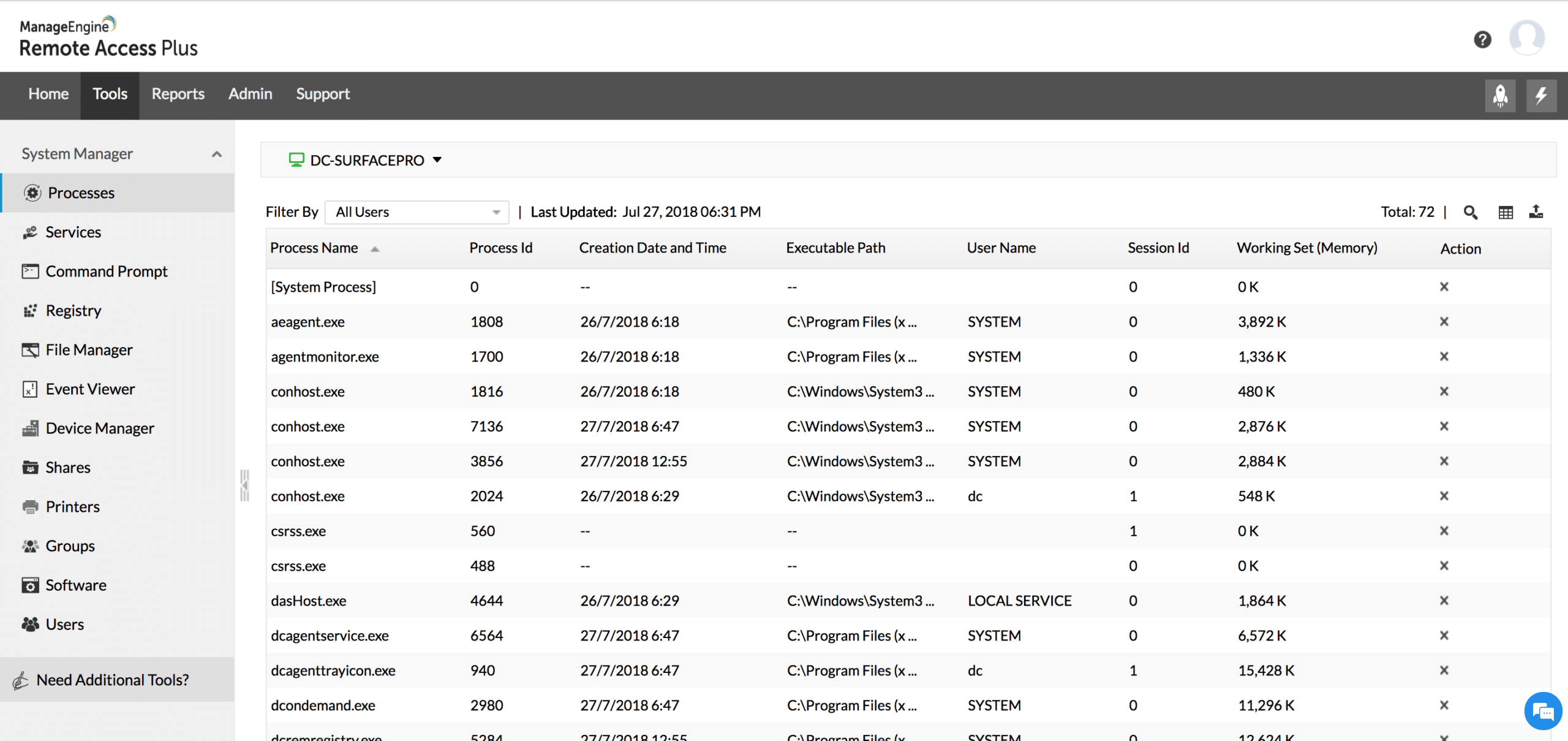
ManageEngine Remote Access Plus is a secure tool for IT teams, designed to make supporting remote systems easy. It works on Windows, Mac, and Linux, so it fits many setups. With session recording and real-time support, it offers smooth remote troubleshooting. This tool is built to make support fast and simple.
Key Features:
- Remote Desktop Sharing: Access across multiple platforms.
- Secure File Transfer: Quick, secure file sharing.
- Wake-on-LAN: Power on devices remotely.
- Centralized Dashboard: Real-time system health tracking.
- Multi-Monitor Support: Enhanced troubleshooting for multi-screen setups.
Why do we recommend it?
We recommend ManageEngine Remote Access Plus for various reasons. In our test, we used its command prompt and registry tools for troubleshooting. We didn’t need full desktop control for these tasks, which was a positive thing for this tool. The Wake-on-LAN feature is a big plus. With this feature, we could power on remote systems right away. The role-based access feature was useful, too. It allowed us to set permissions for different team members. This kept support organized and secure. Overall, the tool worked smoothly across systems without any lag.
Who is it recommended for?
We’d suggest this tool for medium to large businesses, looking for secure remote IT support. The tool works well across different operating systems. It’s also ideal for IT teams in remote or hybrid setups. This tool ensures remote troubleshooting is both easy and compliant.
Pros:
- Quick and easy deployment across large networks saves time from the start.
- 256-bit AES encryption and role-based access enhance data security.
- Effortlessly view and control multiple screens in one session.
- Offers CLI, registry editor, and task manager for in-depth troubleshooting.
- Provides audit-ready reports on remote sessions for compliance needs.
Cons:
- Installing agents on multiple devices can be time-consuming.
Start a 30-day free trial.
3. ManageEngine ADManager Plus – FREE TRIAL
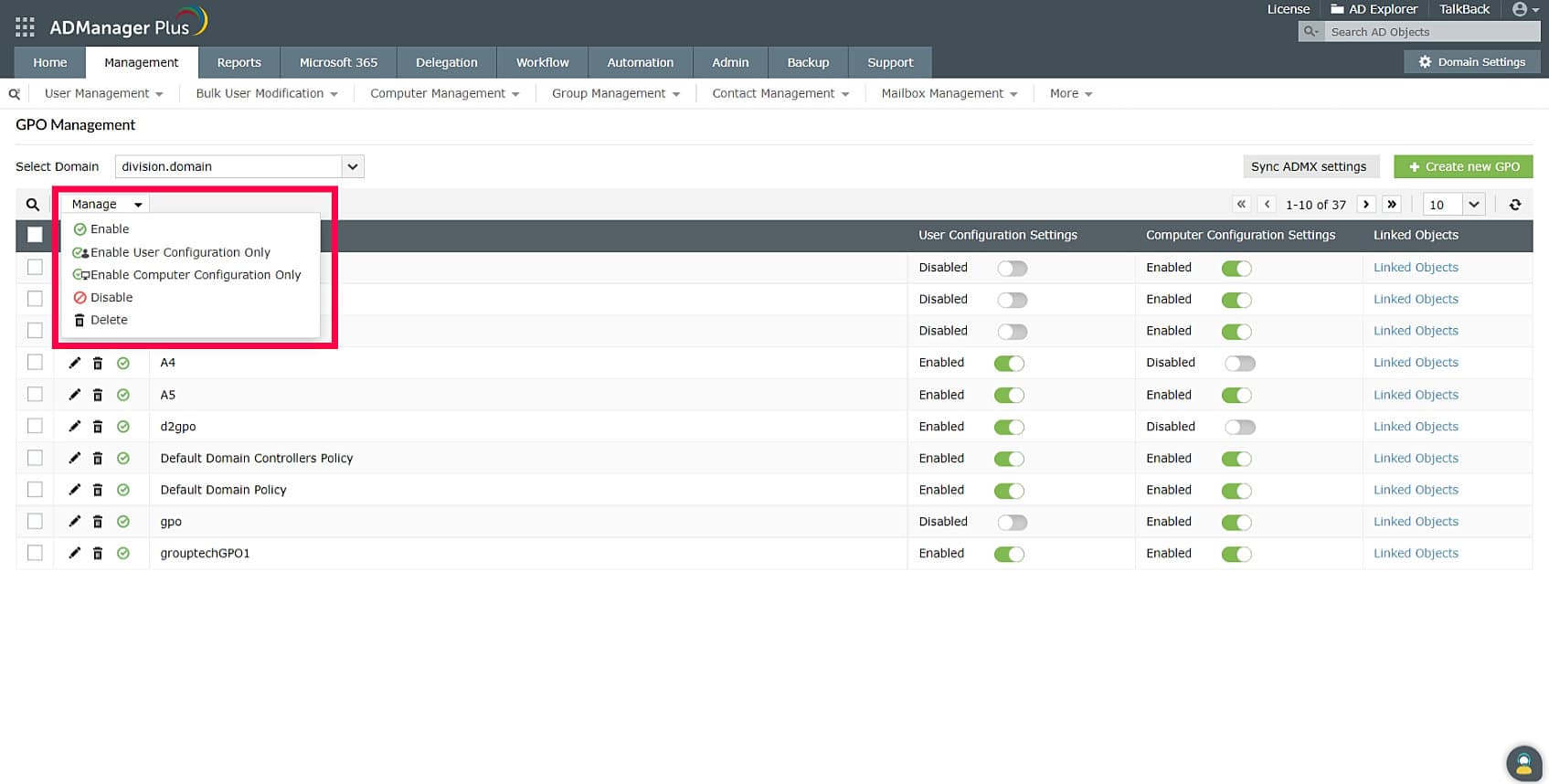
ManageEgine ADManager Plus is a complete tool for managing your Active Directory and Microsoft 365 environments. Using this tool, you can easily manage users, groups, and devices remotely. Also, it is easy to automate administrative tasks and delegate roles – all from a single console. As a result, you have extensive control and visibility over your AD environments.
Key Features:
- Bulk Users: Supports bulk user actions like creation, deletion, and management.
- File Permissions: Enables you to set or modify file permissions.
- Group Policy Management: Makes it easy to force GPO updates.
- Dashboards: Comes with intuitive dashboards for detailed insights.
- Custom Workflows: Allows you to create custom workflows for specific needs.
Why do we recommend it?
We recommend ManageEngine ADManager Plus for its simple and well-designed user interface, through which you can manage all remote administrative tasks. Using this tool, you can manage users and groups, and even force group policy updates. It supports bulk user management to save time and effort. Additionally, you can manage file server permissions, passwords, M365 licenses, OU-based delegation, and more.
One of the standout features for us is its support for custom workflows that can be designed to meet any specific need. Also, we love its reports, as they provide insights into every action that was done in the environment. These reports can come in handy for auditing and compliance as well.
Who is it recommended for?
It is recommended for network administrators and IT engineers who are responsible for managing user and device administration of both remote and connected groups. It is an excellent choice for MSPs as well.
Pros:
- Easy to use: Comes with an intuitive user interface for easy navigation.
- Reports: Generates meaningful reports that provide insights into the state of your infrastructure.
- Custom Workflows: Enables you to create workflows based on your specific needs.
- Group Policy Updates: Supports GPO updates across different groups.
Cons:
- Advanced Features: Can be too overwhelming for small businesses.
ADManager Plus offers two editions – Standard and Professional. They are priced at $595 and $795, respectively. Download a 30-day free trial.
4. Atera
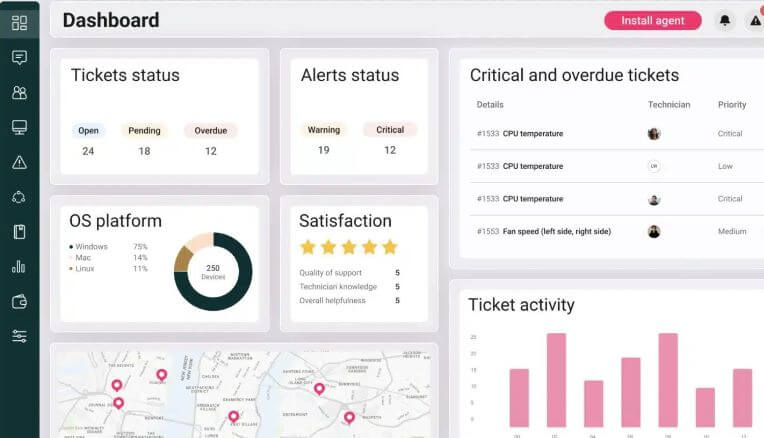
Atera is an all-in-one IT management platform. It combines RMM, Helpdesk, and automation tools into one place. Atera provides real-time monitoring, patch management, and AI-driven analytics. Plus, it uses a per-technician pricing model, making managing many devices affordable.
Key Features:
- Remote Monitoring and Management: Centralized device tracking.
- Helpdesk Ticketing: Streamlined support ticket management.
- Automation: Automated patches, updates, and tasks.
- Third-Party Integrations: Connect with AnyDesk, TeamViewer, and Splashtop.
- Unlimited Device Coverage: Manage unlimited devices with one license.
- AI-Based Automation: Atera Copilot automates repetitive IT tasks.
Why do we recommend it?
During testing, we saw Atera’s automation features save time on routine tasks. Tasks like patching and updates became easier. The real-time alerts also helped us catch issues early, which added to system security. We also liked the ticketing system. It made tracking and prioritizing issues simple. And that’s not all; we also recommend Atera for its support for unlimited devices.
Who is it recommended for?
Atera is a good fit for small to mid-sized IT teams or MSPs. It’s best for teams needing remote monitoring and automated maintenance. The flexible pricing model also suits businesses with expanding IT requirements.
Pros:
- Quick to install and configure, saving time for IT teams.
- Reduces manual tasks with patch management and scheduled updates.
- The pay-per-technician model allows unlimited device management, keeping costs low.
- Monitors system performance with instant notifications on potential issues.
Cons:
- The web interface can occasionally be sluggish, affecting user experience.
5. N-able N-sight
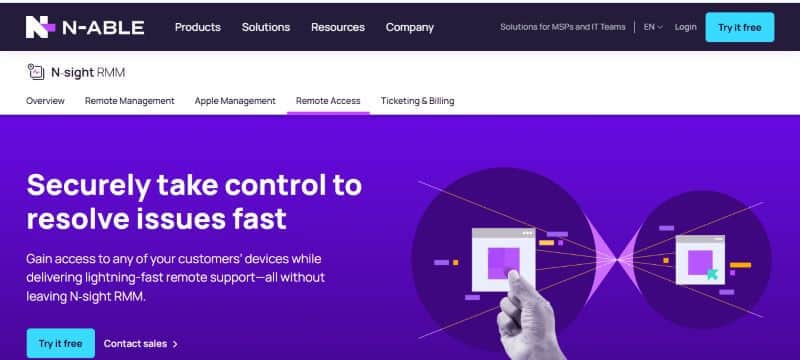
N-able N-sight RMM is a complete tool for remote monitoring and management. This platform makes device management, security, and automation simple. With N-able N-Sight handling large networks becomes easier and faster. This tool also offers real-time alerts, secure remote access, and many automation options. These features help keep systems safe and running smoothly.
Key Features:
- Real-Time Monitoring: Monitors servers, workstations, and network devices.
- Automated Patch Management: Ensures security with OS and third-party updates.
- Integrated Ticketing: Streamlines support with workflows and automation.
- Secure Remote Access: Supports attended and unattended access across devices.
- Drag-and-Drop Automation: Over 400 scripts for routine tasks.
- Endpoint Security: Integrated EDR for robust protection.
Why do we recommend it?
While hands-on testing the software, we were impressed by the real-time alerts that kept us updated instantly. This helped us manage issues quickly. The drag-and-drop automation was also useful. It saved time by allowing us to handle routine tasks. We also liked its compatibility with other IT tools, which makes it easy to add to our setup. Plus, the remote access feature works well. It allows us to troubleshoot devices right away.
Who is it recommended for?
This tool is highly recommended for MSPs and IT professionals. It helps them manage several clients and devices easily. It is also a good fit for businesses needing smooth remote support. Plus, it offers automated maintenance to make tasks even easier.
Pros:
- Compatible with Windows, macOS, Linux, iOS, and Android devices.
- Integrates with accounting tools for easy invoicing and time tracking.
- Built-in EDR adds extra security against threats.
- Configurable alerts help MSPs prioritize issues to prevent disruptions.
Cons:
- Remote access may sometimes lag, affecting quick troubleshooting.
- Advanced configuration can be challenging for new users without prior RMM experience.
6. Zoho Assist
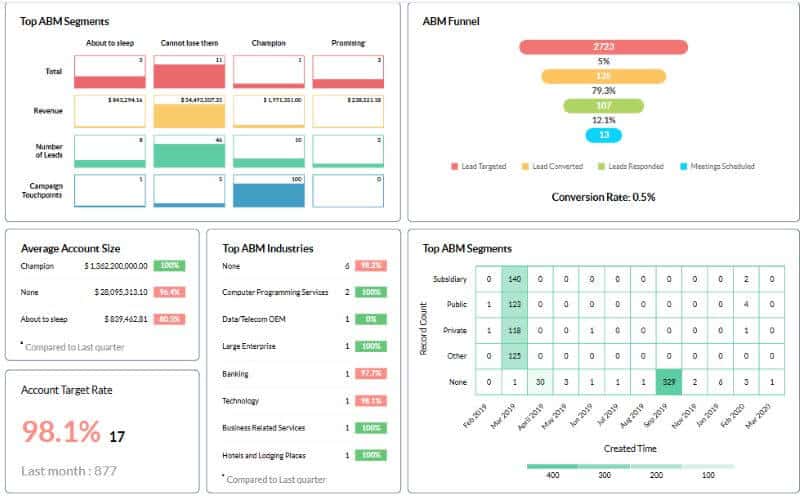
Zoho Assist is a budget-friendly remote administration tool for small and medium-sized businesses. It supports remote access and screen sharing. You can use it on different platforms without installing any software first. This feature makes setup fast and easy. Zoho Assist also has a simple interface. This makes remote support tasks easy for both admins and end-users.
Key Features:
- Unattended Access: Control devices remotely without user presence.
- Real-Time Live Chat: Instant troubleshooting communication.
- Session Transfer: Seamless handoff for team collaboration.
- Centralized Dashboard: Manage multiple sessions in one place.
- Multi-Monitor Navigation: Easy control across multiple screens.
- Cross-Platform Support: Compatible with Windows, Mac, Linux, iOS, and Android
Why do we recommend it?
In our hands-on testing, Zoho Assist was easy to use and quick to set up. File transfers were fast, too. The software’s multi-monitor support made complex troubleshooting simpler. Its secure setup and flexible unattended access are big advantages. These features help IT teams work with confidence. Plus, the AES encryption adds an extra layer of security.
Who is it recommended for?
Zoho Assist is a top choice for IT teams, managed service providers, and large companies. It provides secure, on-demand support across various operating systems. This tool is also scalable, making it a good fit for growing organizations. Plus, it’s customizable, so it adapts to different support needs.
Pros:
- No installation is required.
- Supports multiple operating systems, increasing usability for diverse teams.
- The user-friendly design reduces the learning curve.
- Technicians can switch without disrupting the session.
Cons:
- No advanced video conferencing for visual support.
7. Dameware Remote Support
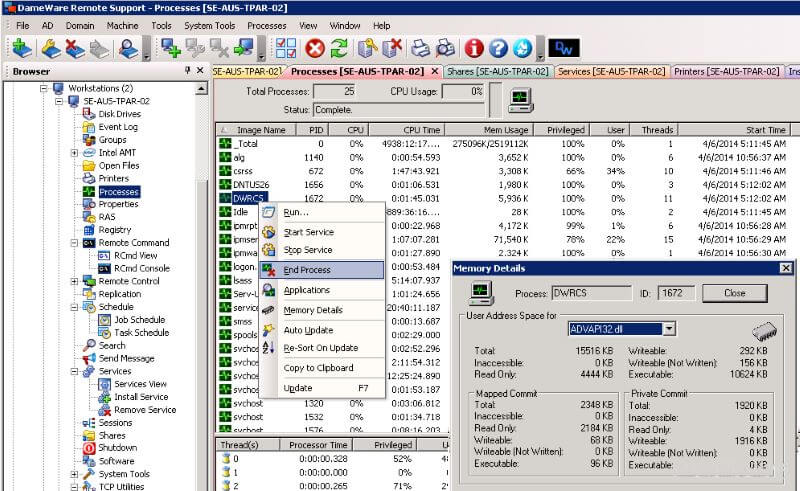
SolarWinds Dameware Remote Support (DRS) is a handy tool for remote IT support. It lets teams access, troubleshoot, and manage devices both on and off their network. The setup is simple, and it works with Windows, Mac, and Linux. Plus, DRS offers features like file transfer and a chat option. This makes it a solid choice for enterprises needing reliable remote support.
Key Features:
- Smart Card Authentication: Ensures secure, compliant access.
- Advanced Diagnostic Tools: Includes event log monitoring and troubleshooting.
- Drag-and-Drop File Transfer: Easy file sharing during sessions.
- Simultaneous Sessions: Manage multiple devices for efficiency.
- Minimal End-User Disruption: Background IT support without user interruption.
- Mobile Support: Supports iOS and Android for on-the-go assistance.
Why do we recommend it?
We tested Dameware Remote Support and found the setup to be quick and easy. It required very little configuration. Plus, its simple layout made navigation fast and clear. We also liked the built-in chat and file transfer features. These features allow IT teams to help users right away. Dameware also has secure Smart Card authentication, which is compatible with multiple devices. This makes it a reliable choice for busy teams managing many systems.
Who is it recommended for?
DRS is designed for mid to large enterprises. It’s perfect for teams needing secure and scalable remote support. This tool is also especially helpful for IT support teams with mixed-device environments. It provides quick and efficient troubleshooting across devices.
Pros:
- User-friendly interface enhances workflow efficiency
- Multi-device session support for increased productivity
- Non-disruptive background operation for smoother support
- Comprehensive diagnostic tools for detailed issue analysis
- Reliable security measures fit for compliance standards
Cons:
- Higher licensing costs may limit access for smaller teams
- Performance may slow on low-bandwidth networks
8. ISL Online
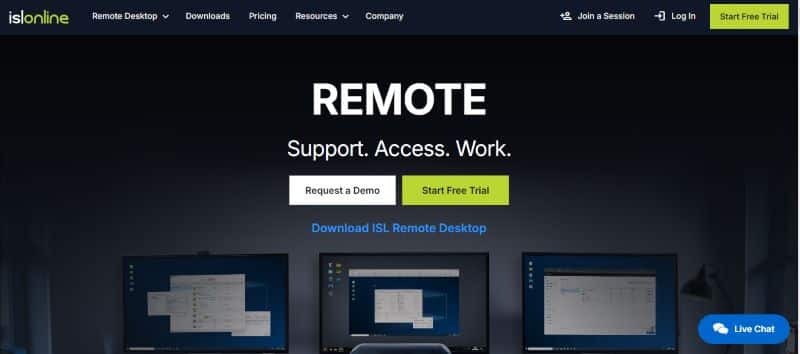
ISL Online is a powerful, cloud-based tool for remote access. It allows secure connections across different platforms. With an easy-to-use interface and strong security, it’s a top choice if you are looking for a remote administration tool for your enterprise business.
Key Features:
- Remote Control: Real-time device control.
- Unattended Access: Connect without user presence.
- Session Recording: Capture activities for reference or training.
- Custom Branding: Customize logos and interface colors.
- Two-Factor Authentication: Adds extra security for login.
- File Transfer: Secure file exchange during sessions.
Why do we recommend it?
ISL Online impressed us with its strong security and smooth cross-platform support. In our tests, it delivered stable, lag-free connections on Windows, macOS, and mobile. We also loved the setup, which was quick and simple, so our IT team could start supporting clients right away. In addition, security features like AES 256-bit encryption kept our data safe. We recommend this tool for its flexible pricing, including monthly and pay-per-use plans.
Who is it recommended for?
ISL Online is one of our favorite options for IT teams, managed service providers, and large companies. It offers secure, on-demand support across different operating systems. It’s also a good choice for organizations wanting a scalable and customizable remote support tool.
Pros:
- AES 256-bit encryption for secure data transmission.
- Compatible with Windows, macOS, Linux, iOS, and Android.
- Options include subscription and pay-per-use.
- Customer support is highly responsive.
Cons:
- Slower speeds were reported with multiple active sessions.
9. RemotePC
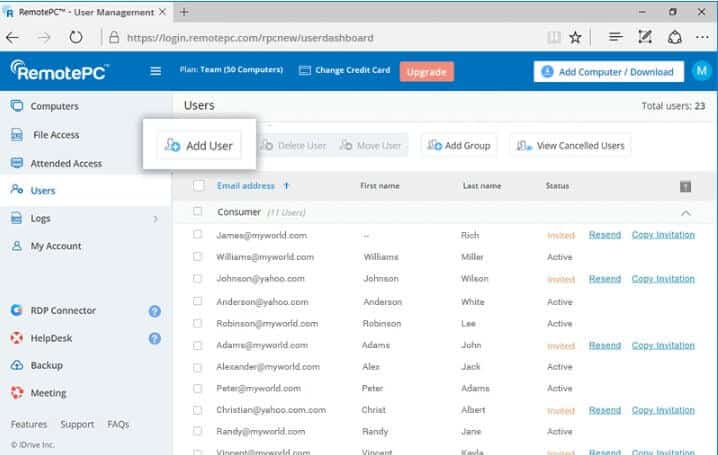
RemotePC is a dependable remote desktop tool that balances performance and affordability well. It is an ideal software for enterprise users. It also provides strong security, quick file transfers, and multi-user features. With these features, teams can connect smoothly across different devices. While primarily for Windows, its flexible subscription plans and ease of use make it valuable for businesses of all sizes.
Key Features:
- Security: Two-factor authentication and encryption for secure access
- Multi-User Access: Supports team activity logging for collaborative use
- Remote Printing: Direct document access from remote systems
- Multi-Monitor Support: Allows efficient workflow across multiple screens
- Wake-on-LAN: Enables access to offline devices
Why do we recommend it?
We recommend RemotePC for its smooth file transfers and reliable remote printing. While actively testing this tool, we found that it worked without interruptions, even during busy sessions. Plus, the multi-monitor support is also a great productivity booster. It made switching between screens easy and efficient. Moreover, the strong security features keep sensitive data safe, providing real peace of mind. RemotePC also runs well on stable connections, and setup is quick with minimal issues.
Who is it recommended for?
RemotePC is ideal for small to mid-sized businesses. It offers affordable and secure remote access. This tool is perfect for teams using Windows-based systems (as it does not support other OS). It is also good to know that this tool supports regular file sharing and collaboration across multiple devices, which makes it ideal for remote teams.
Pros:
- Quick installation process for immediate use
- Smooth switching between screens for increased productivity
- Direct printing from remote systems to local printers
- Budget-friendly plans with a free trial available
- Access offline devices without on-site assistance
Cons:
- Limited OS support; lacks full Mac/Linux compatibility
10. TeamViewer Remote
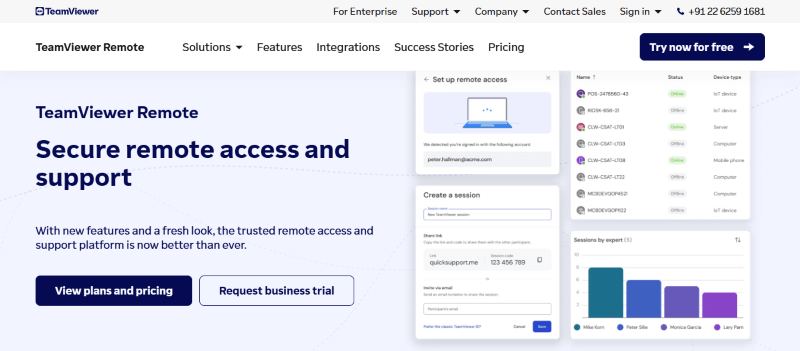
TeamViewer Remote is a top-rated tool for remote access, perfect for enterprise businesses. It provides smooth support across platforms and secure connections. The interface is easy to use, making it perfect for IT support teams. Also, this tool supports file transfer, device management, and quick remote troubleshooting.
Key Features:
- Cross-Platform Compatibility: Windows, Mac, iOS, Android, Linux
- High Security: Encrypted connections with multi-factor authentication
- Efficient File Sharing and Screen Sharing: Reliable transfers across devices
- Organized Device Management: Contact lists and group management
- Multi-Session Handling: Supports several connections simultaneously
Why do we recommend it?
We recommend TeamViewer Remote for various reasons. When we tested TeamViewer Remote, we noticed its security features are strong. They keep your data safe during sessions. Another plus is its flexibility across platforms. No matter the device, you will always get a stable connection. Plus, we also recommend it for its contact management tool, which is perfect for handling large networks of devices.
Who is it recommended for?
This tool is perfect for large IT teams managing remote systems. It also works well for businesses handling many devices and needing secure and flexible solutions. This tool is also a great fit if a team requires smooth and reliable access across different platforms.
Pros:
- Simple installation and navigation
- High security with multi-factor options
- Broad device compatibility
- Effective file-sharing and screen-sharing
Cons:
- Pricing may be high for smaller teams
11. Datto RMM
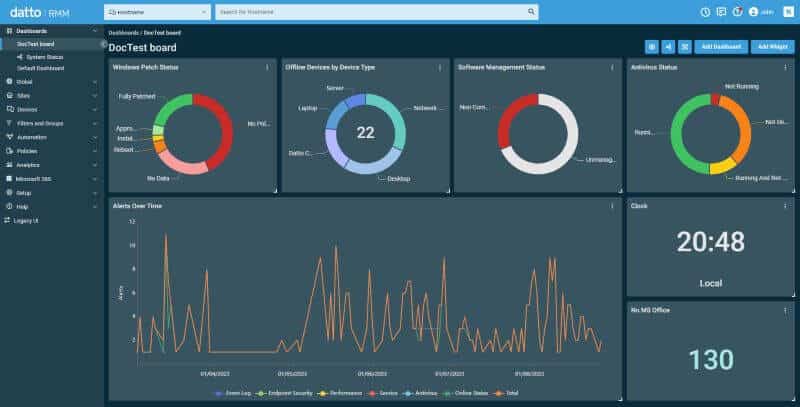
Datto is a cloud-based Next-Gen RMM. It helps IT teams and MSPs monitor, manage, and fix issues remotely. It is perfect for businesses with large and complex networks. It aims to keep its IT simple, secure, and cost-effective. One of the strengths of Datto RMM is that it lets IT teams control everything from one platform. This cuts costs, eases device management, and lowers downtime risks.
Key Features:
- Asset Tracking: Instantly view device status, location, and health.
- 24/7 Monitoring: Sends alerts and fixes issues automatically.
- Automatic Updates: Auto-patches software to keep systems secure.
- Remote Support: Fast, secure access for seamless troubleshooting.
- Insightful Dashboards: Shows performance, security, and compliance.
- PSA Integration: Syncs with Autotask for real-time updates and faster ticketing.
Why do we recommend it?
We recommend Datto RMM for its powerful tools for monitoring, patching, automating, and troubleshooting devices. It is ideal for enterprise businesses because it comes with easy deployment and strong integration (especially with other Kaseya products). Also, let’s not forget its great support for automation. A feature that helps cut downtime and complexity.
Who is it recommended for?
Datto RMM is perfect for IT managers, system admins, and network engineers working in mid-to-large businesses (50–500+ employees) and MSPs. It’s also ideal for industries like IT, healthcare, education, retail, and network security.
Pros:
- Easy setup with fast deployment and minimal installation.
- Works seamlessly with Autotask PSA and Kaseya.
- Regular updates boost security with automated patching.
- Strong security features like two-factor auth, ransomware alerts, and endpoint isolation.
- Tailored alerts for quicker responses.
Cons:
- Documentation lacks depth in the knowledge base.
- Extra tools are needed for some tasks.
- Pricey with rigid contract terms.
Final Thoughts
Choosing the right tool is key to making IT management easier. The best features can secure your systems and save you time.
By exploring these tools, you’ll find one that matches your needs. Whether you want ease of use, advanced functions, or a good price, we hope that you find the best remote administration tool for your needs.