

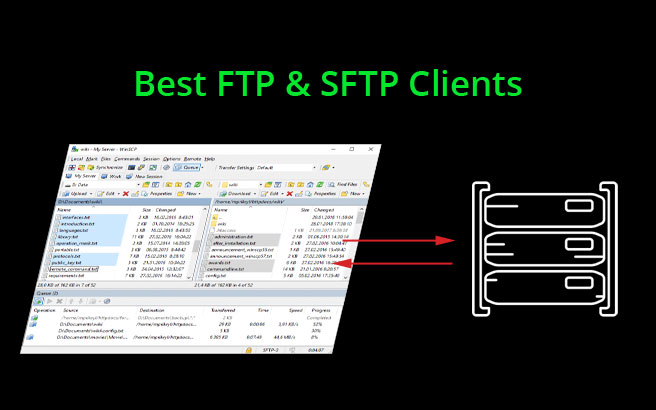
FTP stands for File Transfer Protocol. It has been around for years and years, used to transfer files between computers on a network.
For these file transfers, you need to use an FTP client that will connect to an FTP server that runs on a remote device.
Some vendors provide software for both – FTP client and FTP server in the same package. But many DO NOT.
Besides, with emerging security concerns of FTP, another protocol, SFTP (SSH File Transfer Protocol), was soon introduced to address these issues and perform secure file transfers.
It is an entirely different protocol that uses different ports and it also adds great file management and file transfer abilities to SSH. All file transfers in SFTP are encrypted using SSH protocol and you can move, transfer, upload, download or copy files using SFTP or SSH Clients that have the capabilities of allowing different protocols.
Now since myriads of FTP and SFTP clients are flooding the market, it can get quite overwhelming to understand which one is the best.
So, here we have curated a list of Top 8 FTP and SFTP clients for Windows and Linux in 2020. Many are free and some are paid after the trials expire.
Here’s a List of the Best FTP & SFTP
1. Files.com – FREE TRIAL
Files.com operates its file transfer services in the manner of a cloud drive. The customer gets an account with storage space on the Files.com server and an administrator can then set up a sub-account for each user. This enables access controls to files and folders which can be imposed either by the administrator or by the filespace user account owner. Those accounts are then available as individual secure FTP servers.
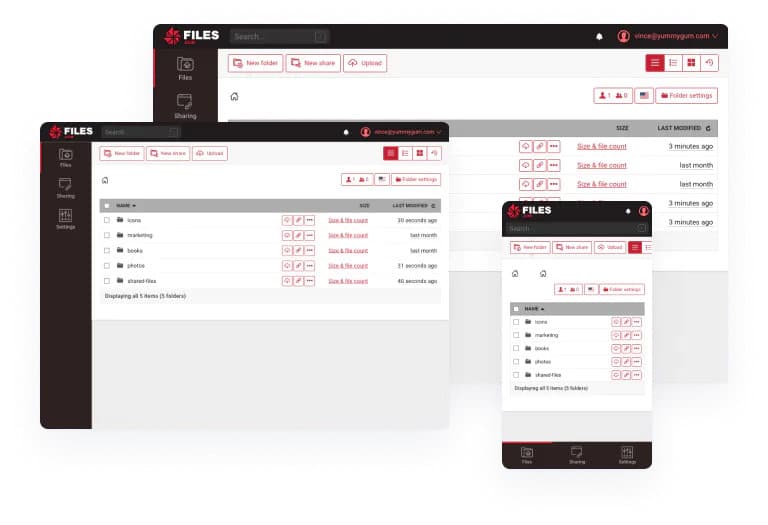
Files.com has its own proprietary secure file transfer protocol. However, it has a library of integrations and one of those implements a command line SFTP server. Other secure file transfer options are WebDAV, Amazon S3, and the AS2 system, which is used for EDI message transfers. The default method of access to the secure file server is through a desktop app, which is available for Windows and macOS, or through any standard Web browser.
Files.com Features
- Individual user accounts
- Multi-factor authentication
- Compatible with single sign-on (SSO) systems
- File activity logging
- Version controls
- A Business Associate Agreement (BAA) for HIPAA compliance
- A Data Processing Agreement (DPA) for compliance with GDPR and CCPA
- Access invitations for collaboration
- Integration into productivity suites
- Email attachment controls
Why do we recommend it?
Files.com is recommended for its versatile and secure features, offering a cloud-based platform with access control for efficient user management.
It prioritizes data security with a proprietary secure file transfer protocol and supports compliance requirements with features like BAA and DPA.
The integration capabilities, user-friendly interface, and detailed file activity logging make it a robust choice for organizations and users seeking efficient, secure, and compliant file management solutions.
The integrations library provides a method to sync a desktop file directory with a Files.com account or sync accounts on a list of cloud storage systems, including OneDrive and Google Drive. You can also integrate the tool into your email system to store attachments and send out a link instead of actually mailing copies of documents. An access invitation via a link is the main method of sharing files on the Files.com system.
Who is it recommended for?
Using Files.com is advised for a broad range of users and company sizes. Its user-friendly interface and versatile features make it suitable for both individuals and organizations, from small businesses to large enterprises.
It’s particularly beneficial for businesses that require secure and compliant file management, making it an ideal choice for those in regulated industries, such as healthcare and finance, where data security and compliance are paramount.
Register for a free trial to find out more about pricing.
EDITOR'S CHOICE
Files.com is our top pick for an SFTP client for Windows and Linux because this cloud-based platform offers more flexibility for secure file transfers than a traditional SFTP client or server. This package provides client tools and also a server. The traditional SFTP client is provided by a Files.com desktop app for Windows and macOS. Users of those operating systems and also Linux computer owners can access their individual Files.com file spaces through any Web browser. This is a very flexible tool that provides stronger control over documents than sending copies out to others. You email an access link instead, which means your control over the file continues.
Download: Start a 7-day FREE Trial!
Official Site: https://signup.files.com/signup/
2. ExaVault – FREE TOOL
ExaVault is an on-premises file sharing and management tool that comes with advanced security features and an intuitive user interface for easy and efficient file sharing. It supports SFTP, FTPS, WebDAV, and FTP-SSL protocols for secure transfers.

A highlight of this tool is that it keeps the files within your environment. When you want to share them, a link is created and sent to the recipients. When recipients click this link, they are given access to the file located in your environment.
The advantage of this approach is that the files are never moved. More importantly, you can streamline access and enforce additional checks to prevent unauthorized access.
ExaVault Features
- Branded interface.
- Sends real-time notifications.
- Creates shareable links.
- User and group access permissions.
- Support for secure protocols.
- Detailed activity logging.
Why do we recommend it?
We recommend ExaVault because it offers secure and flexible options for file sharing. It supports protocols like SFTP, FTPS, FTP-SSL, and WebDAV for secure sharing. Additionally, it comes with features like 2FA, password protection, and authentication requirements to ensure that only the authorized users are accessing each file.
Also, every file activity is logged, so administrators have comprehensive control and visibility into the activities. This data comes in handy for audit and compliance as well.
Who is it recommended for?
ExaVault is recommended for a diverse user base, including small businesses, enterprises, and individuals. Its user-friendly interface and secure transfer options make it accessible to users of varying technical backgrounds.
The ExaVault Appliance is available as a free download. For additional services, buy the cloud-hosted Premium Service package starting at $99/month. Download the free appliance.
3. SolarWinds Solar-PuTTY
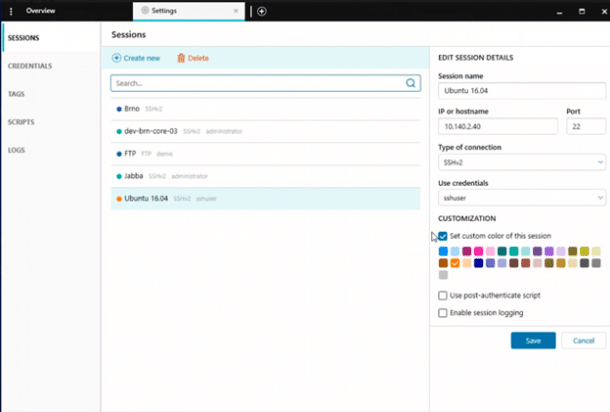
SolarWinds is one of the prominent software companies that has developed a FREE SFTP client- which is Solar-PuTTY. The program in itself is user-friendly. It allows you to remotely connect to any server or device in a network through Windows systems.
Solar-PuTTY Features
- Tabbed interface with one console to manage multiple sessions simultaneously
- Integrated ‘Windows Search’ tool to easily search IP addresses, saved sessions, tags or usernames
- Supports graphical SFTP file transfer
- Also doubles as a SSH Client, SCP Client and Telnet
- NO need for installation
- Can save credentials or private keys for Auto-login
- Script automation
- Auto Re-connection
- Color Codes for each PuTTY session
- File encryption
Why do we recommend it?
SolarWinds Solar-PuTTY is recommended for its user-friendly interface with tabbed sessions, enhancing multitasking and ease of use. Its efficient search tool simplifies session management, and supports multiple protocols, including SFTP and SSH, making it a versatile choice for network and server tasks.
With the added convenience of auto-login, automation features, and no installation required, Solar-PuTTY is an efficient and user-friendly tool for IT professionals and network administrators.
As it features a tabbed interface, you get to conveniently manage multiple sessions from a single console. Not just that, it also lets you save private keys or credentials of any session for quicker login the next time. For quick recognition, just use the color coding feature for every session.
There’s also an efficient ‘Windows Search’ tool integration, using which you can search your tags, IP addresses, saved sessions, usernames, etc. within seconds. And as connection establishes, you can even automate all scripts.
Not only does it support graphical SFTP file transfer, but Solar-PuTTY also supports SSH, SCP and Telnet protocols. Lastly there’s no need for installation, you can simply run the executable file.
Solar-PuTTY is a great free tool. Apart from this, the tabbed interface, Windows Search integration and feature to save credentials or private keys are some of its best highlights!
Who is it recommended for?
SolarWinds Solar-PuTTY is recommended for IT professionals, network administrators, and anyone who needs a user-friendly and versatile tool for managing network and server tasks. Its ease of use, support for multiple protocols, and automation features suit a wide range of technical users looking to streamline their remote server management processes.
Download for 100% Free:
https://www.solarwinds.com/free-tools/solar-putty/registration
4. FTP Voyager
SolarWinds is a leading developer when it comes to designing free FTP clients. It has deployed myriads of free tools in the market featuring intuitiveness and user-friendliness.

Here’s another powerful FTP Client, Serv-U Managed FTP Voyager. It is a free tool that is packed with features, is fast and quite responsive altogether.
FTP Voyager Features
- Connection to multiple servers simultaneously
- Establish multiple file transfers
- Secure file transfers using FTP, FTPS and SFTP protocols
- Drag and drop feature for quick file transfers from Windows desktop
- Automatic synchronization of folders
- Scheduling of file transfers at a predetermined time
- Allows transfer of larger files
Why do we recommend it?
FTP Voyager earns our recommendation due to its versatile support for multiple file transfer protocols, including FTP, SFTP, and FTPS, accommodating a range of user preferences.
With advanced features like folder synchronization, scheduling, and multi-server management, it enhances productivity and efficiency for users. Its robust security, compliance credentials, and cross-platform compatibility make it an excellent choice. Its enhanced security is proven by its FIPS 140-2 validation and U.S. Army Certificate of Networthiness (CoN).
It is deliberately made for Windows and Linux systems, and includes various advanced features such as synchronization of folders, scheduling of file transfers and more.
Who is it recommended for?
FTP Voyager is recommended for businesses and individuals requiring a versatile and secure file transfer solution. For instance, an e-commerce company can use it to efficiently upload and synchronize product data to their web servers, ensuring data integrity and timely updates, all while maintaining strong security and compliance measures.
Download for Free:
https://www.solarwinds.com/free-tools/ftp-voyager-ftp-client-for-windows/registration
5. WinSCP
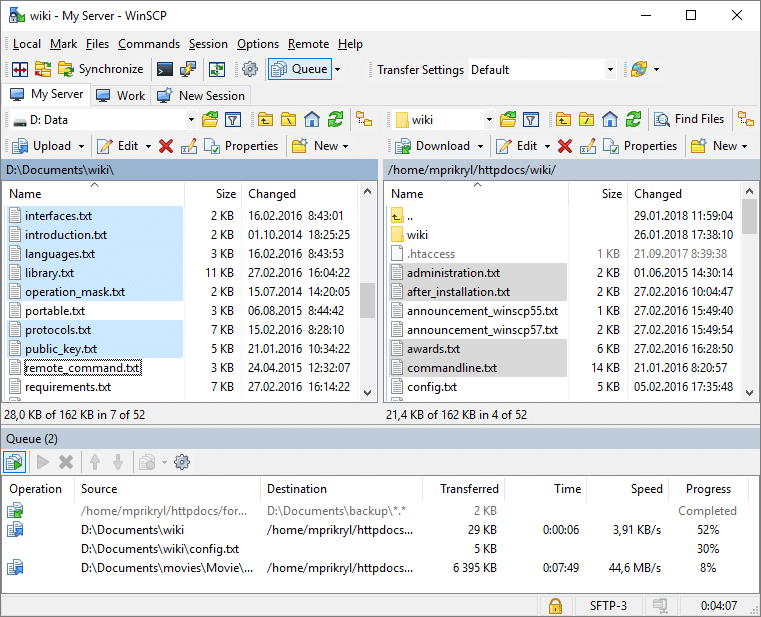
As the name suggests, the WinSCP file manager only runs on Windows systems. It is an extremely popular, free SFTP and FTP client that lets you connect your local and remote servers seamlessly. It has a very unique dual-pane module for file transfers.
WinSCP Features
- Open-source, Free
- Supports SFTP for enhanced security
- Supports SCP, Amazon S3, WebDAV, FTP and FTPS protocols
- Integrated text editor allows remote editing
- Offers GUI as well as a command line interface for file transfers
- Stores session information such as username, IP address, etc.
- Scripting and task automation
- Port forwarding
- File encryption and Master Password
Why do we recommend it?
WinSCP stands out for being an open-source, free file transfer solution, offering both accessibility and cost-effectiveness. Its robust support for SFTP and multiple protocols ensures secure and versatile file transfers, appealing to a broad user base.
With a user-friendly interface, automation features, and portability, WinSCP provides an efficient and convenient tool for managing remote servers and tasks. Here you can manage multiple sessions at a time, and also personalize your main page with different sessions, commands and tabs.
WinSCP is quite user-friendly, as it has a nice graphical user interface to make it more visually appealing. Not just that, you can even automate scripts and tasks by setting the rules.
Who is it recommended for?
WinSCP is recommended for IT professionals, system administrators, and users in need of a free and reliable file transfer solution with strong security features.
Its user-friendly interface and automation capabilities make it valuable for web developers who need to securely upload, manage, and edit website files on a remote server.
Its support for SFTP ensures data security during file transfers, and its user-friendly interface simplifies the process of maintaining web content. The automation features also save time when regularly updating or synchronizing website files.
If you are looking for a very basic file manager, and SFTP/FTP client for Windows computers- WinSCP is a great choice.
Download for Free:
https://winscp.net/eng/download.php
6. FileZilla
FileZilla is again a very popular FTP client, which also supports SFTP and FTPS (FTP over SSL) protocols. The best thing about FileZilla is that it is cross-platform and available for Windows, Mac OS X, *BSD and Linux systems as well.

FileZilla Features
- Open-source, Free
- Multi-threaded transfers: Supports FTP, SFTP and FTPS (FTP over SSL) protocols
- Cross-platform: Available for Windows, Linux and Mac OX S
- Uses tabbed graphical interface
- Complete support documentation with FAQs, forum and support page
- Available in many languages
- Remote file search tool
- Remote file editing
- Filename filters
- Bookmarking feature
- Supports resume and transfer of larger files, more than 4GB
- Drag and drop support
- Supports IPv6
- Great Site Manager and transfer queue
- Directory comparison
Why do we recommend it?
FileZilla earns our recommendation for its versatile appeal, thanks to cross-platform compatibility across Windows, Mac OS X, *BSD, and Linux.
Its support for multiple file transfer protocols, including FTP, SFTP, and FTPS, provides users with flexible options for their data transfer needs. With a user-friendly interface, large file transfer capacity, and open-source accessibility, FileZilla simplifies file management.
It is an open-source, free software featuring intuitive graphical user interface along with a bunch of impressive features. Along with IPv6 support, FileZilla client also includes a tabbed user interface, so you can manage multiple sessions over a single window.
Apart from this, it offers a flexible drag and drop interface, so you seamlessly upload or download files. It also supports resume and transfer of larger files, greater than 4 GB- which is a huge bonus!
FileZilla has a powerful site manager and transfer queue for effortless management and transfer of entire websites. Moreover, the directory comparison feature lets you compare files, their sizes, dates, etc. on a local and remote directory.
The only drawback is that many Windows users have witnessed adware in FileZilla’s downloadable program. But that can be resolved by simply unchecking the box to opt-out from the adware while you are installing the program.
Who is it recommended for?
FileZilla is an ideal choice for a small business owner who needs to maintain an e-commerce website. With its support for various file transfer protocols, the owner can securely upload product images, descriptions, and updates to the website, ensuring a seamless and efficient online shopping experience for customers.
The user-friendly interface and cross-platform compatibility make it accessible to users with varying technical backgrounds.
Download for Free:
https://filezilla-project.org/download.php?type=client
7. CyberDuck
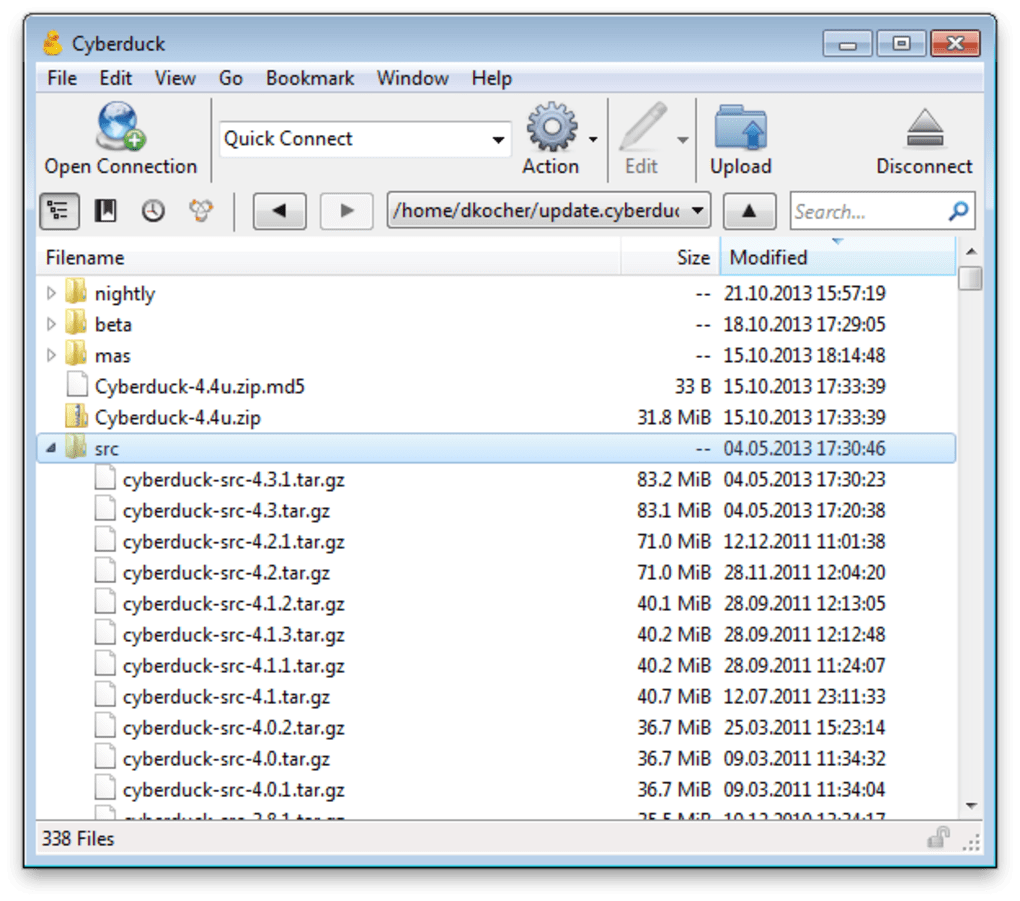
CyberDuck is another potential FTP and SFTP client that is compatible with Mac and Windows computers. It also supports WebDAV, Amazon S3, and more.
CyberDuck Features
- Cryptomator: Client side data encryption for better security
- Supports FTP, SFTP or WebDAV
- Supports transfer to cloud platforms such as Google Drive, Microsoft Azure and Dropbox
- Filename encryption
- Open-source, free
- Does not require account or registration
- Preferred code editor
- Bookmarking
- Drag and Drop feature
- Filter Field for quick search
- Quick Look allows a quick preview of files
- Resume and Transfer files
- Synchronize local directories with remote directories
- Supports multiple languages
- URL generator allows easy file sharing
- Includes integrations such as Keychain password protector and Bonjour auto-discovery platform.
Why do we recommend it?
CyberDuck stands out as a recommended file transfer solution for its combination of user-friendliness, multi-protocol support, and enhanced security.
Its seamless integration with the Mac environment, open-source nature, and customization options ensure an efficient and adaptable experience.
Whether you’re a beginner or an advanced user handling sensitive data, CyberDuck offers a cost-effective solution, appealing to a wide range of users.
Its interface is perfect for newbies and advanced users as it is easy to use. One thing that makes CyberDuck stand out is how seamlessly it integrates with your Mac environment. With just a click of a button, you can open files and edit them. Plus, you can even choose your preferred code editor.
For enhanced security of your data, this program uses Cryptomator interoperable vaults that perform client side data encryption. Plus, it also connects your website to cloud storage such as Dropbox or Google Drive and lets you share files quickly via web URLs.
As compared to other FTP clients, CyberDuck’s user interface looks quite modern and intuitive. Though it is free software, if you want to get a registration key or don’t want to see any donation prompts, you need to donate $10 to the developers.
Who is it recommended for?
CyberDuck is recommended for users seeking an accessible and secure file transfer solution, making it an ideal choice for both beginners and advanced users.
The open-source and cost-effective nature of CyberDuck ensures it is accessible to a diverse user base.
Download for Free:
https://cyberduck.io/download/
8. MonstaFTP
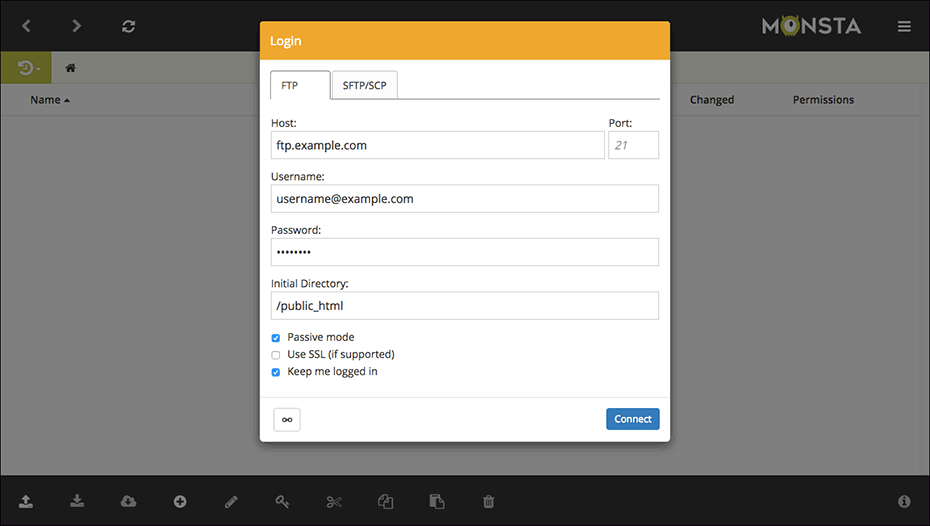
Developed in PHP and AJAX, MonstaFTP is a web-based FTP and SFTP client, unlike other clients which are desktop software.
Why do we recommend it?
MonstaFTP earns our recommendation for its unique web-based accessibility, eliminating the need for desktop software installation and enabling users to manage files and websites from any device with a web browser.
Its modern and intuitive interface caters to users of all levels of expertise, simplifying tasks like uploading, downloading, and code editing.
MonstaFTP also boasts a modern interface for user-friendliness, making it a perfect choice for beginners and pro users. You can use it to manage your website via browser, upload/download files, edit code, and much more.
The biggest benefit of MonstaFTP is that it is a file manager in the cloud. You can access your install from anywhere, through any device, which is not the case with other desktop software.
Who is it recommended for?
MonstaFTP is recommended for individuals and businesses in search of a versatile and accessible web-based file transfer and management solution.
MonstaFTP comes in Lite Edition and Business Edition. Lite Edition is free and has basic FTP functionality such as file transfers, folders or file uploads or downloads. Whereas, Business Edition is a paid version where you can customize your UI, restrict access to certain IP addresses and much more.
The web-based convenience makes it suitable for remote file management from any device with an internet connection.
MonstaFTP Features
- Supports FTP, SFTP and SCP protocols
- Code-friendly editor lets you edit your remote files on-screen
- Allows uploading of zip archives and extract on your server
- Intuitive interface: works seamlessly on all devices and screen sizes
Download:
https://www.monstaftp.com/download
9. CoffeeCup Free FTP
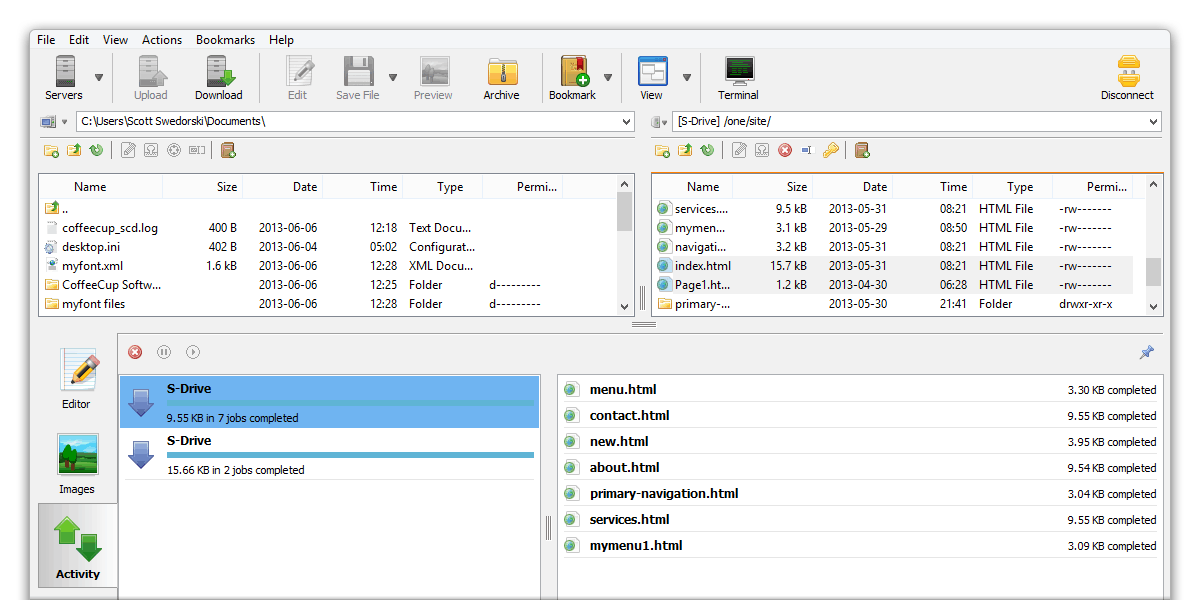
CoffeeCup is an impressive, free FTP client, recognized by the name ‘Free FTP’. The program is intuitive, fast and user-friendly. With just a click of a button, you can connect to a server and simply use drag and drop feature to seamlessly download or upload files to your server or computer.
CoffeeCup Free FTP Features
- Supports FTP, SFTP, FTPS and HTTP protocols
- Easy File Management
- ZIP Archive feature
- Drag and Drop Feature
- Allows you to set permissions for files and folders on your server
- Status bar shows important information regarding your session
- Combo Bookmarks
Why do we recommend it?
CoffeeCup Free FTP earns our recommendation for its combination of user-friendliness, multi-protocol support, and efficient file management features. With its intuitive interface and support for various transfer protocols, Status Bar and Bookmarks it enhances productivity, making it practical for effective file organization and management.
The ‘FTP Activity Pane’ shows you a clear status of your file downloads and uploads. Plus, you can even pause or cancel the file transfers. Not just FTP, but CoffeeCup Free FTP can handle SFTP, FTPS and HTTP protocols as well!
At the bottom, you’ll see a Status Bar filled with critical information about what’s exactly happening in your FTP session. It also encompasses amazing file management features for both local as well as remote environments.
Besides, the use of Bookmarks is the most impressive thing about this Free FTP client. Using this feature, you can save your place in a folder on the remote server, or your local device or both.
In just one click, you can even archive the entire remote directory in a local zip file. Such a feature comes most handy while backing up your website.
Who is it recommended for?
CoffeeCup Free FTP is an excellent choice for a small business owner running an e-commerce website. The user-friendly interface allows for easy management of product images, descriptions, and updates, ensuring a smooth online shopping experience.
With support for various protocols, including secure SFTP, the owner can confidently and efficiently maintain their website’s data and provide a secure platform for customers.
As the name implies, Free FTP is a free FTP client. But CoffeeCup also offers Direct FTP which is a paid FTP client packed with high-end features.
Download for Free:
https://www.coffeecup.com/free-ftp/
Conclusion
Most users just need a basic free FTP client with simple functionalities, but there are some advanced users who might need the premium offerings of paid versions. It all comes down to your personal preference.
If you like dual-pane view in the interface for your local and remote files, the WinSCP and FileZilla are two impressive, free FTP clients.
Whereas, if you would just like to see remote files on your server, without any local files or folders, you can opt for CyberDuck- it is clean, free and fast.
For high-grade security, reliability and regulatory compliance, you can try Serv-U Managed FTP Voyager.