


(SFTP or FTP) is an acronym for Secure File Transfer, which is a protocol used for reliable massive file transfer over the internet and around a network, these clients play a huge role when it comes to WordPress servers, management of the systems on a network, and file-sharing within a network or over the internet.
SFTP is one of the most secure ways of sending files over the internet or a network due to the encryption layer it adds to your files.
In this article, we will focus mainly on the Most Popular Windows and cloud-based SFTP clients and see what makes them worthy of being in the most popular list. At the same time, we will look at how they all fare up for your budget and who each client best serves: Either home users or Network Administrators.
There is a wide range of free and premium SFTP clients out on the internet for you to try, so with this article, we’ll try and help to narrow your search for the one that fits your needs by giving you the necessary point details of the 8 most popular of them that we can find.
Here’s the Best SFTP Clients for Secure File Transfers:
1. SolarWinds Solar-PuTTY
SolarWinds is very well known for making top-tier network tools, and SolarWinds Solar-PuTTY is just another one of their arsenal tools. Like always with SolarWinds products, Solar-PuTTY comes with a host of features, an excellent graphic user interface, and a vast amount of integration, allowing it to be very versatile in its uses.

Why do we recommend it?
SolarWinds Solar-PuTTY, a product from the reputable SolarWinds suite, stood out during our testing with its modern graphical user interface and versatile features. It successfully addressed our need for secure file transfers and ad-hoc file transfers. The integration of SSH (Secure Shell) added an extra layer of security, making it suitable for open networks.
Solar-PuTTY is a new and improved version of SolarWinds PuTTY, which has been built on and up from PuTTY with a much newer, more modern Graphic user interface and a few more features. The nice thing about Solar-PuTTY is that it is an SSH (Secure Shell) client too, so there is a decent amount of security while on an open network with the added encryption it offers.
Solar-PuTTY has been made to be a portable bit of software that is especially useful for ad-hoc file transferring, supporting drag and drop transfers, logging, storing credentials and sessions, and quite a bit more. They have also integrated a search feature that allows you to even search for saved sessions directly from the windows start menu while the program is not running. Now let’s have a closer and more detailed look into what makes SolarWinds Solar-PuTTY do what it does and how it does it.
Solar-PuTTY’s new GUI (graphic user interface) allows for multiple sessions from one tabbed view console. The GUI allows for quick access to the most recent and used sessions. Solar-PuTTY supports SCP (Secure copy protocol), SSH (Secure Shell), Telnet, and SFTP, so with all this security, your files are pretty much guaranteed to be safe and reliably transferred, be it on your network or over the internet. One of the things that make this program more portable is that you are able to save your credentials or private keys to any session for easy auto-login on the go. Along with Solar-PuTTY being made to be a non-install program just like the original PuTTY means that there is a small download, and then it’s only to run it.
With Solar-PuTTY, once you have a connection, establish you are able to automate all your scrips. There is also support for post-connection scripts. Solar-PuTTY has the capability to set up and have auto-reconnection on the previous connections you choose.
Who is it recommended for?
Solar-PuTTY is recommended for both network administrators and engineers. Its user-friendly GUI, support for multiple sessions, and compatibility with various protocols, including SCP, SSH, Telnet, and SFTP, make it a valuable tool for those familiar with SSH. The portable nature of the software, coupled with automation capabilities for scripts, enhances its appeal for users who prioritize security and efficiency.
Price: Solar-PuTTY is 100% Free to Download & Use for Life!
Download: https://www.solarwinds.com/free-tools/solar-putty/registration
2. WinSCP
WinSCP (Windows Secure Copy) seems to be quite the old dog in the game, being initially released in 2000, making it 20 years old. It is the only program the developers have, so it has been their primary focus for those 20 years. WinSCP being popular enough to boast about the 114 million downloads on their website, makes them renowned in the network administration world and is most definitely worth looking at.
Why do we recommend it?
WinSCP proved to be a reliable and powerful SFTP client during our evaluation. Its straightforward GUI, integration with scripting, and support for various protocols, including SFTP, FTP, and WebDAV, addressed our file transfer needs effectively. The program’s focus on simplicity and essential features made it a dependable choice.
WinSCP is a free window-based open-source client that handles SFTP, FTP, WebDAV (an extension of HTTP), Amazon S3, and SCP. WinSCP also uses SSH (Secure Shell). They have given WinSCP a very basic GUI (Graphic User Interface) that resembles either windows file explorer or Norton Commander. WinSCP modeled off the implementation of the SSH protocol from PUTTY and then the FTP protocol from FileZilla. Then WinSCP is also available as a plugin for Altap Salamander file manager.
With WinSCP, it is all about no-fuss with this program that works well. It’s designed with a basic user in mind with only the main things you need for a program like this. Now let us go have a closer look into this simple yet powerful tool and see what makes it tick.
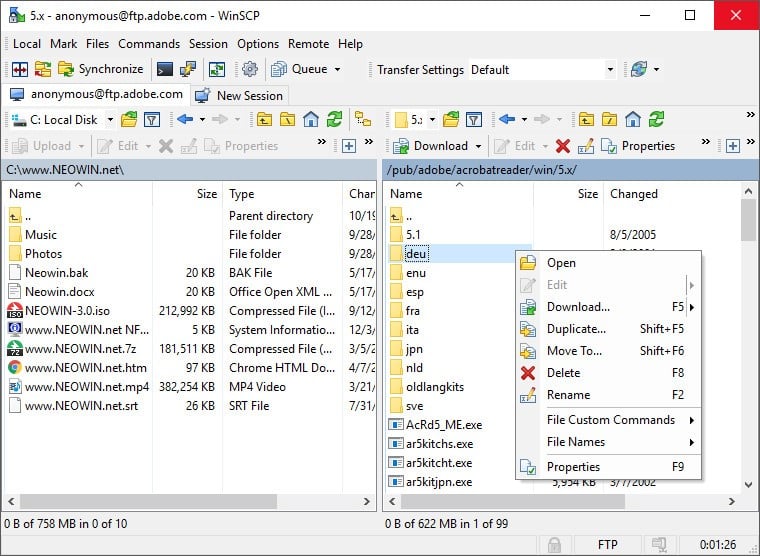
WinSCP is integrated with a scrip console in addition to the GUI. It offers commands that can be typed in interactively, read from scrips files, or even other sources. WinSCP, you can set up automated scripts like one to do automatic file updates, so as you change your file, it will automatically update the servers file too.
WinSCP, through default, will transfer files larger than 100KB by first creating a temporary file in case of any interruptions that could occur. It will just pick up where it left off.
WinSCP has integrated features such as a text editor, SSH password, keyboard-interactive, public key, and Kerberos (Global Site Selector) authentication. With the website offering 2 versions, the standard install program and then the portable executable package, this allows room for choice.
The 2 types of GUI’s they have given WinSCP both have drag & drop functionality at the core, even down to being able to drag & drop shell extension, improving the user’s experience and capability of uploading and downloading files.
Who is it recommended for?
WinSCP is recommended for network administrators and users seeking a no-fuss, easy-to-use SFTP client. Its basic GUI, script console, and automated scripting capabilities cater to users with varied technical expertise. The ability to handle large file transfers and its stability over the years make it suitable for both experienced administrators and home users managing household networks.
Price: Free open-source downloadable from their main website.
Download: https://winscp.net/eng/download.php
3. FileZilla
FileZilla is an open-source (GNU General Public License) FTP client software that has been released to operate well on Windows, Linux, and Mac OS X.
Why do we recommend it?
FileZilla, as an open-source FTP client, impressed us with its robust features and support for various protocols, including FTP, FTPS, and SFTP. Despite some criticisms about potential bloatware, FileZilla excelled in providing a user-friendly interface, drag-and-drop functionality, and cross-platform support. The extensive user community added value, offering support and resources.
FileZilla is another version of SFTP client software that is popular and well established. There is also a “pro” version of FileZilla with extra added support for WebDAV and then a host of cloud storage providers (Amazon S3, Dropbox, etc.) as well.
FileZilla does support for drag and drop, transfers of files 4GB and up in size, with adjustable transfer speed limits, and much more in its bag of tricks.
One of the best and most significant benefits of FileZilla is that there is a sizeable open user community. So if you get confused and are stuck trying to figure somethings out on your own and run into a dead-end, this could be a convenient free resource to help you when you need it the most.
However, one of FileZilla’s most extensive criticisms due to it being freeware is it has been said it tries to add “bloatware” during the install. While this is a forgivable downside to this program, seeing they are trying to make some money, this could be a bit off-putting to many users.
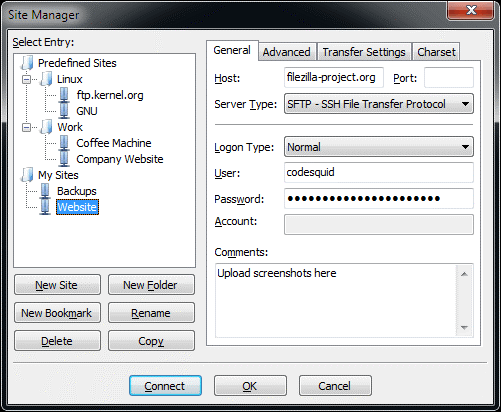
FileZilla is quite an easy to use program thanks to a reasonably necessary UI (use Interface). With the split-screen view, it will allow for directory comparison. The UI layout has been incorporated with tabbed style functionality. They have built FileZilla as a Cross-platform program that Runs on Windows, Linux, *BSD, Mac OS X, and more.
FileZilla comes with integrated support for IPv6 built into it. Along with HTTP/1.1, SOCKS5, and FTP-Proxy support. Powerful Site Manager and transfer queue to keep the flow of all the queued-up transfers in neat and tidy order. Filename filters will offer the user much easier search and recall of files. The network configuration wizard makes for a vastly easier setup and achievement of a short up to running time.
FileZilla has a remote file editing feature that saves time and storage space on having to transfer it over in order to edit it. There is a logging to file feature though there is not much information into exactly what information it will be logging, presumably transfer data logging.
FileZilla’s synchronized directory browsing allows you to be able to see what is going on with the remote client and the one the user is using and a form of real-time viewing.
Who is it recommended for?
FileZilla is recommended for users looking for a feature-rich and easy-to-use SFTP client. Its support for drag-and-drop, directory comparison, and synchronized directory browsing make it suitable for network administrators and home users alike. The broad platform compatibility, including Windows, Linux, and macOS, enhances its versatility.
Price: FileZilla Is a completely free bit of software.
Download: https://filezilla-project.org/download.php?platform=win64
4. CyberDuck
CyberDuck has been released as an open-source and free remote file transfer client with support for a wide array of integrated protocols and cloud storage hosts.
Why do we recommend it?
CyberDuck stood out with its broad protocol integration support, including FTP, FTPS, SFTP, WebDAV, and various cloud storage providers. During testing, its seamless integration with cloud services like Amazon S3, Google Drive, and Dropbox, along with robust security features, addressed our diverse file transfer requirements effectively.
CyberDuck is a strong alternative for users that wish to try something else other than FileZilla to see if they would like to actually move away from FileZilla, for it offers quite a few of the same features and the ability to be able to import bookmarks from FileZilla along with a few of the other applications.
CyberDuck has an excellent feature set when it comes to the protocol integration support (FTP, FTPS, SFTP, and WebDAV are all supported by CyberDuck) and the level of security it has, But what really stands out is its support base for a wide host of cloud storage providers that it can be integrated with.
CyberDuck is boasting support for Amazon S3, OpenStack Swift, Backblaze B2, Microsoft Azure & OneDrive, Google Drive, DRACOON, and then Dropbox. Let’s now go have a bit of a look into what makes CyberDuck tick and be so great.
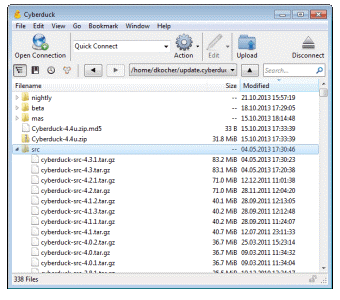
FTP (File Transfer Protocol) is a very widely tested and used protocol used for implementation for the very best interoperability with support for FTP over secured SSL/TLS connections. S3 Connect is used to be able to connect to any Amazon S3 storage region with support for the large file uploads that are sometimes needed.
CyberDuck is capable of allowing access to Google Drive without synchronizing documents to your current local disk. If you were to have access to a server using a secure shell (SSH2), most likely, an SFTP-server is installed as well. This allows you to browse the server with CyberDuck. With support for strong ciphers, a public key, and two-factor authentications.
With WebDAV (Web Distributed Authoring and Versioning) integration into CyberDuck interoperability for ownCloud, box.com, SharePoint, and BigCommerce, along with many other WebDAV servers, is a breeze.
Google Cloud Storage integrated into CyberDuck Connect to buckets (Website Endpoint) in Google Cloud Storage so you can configure bucket logging to get statistics with Qloudstat.
Who is it recommended for?
CyberDuck is recommended for users exploring alternatives to traditional SFTP clients, especially those heavily invested in cloud storage. Its support for multiple protocols and cloud services makes it versatile for network administrators and home users. The ability to import bookmarks from other applications adds convenience for users transitioning from FileZilla or similar clients.
Price: CyberDuck is licensed under the GPL, so it is completely open-source and free.
Download: https://cyberduck.io/download/
5. MonstaFTP
MonstaFTP has decided it is going to use a simple approach to FTP. It is using a PHP and Javascript-based application that runs on a browser type website, which effectively is turning your browser into the FTP client that you will operate with. While this now means that it will be up to the network administrator who will need to set it up on the network and thus costing him a bit of time, which intern isn’t going to be the ideal solution for everyone to use.
Why do we recommend it?
MonstaFTP takes a unique approach, utilizing a cloud-based PHP and Javascript application accessible through a browser. While it requires setup by a network administrator, its cloud-based nature enables on-the-go access and simplifies management. The ability to upload and extract .zip files, customize the interface, and support drag-and-drop functionality impressed us.
MonstaFTP supports FTP, FTPS, SFTP, and SCP. It enables users to upload .zip type files and extract them on the server-side of the network, options to edit files on-screen in the client, customize the user interface to how you would need it to work, and do a rebranding of the software.
As a network administrator, this program could be a good solution if you are looking to make life easier for your network users. As opposed to making each one of them having to have a client on their own pc, you can then provide technical support for the client on the server-side of things. With the UI (User Interface) having the ability to drag and drop from Windows Explorer as a nice extra plus as well. Now let’s go and take a quick look into the breakdown of the features and details on MonstaFTP.
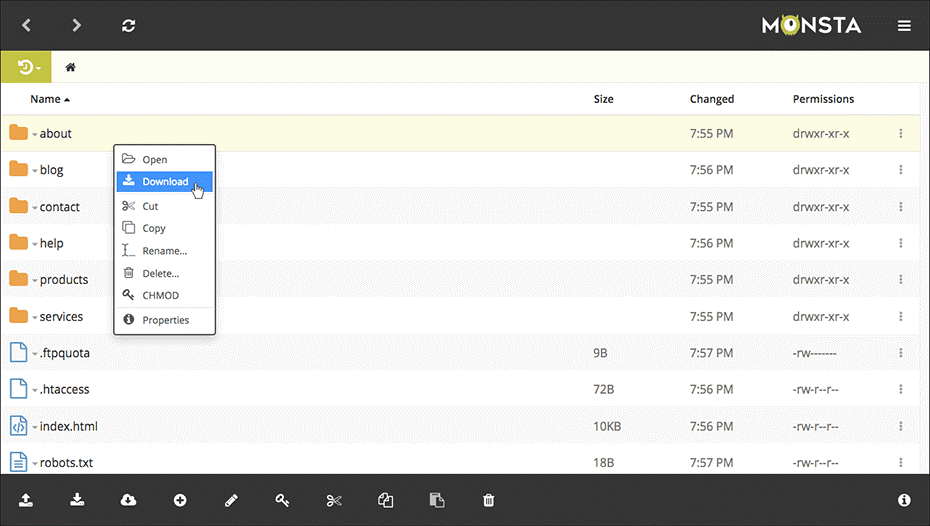
MonstaFTP is a file manager in the cloud. Traditionally, FTP software would be downloaded and/or purchased then installed on the user’s desktop. With MonstaFTP being more on-the-go, it is based in the cloud, so you can access your install from any device anywhere in the world.
In today’s world, security is everything, so it is recommended while using your MonstaFTP install over an SSL in order to protect your data while it transits to your network. However, FTP itself is not that secure, so it’s always recommended to use a MonstaFTP’s SFTP/SCP (secure FTP) connection option, where it is possible.
Within the Business Edition, you are able to completely customize the user interface in order to suit your own needs.
This is including fixing your host address, disabling any login form, toolbar, and menu options, restricting any access to specific IP addresses, and much more. In the Host edition, you are also able to add your own logo and color scheme along with being able to enable logging indirectly from your very own customer panel.
Who is it recommended for?
MonstaFTP is recommended for network administrators seeking a cloud-based file manager. Its simplicity, drag-and-drop functionality, and browser-based accessibility make it suitable for users managing files on the go. The Lite Edition offers a free option, making it accessible for home users with basic file management needs.
Price: The Lite Edition is free to use, but if you are looking for more, then you’ll need to upgrade to the Business at $49 per year.
Download: https://www.monstaftp.com/download
6. CoffeeCup Free FTP
CoffeeCup’s free version of their FTP Client comes as a free FTP, FTPS, and SFTP client for Windows-based systems. Then, In addition to those host of file transfer protocols, it can also support HTTP. The GUI (graphic user interface) supports drag and drop functionality.
Why do we recommend it?
CoffeeCup Free FTP, despite displaying ads in the free version, proved to be a reliable FTP, FTPS, and SFTP client for Windows. Its support for various protocols, drag-and-drop functionality, and features like archival and combo bookmarks addressed our basic file transfer needs. The user-friendly interface and status bar provided an informative and straightforward experience.
If you somehow can look past and deal with the adverts across the bottom of the client window, it is a reasonably easy to use application. The free client version of CoffeeCup FTP is supporting archival, combo bookmarks, historical file information, and a bunch more features.
This program’s paid version adds a few more like Direct FTP features, a built-in code editor with code completion ability.
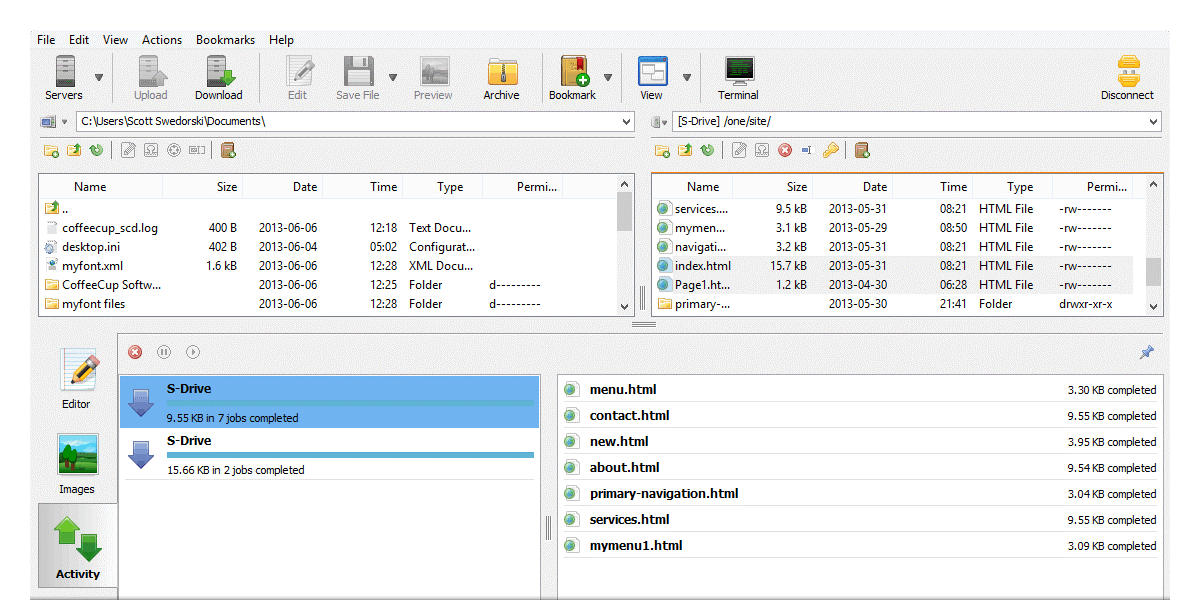
With Free FTP, you have the choice between an array of different protocols, including FTP, SFTP, FTPS, and their different methods of encryption. It can even handle HTTP.
FreeFTP will help you if you ever forget where you stored any important files. FreeFTP remembers where you’ve browsed during a session on your local computer and keeps that information neatly tucked away in the drop-down menu. Accessing folders you’ve already been to is quite effortless. You just need to click the drop-down menu, then select the folder, and you’re there.
With FreeFTP offering a full-fledged local with a remote file management feature, so you are able to add, move, and launch files all from withinside the application. All of it working just like you would expect in normal windows file explore. Just double-click an exe (executable) file to launch it. The drag and drop feature allow files to be dragged in and out of the local and remote file browser, and they’ll be moved accordingly.
At the bottom of the Free, FTP UI is a handy, info-packed Status bar for any at-a-glance info. This area of the UI contains useful information about what is going on with your FTP session. This will keep you on the ball whether you are managing just a small file move or hundreds of them.
Who is it recommended for?
CoffeeCup Free FTP is recommended for users seeking a free and easy-to-use SFTP client on Windows. Despite the ads, its functionality, including drag-and-drop and local with remote file management, makes it suitable for network administrators and home users. The option to upgrade to a paid version adds additional features for those requiring more advanced capabilities.
Price: There is both a free trial version and a full-featured paid version for $39
Download: https://www.coffeecup.com/free-ftp/
7. Progress WS_FTP Pro
Progress WS_FTP Pro (formerly known as IPswitch) offers a robust WS_FTP Professional Client for Windows with a host of advanced useful features. According to Progress’s law, this well-known file transfer client is vastly trusted by over 40 million users in the world today.
Why do we recommend it?
Progress WS_FTP Pro, a trusted file transfer client with over 40 million users globally, impressed us with its support for multiple transfer protocols, including SFTP, FTP, FTPS, HTTPS, and HTTP. Its emphasis on security with 256-bit AES Transport Encryption and various validation methods contributed to a robust and secure file transfer experience.
The IPswitch client program is highly expandable. If one protocol were to not work, you would not need to immediately start to find another bit of software to be able to get the job done. With many cases preferring HTTPS or HTTP protocols transfers to SFTP or FTP protocols, the additions of those two protocols being included is a big plus side.
With WS_FTP Professional Client taking security so very seriously. Having 256-bit AES Transport Encryption can really add an excellent layer to secure file transfers, file integrity is validated using a host of methods including SHA512, PGP file encryption is also supported cryptography is then FIPS 140-2 validated. These features are a massive plus for the business users looking to remain compliant and users that place a high-security value.
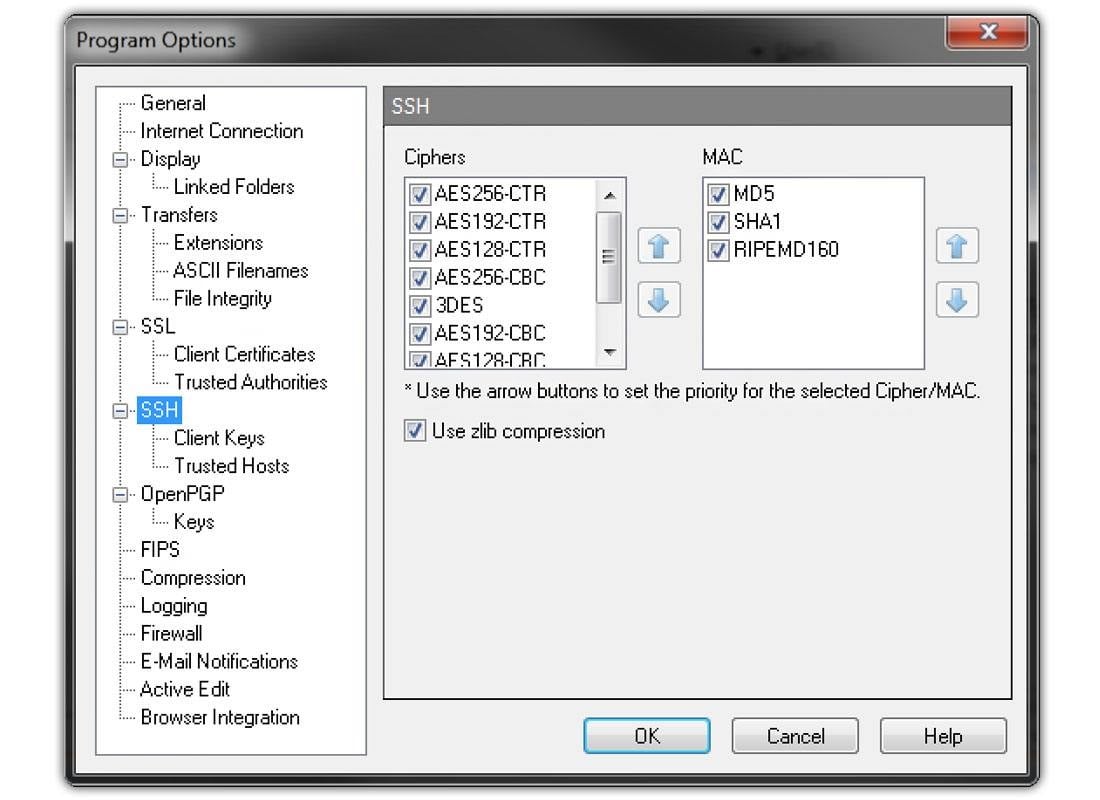
WS_FTP Professional Client has the ability to be able to set up automated tasks and back up data. For an example, if you want to automate the deletion of a file from location A once it is done transferring to location B, you can set it up that the process will happen along with the transfer.
With WS_FTP, you can schedule and compress backups of essential data to a bunch of different locations on the network, including HDD (hard drive disk), network shares, remote and local file servers, or even internet hosting services. The synchronization feature will help you keep various directories in sync with each other and can help streamline things like administration.
In addition, this program from Progress comes incorporated with many other premium features that help make this a truly holistic file transfer client solution. These features, to name some are email notification, unlimited amount of connections, proxy server support, logging, the ability to create and view thumbnails in the GUI (think a bit along the lines of WordPress), and then still more.
Who is it recommended for?
WS_FTP Pro is recommended for business users and network administrators prioritizing security and compliance. The inclusion of advanced features such as automated tasks, backup scheduling, and synchronization makes it suitable for users handling critical data. The support for HTTPS and HTTP protocols adds flexibility for users who prefer these transfer methods.
Price: From the Progress website, there is a free trial version, and 3 different paid plans first at $49.95 supporting single-user and 30-day warranty, then the middle plan for $89.95 with a single user, with 1year support, then the last at $390 multiple users, with standard support.
Download: https://www.ipswitch.com/forms/free-trials/ws_ftp-pro
Conclusion
This will bring us to the conclusion of our list of the Best SFTP clients. With all of these being so feature-packed and powerful in their own way, choosing the best one for you will need to come down to what your needs are and which one of these have the features to fulfill those needs best.
All of these SFTP clients will suit a network administrator very well due to them all supporting the main SFTP protocols. The nice thing about all 8 of these clients is that they all offer some form or other free trial allowing you to give them a good try before settling with the one that will best suit your needs.
So we hope that through this article, we have been able to help narrow the field a bit in the complicated world of SFTP clients.