


Traceroute is a tool that many IT pros can’t live without. It is a network application that sends data requests to a target device, and then relays information about its trip both to and from the target. This is useful in troubleshooting network issues and also in checking the quality of the connection being tested.
Each hop displays the latency of the transition from device to device and can show you where a failure in the trip occurs. You can use this information to isolate troublesome network devices and it makes your job so much easier, taking the guess work out if your investigation.
Here is our list of the best Traceroute alternatives:
- ManageEngine OpManager – EDITOR’S CHOICE A system of network and server monitors that can also track activities on cloud platforms and in virtual systems and it includes Ping and Traceroute. Runs on Windows Server, Linux, AWS, and Azure. Get a 30-day free trial.
- Site24x7 – FREE TRIAL Within its hosted monitoring suite, this platform includes path analysis among its network troubleshooting functions, giving teams a Traceroute-like way to follow network routes. Get a 30-day free trial.
- ManageEngine OpManager Nexus – FREE TRIAL An extensive bandwidth monitoring tool that identifies individual hops, tracks packet time, and measures outages across your network. Download a 30-day free trial.
- Path Analyzer Pro This utility provides a range of network address services and also includes Ping and Traceroute. Available for Windows, macOS, and Linux.
- VisualRoute This pack of network troubleshooting tools includes Traceroutre as well as a port scanner and network discovery. Available for Windows and macOS.
- Open Visual Traceroute This utility shows your route overlaid on a real world map and also provides other tools, such as a packet sniffer. Runs on Windows, macOS, and Linux.
- PingPlotter Ping and Traceroute presented as data and graphs that will help you spot connection quality of service issues. Available for Windows, macOS, and iOS.
- SolarWinds TraceRouteNG This free software package provides a tabulated layout of a standard command line Traceroute but as a GUI utility within the Windows environment.
- CountryTraceRoute A straightforward tabulated Traceroute for WEindows that is free to use.
- NetScanTools This package provides Traceroute, packet capture, and a traffic generator in free and paid editions. Runs on Windows.
You might be asking yourself why, if traceroute is so good then do we need an alternative? There are many offerings out there that perform the same functionality as traceroute, but with additional features as well.
Traceroute has been around for many years, and it is the most basic of command line tools.
This means that there is not much in the way of a graphical user interface or experience, requiring users to have knowledge of how the command line works.
These newer alternatives make the process of troubleshooting and diagnosing network issues a much simpler affair but making the applications modern and easy to use.
We will be looking at some of the most popular products that are currently available, and we will see how you can use them to get the job done.
The Best Traceroute Alternatives
1. ManageEngine OpManager – FREE TRIAL
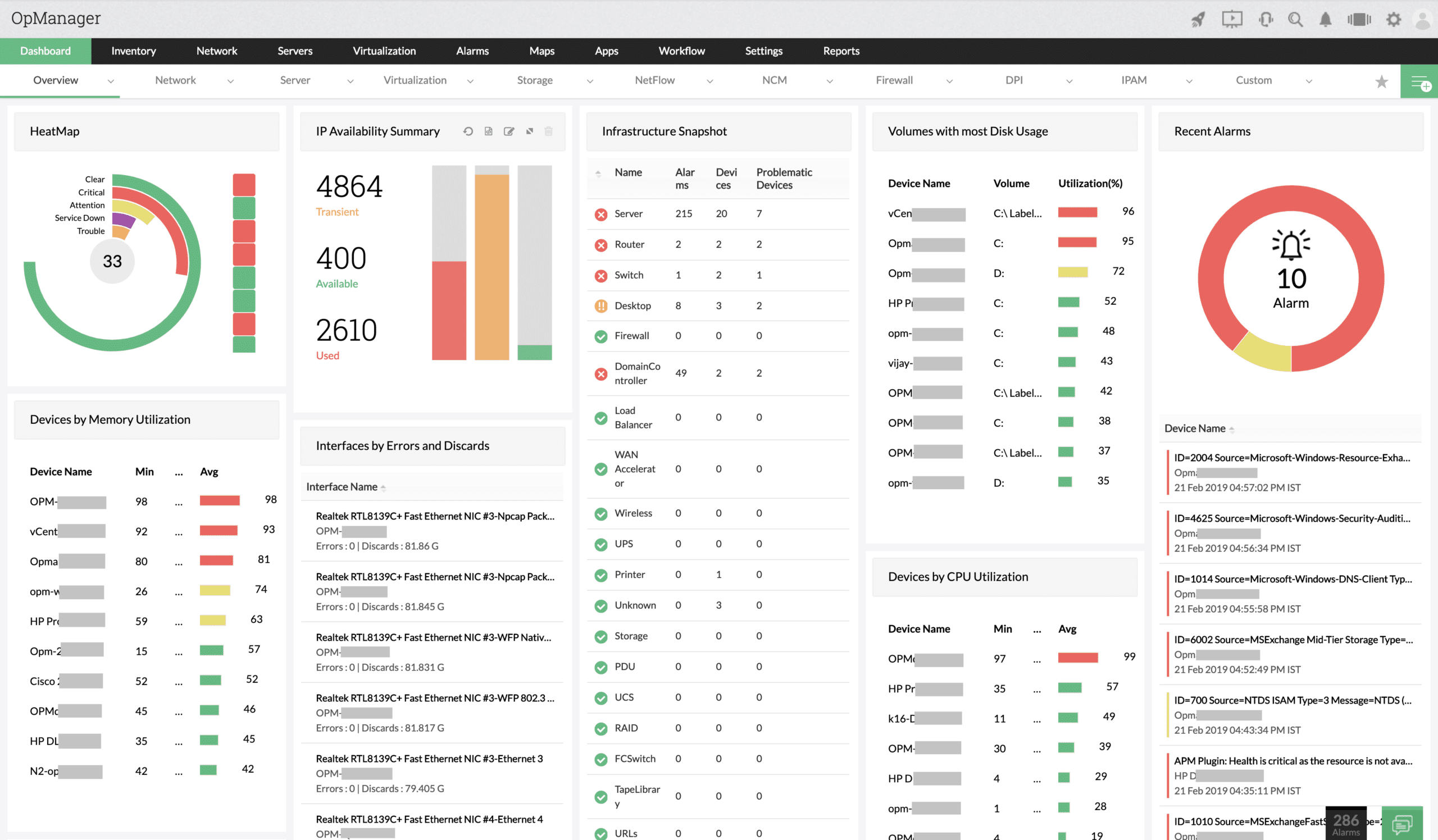
ManageEngine OpManager is an automated network monitoring package that also covers servers, virtual systems, and cloud platforms. As well as providing automated systems, this package includes troubleshooting tools. Traceroute is one of those testing tools and Ping is another. The package actually has three types of Ping.
Why do we recommend it?
ManageEngine OpManager is recommended for its comprehensive set of features, which include automated network monitoring for servers, virtual systems, and cloud platforms, along with troubleshooting tools like Traceroute and Ping. It provides a comprehensive view of your network and can help identify and resolve issues efficiently.
The package also provides DNS resolution for each stage in a path to a destination. The tool can be used to test paths across a network or across the internet to a remote location. The service is integrated into the dashboard of OpManager, which is mainly filled with pages that show the results of the automated features in the package.
The full package is available for on-premises installation on Windows Server or Linux. Customers who want cloud-hosted systems can access the OpManager package on AWS Marketplace and Azure Marketplace. Those AWS and Azure versions are not SaaS packages, however, they are software packages that you manage yourself and host it on your cloud virtual server accounts.
Who is it recommended for?
ManageEngine OpManager is recommended for IT professionals and network administrators with experience in managing medium to large-sized companies’ networks. It’s suitable for organizations of various sizes, particularly those with complex network infrastructures that require advanced monitoring and troubleshooting capabilities.
You can access OpManager with a 30-day free trial.
Pricing: There are four editions of OpManager:
- Free for 3 devices – $0
- Standard for 25 devices – from $245
- Professional for 25 devices – from $345
- Enterprise for 250 devices – from $11,545
EDITOR'S CHOICE
ManageEngine OpManager is our top choice as a Traceroute alternative because it combines Ping analysis with hop-by-hop troubleshooting. The package brings in network monitoring functions that reach well beyond the narrower role of Traceroute. Traceroute remains useful for diagnosing network problems, but it does not provide the deeper analysis or the automation that modern IT environments often require. OpManager includes a multi-hop tracing utility that lets administrators examine performance across multiple routes in detail, which makes it easier to isolate bottlenecks at any point in the movement of data. Its built-in maps and visualizations also help users understand network topology quickly and spot affected nodes more easily. Proactive monitoring is included through alerts and automated responses, allowing issues to be addressed before they begin to affect performance. The system can monitor a wide range of network devices, including routers, switches, and firewalls, giving organizations broader visibility into overall network health. Its reporting functions support historical analysis, trend tracking, and longer-term evaluation of network performance. Integration with other ManageEngine tools, including ServiceDesk Plus and Applications Manager, adds to the platform’s value and makes it a unified choice for network and IT infrastructure monitoring.
Download: Start a 30-day FREE Trial
Official Site: https://www.manageengine.com/network-monitoring/download.html
OS: Windows Server, Linux, AWS, and Azure
2. Site24x7 – FREE TRIAL
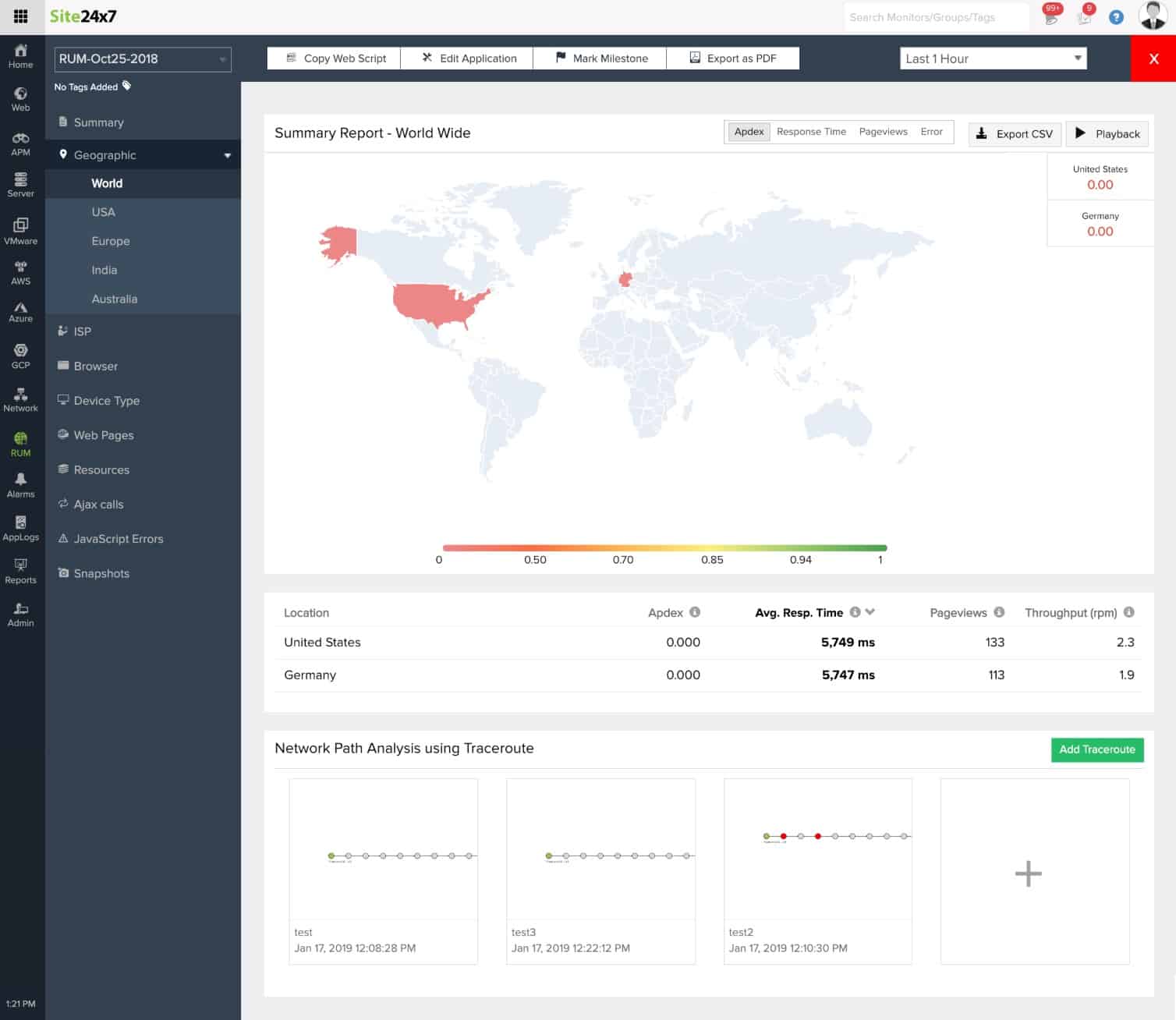
The Traceroute function in Site24x7 is built as a network diagnostic utility for following the route data packets take from one network to another. It does this by sending Internet Control Message Protocol, or ICMP, Echo Requests with Time to Live values that increase step by step. As those packets move across the route, routers return ICMP Time Exceeded messages when the TTL expires, exposing the IP address at each hop.
That path analysis gives users visibility into the route their traffic follows and shows where delays or other problems appear along the way. This is especially useful for troubleshooting network performance because it reveals latency and packet loss at each hop rather than only at the destination.
By presenting response times for every hop, the tool makes it easier to identify where bottlenecks or failures are occurring. If a specific router or network segment is dropping packets or introducing delay, the results make that visible so administrators can target corrective action more accurately. This is particularly valuable in multi-hop environments, including networks that span different service providers or cloud infrastructures.
Rather than existing as a separate tool, this Traceroute alternative sits within the wider Site24x7 monitoring suite. It is available from the same dashboard used for server monitoring, uptime tracking, and performance monitoring. Teams can schedule recurring Traceroute tests to observe network behavior over time, and the results can be reviewed either live or through historical reports.
Because performance degradation can be identified early, administrators can investigate and resolve issues before users are affected. Its integration with the rest of the monitoring suite also adds context by presenting network health and application health together. Try Site24x7 with a 30-day free trial.
3. ManageEngine OpManager Nexus – FREE TRIAL
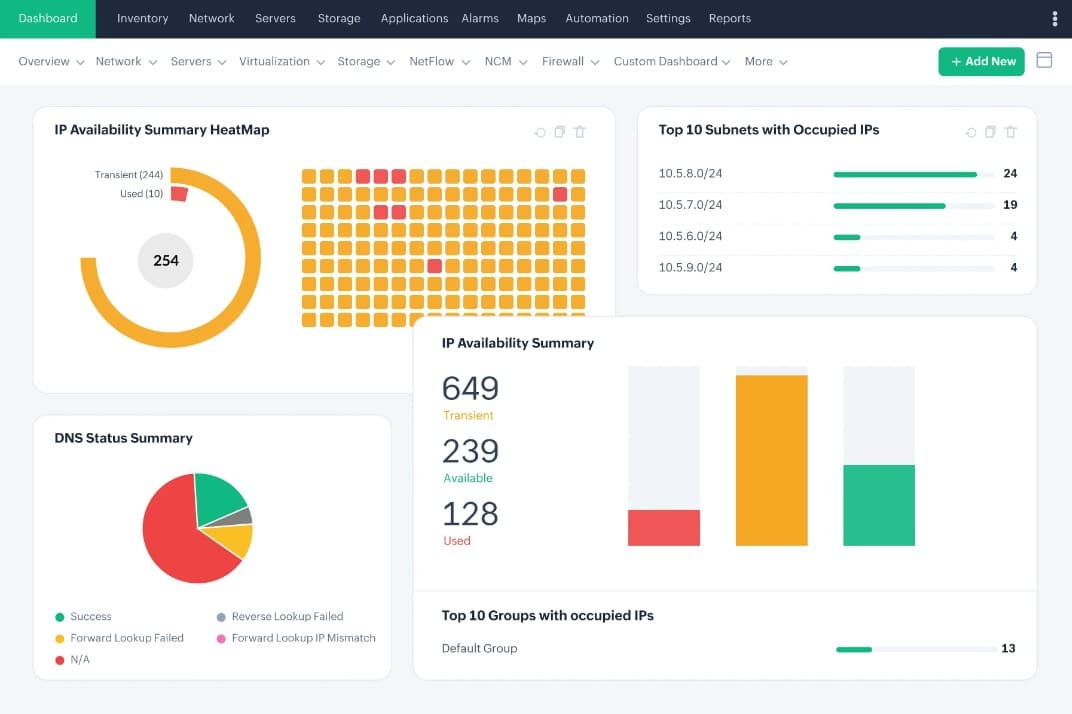
ManageEngine OpManager Nexus, formerly OpManager Plus, is a comprehensive infrastructure monitoring solution that offers detailed network path analysis. It identifies individual hops and tracks the data packet time between these hops to better understand the root cause of issues. It also uses TCP SYN packets instead of ICMP or UDP packets to ensure that that newer systems don’t block packets.
Another notable aspect of this tool is its visualization. It provides a bird’s eye view of all the network paths in your infrastructure, so you can easily identify the problem and troubleshoot it. Specifically, the dashboard displays the path taken by each packet, so it is easy to pinpoint the exact location where the packet is getting lost. Such comprehensive tracking reduces latency and jitter as well.
OpManager Nexus has good alerting capabilities too. Using this tool, you can create notification profiles, and accordingly, the tool will send alerts to your preferred channels.
This tool’s pricing depends on the edition you choose. The Professional edition starts at $1,233 for 50 devices while the Enterprise edition is priced at $19,995 for 1000 devices. Start a 30-day free trial.
4. Path Analyzer Pro
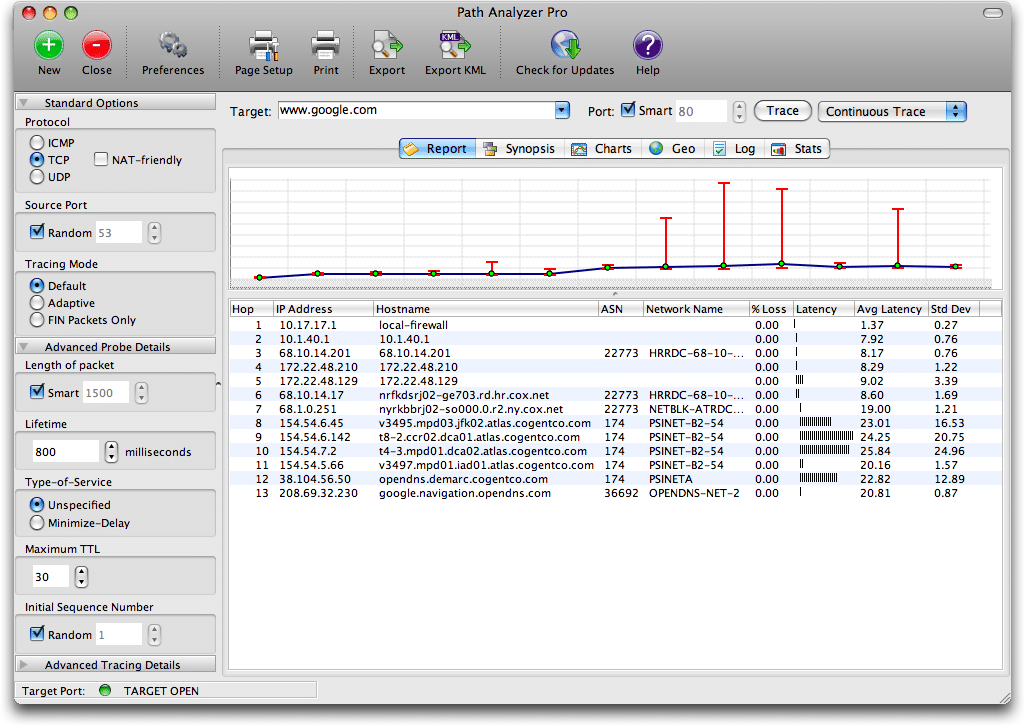
Path Analyzer Pro is another trace route alternative that allows users to perform WHOIS, DNS, and pinging operations from the same application. With this tool you can quickly and easily check the current route that your network is tracking and identify any choke points and issues. This application offers far more than a traditional trace route such as path discovery and. This allows you to detect firewalls and also traverse them so that your requests are not blocked, in some instances. You can also expect multi-metric hops, a graphical interface, reporting and analysis and other features.
Features of this product include:
- Speeds up to 20 times faster than legacy trace route functions
- It has report generation for presenting a professional information source to your management teams
- Simple interface that is intuitive and easy to use
- A charting function that highlights issues easily
- A mapping function that lets you zoom in on locations based on IP addresses
- Tons more features listed here
Why do we recommend it?
Path Analyzer Pro is recommended for its comprehensive network analysis features, including WHOIS, DNS, and ping operations, which can be performed from a single application. It offers more than traditional traceroute tools, allowing users to quickly identify network routes, choke points, and issues. Additionally, its compatibility with both Windows and macOS makes it versatile for network engineers and technicians using different operating systems.
Many people run MacOS, so having the option to install a network diagnostic suite such as this on that platform will make a lot of remote troubleshooting call outs a lot more convenient for engineers and technicians that prefer to run the Apple based operating System. That’s not to say that Microsoft Windows users have been left out in the cold though. Windows is also supported and this application runs from there with no problems.
It allows you to dig deeper into an IP address and discover information such as email address associations, network paths and other network information. You can track and find network availability and performance problems and detect SIP, router, server and network problems too. Firewalls can often block connections, so finding out if one is blocking you is important as it helps you to differentiate between a connection issue and a firewall blocker. You can graph out the traffic and routes that you are monitoring which will give you a visual idea of what is happening.
Who is it recommended for?
Path Analyzer Pro is recommended for network engineers, IT professionals, and technicians who need a versatile tool for performing comprehensive network analysis, including tracing routes, identifying choke points, and troubleshooting network issues. It’s suitable for individuals and organizations of various sizes looking for a user-friendly solution for network diagnostics.
Here is a download link if you would like to try it out for yourself. Pricing starts at $29.95 for the Personal Snapshot, $49.95 for the Personal Premier, $89.95 Business Premier, $399 for Business Premier which covers 5 users, and Business Premier for $749 for 10 users.
5. VisualRoute
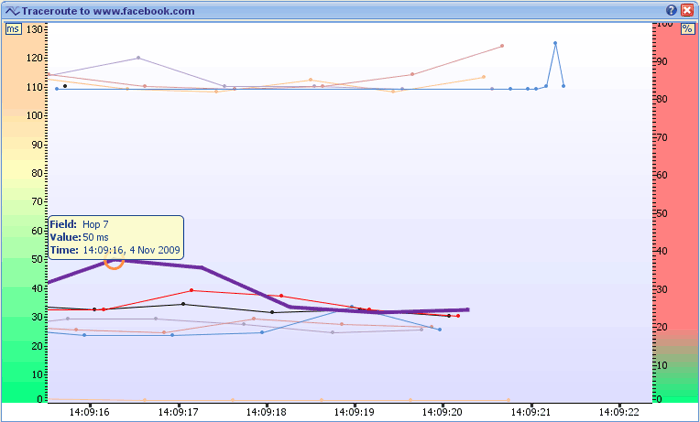
VisualRoute is another graphical trace route alternative that gives you a better idea of how your network connections are performing. It integrates multiple tools as into its main console so that you can enjoy the benefits of multiple data sources. From these tools you can get graphical connection details. You can receive packet loss and latency issues per network hop, which is you can then expand upon with additional details by simply hovering the mouse over each individual hop.
Why do we recommend it?
VisualRoute is recommended for its rich set of features, including graphical traceroute analysis, packet loss and latency monitoring, IP location reporting, WHOIS lookups, port testing, and probing. These features provide network professionals with valuable insights into network performance and issues, making it an excellent choice for diagnosing and troubleshooting network problems. Its ability to generate reports, use 2D and 3D maps, and perform comprehensive network tests makes it a powerful tool for individuals and organizations seeking a thorough network diagnostic solution.
IP Location Reporting is also available in this tool. There are physical geographical details available too. This means that servers, routers and other devices will report back to you about where they are located. This is useful if you experience network outages in a specific geographical location, allowing you to map out the fault according to the area that it occurs. Like other applications in our review, VisualRoute also provides the tools to perform WHOIS Lookups so that you can determine who the owners are of an IP address registration.
There is a port testing and probing feature that lets you perform DNS tests, giving you a much more comprehensive tool than the standard trace route applications.
It has proprietary technologies called OmniPath and NetVu which offer multiple path and multiple route technologies which can give you detailed information about load balancers and network nodes. This is an advanced suite of tools that will give you a much more detailed view about the current state of your data networks and paths. It also provides you with the ability to test specific applications and programs.
Visualware also provides their own servers for you to test your internet connection against. They have 2 servers that are based in Washington and London. This is just another testing avenue that you can use to try and pinpoint network providers such as ISPs and third-party providers.
Who is it recommended for?
VisualRoute is recommended for network professionals with varying levels of experience, from beginners to advanced users, who need to analyze and troubleshoot network performance and issues. It is suitable for organizations of different sizes, including small businesses, mid-sized enterprises, and large corporations, as its features and capabilities can be adapted to meet the specific needs of each organization.
VisualRoute’s feature set, including its graphical traceroute and IP location reporting, can be used to quickly identify network bottlenecks and latency issues. For example, a network administrator can use VisualRoute to pinpoint the exact location of a network problem, whether it’s due to a slow server or a congested network link, and take corrective action.
There is also a reporting service that allows you to identify long term trends through continuous testing. If you would like to try it out then you can find the download link here.
Home licensing options start at $59.95 and Business Use Licenses start at $89.95.
6. Open Visual Traceroute
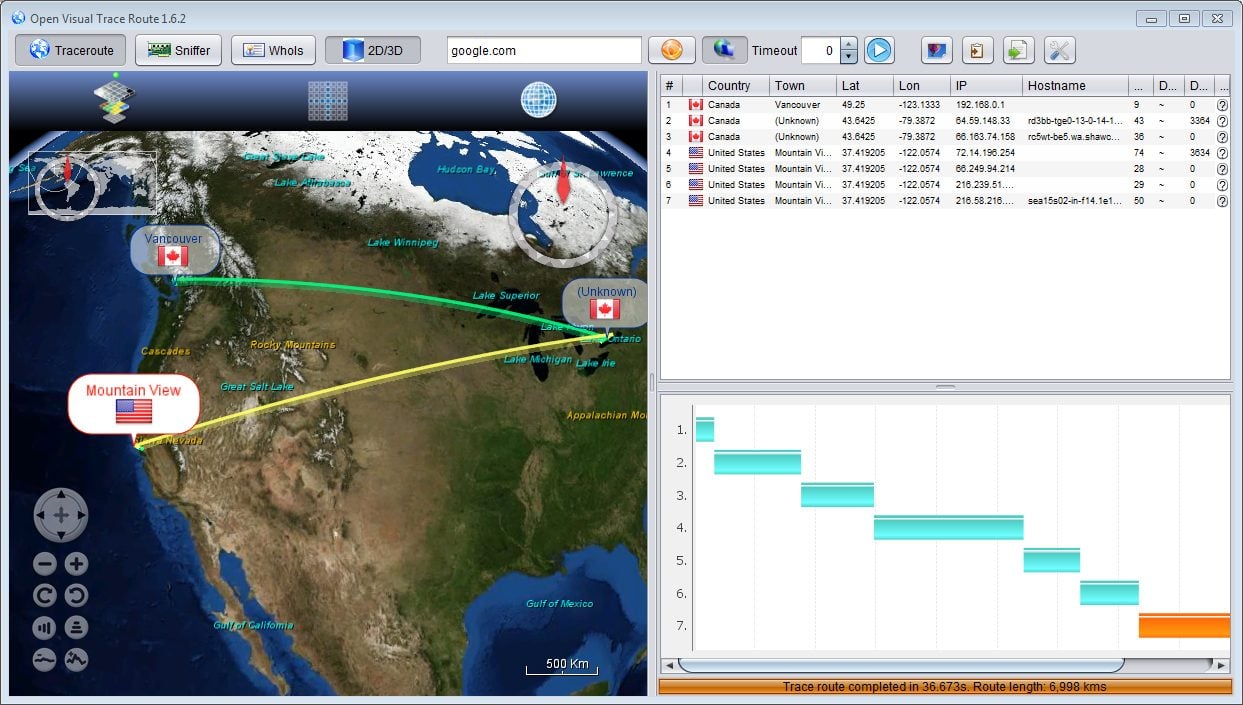
OpenVisual Traceroute is a free to use, open source application on our list. It is a fully featured tool that operates as a trace route tool at its core.
Why do we recommend it?
Open Visual Traceroute is recommended for its user-friendly interface, 3D world mapping capabilities, and built-in packet sniffer. These features make it a powerful tool for network diagnostics and troubleshooting, allowing users to visually trace network routes, analyze packet data, and identify network issues efficiently. It’s particularly valuable for IT professionals and network administrators who prefer open-source solutions and need a comprehensive traceroute tool.
It has a 3D world mapping section that gives you a geographically accurate map which overlays your IP address and what path the network packets take from the source to destination IP address. Another great feature that this open source project offers is a built-in packet sniffer.
It allows you to investigate the information within the packets of data and will give you greater insight into the nature of the traffic that your connection is sending and receiving.
Like some of the other examples that we have already looked at, there is also a Whois option that will give you the ability to find out who an IP address or DNS name is registered to.
The overall appeal of this application is the fact that you can quickly and easily identify the quality of the links of your organization while visualizing the regions and areas that you are experiencing issues in. Once you have identified trouble spots then you can call out the correct teams to go to the remote sites to investigate and repair the issues as you find them.
It is multi-platform capable which means that it will run on Microsoft Windows, Linux and Mac OS too. This makes it especially useful if you are using it in an environment where different operating system types interoperate with one another.
There is also the ability to use 2D maps as well as 3D maps so that you can give your data new meaning and impact, especially when you need to show it to a manager or colleague.
Who is it recommended for?
Open Visual Traceroute is recommended for IT professionals, network administrators, and anyone involved in network diagnostics and troubleshooting. Its user-friendly interface and advanced features make it suitable for individuals and teams working with network analysis and maintenance, regardless of company size or experience level.
Open Visual Traceroute’s 3D world mapping and packet sniffing features make it valuable for network administrators to pinpoint network issues, visualize routes, and analyze packet data to identify and resolve connectivity problems efficiently.
If you would like to try it out for yourself and see what this open source project is like then you can find the download page here. The tool is free and open source, but you can donate to the project if you wish to support the creators of the app.
7. PingPlotter
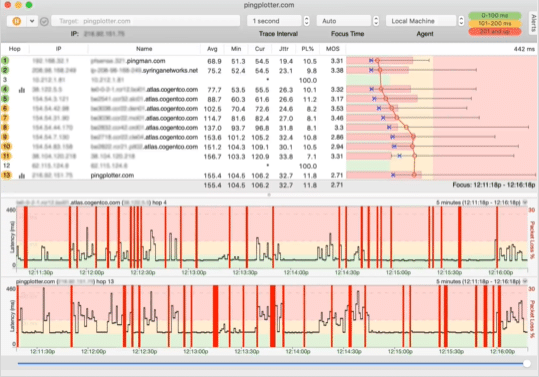
PingPlotter is well known among network professionals that need to consistently monitor links to different offices, regional branches and even remote sites. PingPlotter works by constantly checking in with devices. PingPlotter comes in 4 different flavors that will suit different scenarios, depending on your requirements. Professional Edition, CloudConnect Remote Testing and Standard Edition.
Why do we recommend it?
We recommend PingPlotter for its comprehensive network monitoring capabilities, including latency visualization, easy-to-understand trace graphs, and the ability to constantly monitor network links across various devices, which is invaluable for network professionals to troubleshoot and maintain network performance effectively.
PingPlotter runs on Windows, macOS and iOS so you can monitor your infrastructure from a wide array of devices. It gives you an important network tool that gives you increased network visibility without the hassle of needing to understand difficult commands to remember to type. It features a trace graph that gives you the details about the current status of your network infrastructure, including the latency of each hop between your network devices.
Latency graphs make it very easy to visualize the errors on your network so that you can make sense of a performance degradation instead of needing to por over data to find a numerical trend in the numbers of your report.
Who is it recommended for?
PingPlotter is recommended for network professionals and IT teams who need to consistently monitor network links, troubleshoot network performance issues, and ensure optimal connectivity across different offices, regional branches, and remote sites.
PingPlotter’s latency graph feature is beneficial for businesses that rely on real-time communication and data transfer. For instance, a company using cloud-based applications for video conferencing may encounter occasional connectivity issues. With PingPlotter, the IT team can monitor and analyze latency over time, identifying patterns and pinpointing the source of connection disruptions. This enables them to proactively optimize network performance, ensuring uninterrupted communication and collaboration among employees and clients, ultimately improving overall business productivity.
You can download a free 14 day trial from here. You can swap between the trial and free versions during the trial period so that you can see how the application runs once the trial period is over. After the trial version expires you can purchase standard or the professional version, or you can run the stripped down, free version for as long as you like, minus some features.
Pricing: Professional Editions of PingPlotter have no limits on endpoints and starts at $349 for a perpetual license, and the monthly subscription is $29 per month. Standard Edition costs $39.99 for a perpetual license but has only 2 active endpoints at once. Monthly subscriptions for the Standard Edition costs $6.99.
8. SolarWinds Traceroute NG
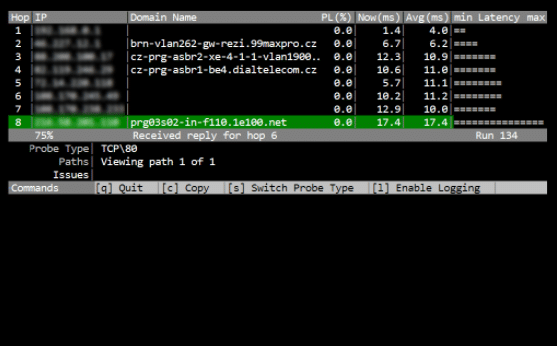
SolarWinds not only offers premium, enterprise level products for IT and networking professionals, they also offer free tools to help users get the job done quickly and efficiently. Their Traceroute NG application is one such tool that really gets to the heart of networking issues without using too many resources. It might not be as sophisticated as some of the products that we have come to expect from SolarWinds, but for what it does, it is very useful, and free!
Why do we recommend it?
SolarWinds TraceRouteNG is recommended for its user-friendly GUI, efficient performance with quick response times, path change detection, and the fact that it’s available for free, making it an invaluable tool for regular network troubleshooting tasks.
SolarWinds Traceroute NG is not a very modern looking interface by today’s standards, but what it lacks in aesthetics I certainly makes up for in features. It gives you critical information relating to single path analysis as well as source and destination data. It will allow you to properly count and identify the hops that are made by the data packets being sent and received, as well as other important stats like round trip time and percentage of packets received.
You can find out about hostnames and IP addresses as well as the latency on the data’s trip. Speed is where this app is very useful, taking as little as 2 seconds to start responding once the traceroute request has been sent. Something that the original traceroute application didn’t handle well was the issue of path changes. SolarWinds Traceroute NG is able to notify users when a path change occurs. In TCP/IP networks, a path change normally indicates that a faster route has been found. This is indicative of a network issue such as network congestion, or a failing network device that is performing below its best.
Who is it recommended for?
SolarWinds TraceRouteNG is recommended for IT professionals, network administrators, and anyone involved in network troubleshooting tasks, especially those who prefer a user-friendly graphical interface for efficiently diagnosing network issues.
A network administrator can use SolarWinds TraceRouteNG to quickly identify and diagnose latency issues within their network by analyzing the round-trip times and hop details, allowing them to pinpoint problematic devices or connections and improve network performance.
This is a great tool to use if you find yourself troubleshooting network issues regularly, and it can be downloaded for free. All you need to do is enter in your data and then download the tool once you have completed it. Traceroute NG is 100% FREE to download!
9. CountryTraceRoute
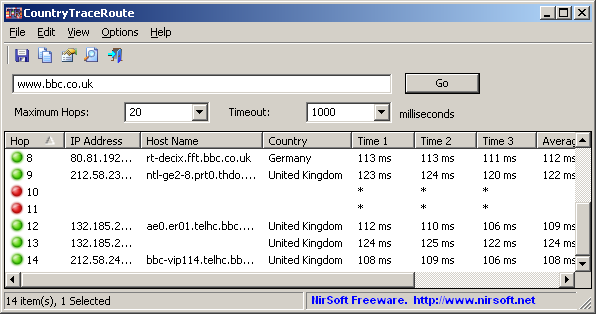
CountryTraceRoute is an older looking application but it still has plenty of good features that makes it quite useful, even if it does look a little outdated. It features a graphical user interface that is actually faster than the legacy version of tracert that ships with most operating systems. By default, it displays the geographical region of each device that responds to the trace route request, as well as the host name, IP Address and the time taken between each hop. It also features color status lights that show if each hop was successful or not. This is a good visual indicator and it shows you a lot of details at a glance.
Why do we recommend it?
CountryTraceRoute is recommended for its user-friendly graphical interface and the ability to quickly display geographical information about network devices along the traceroute path. Its color-coded status lights and compatibility with various file formats make it a valuable tool for easily understanding traceroute results. It’s especially useful for those who want a straightforward and visually informative traceroute tool.
Although the functionality is quite old school, there is still a lot you can do with the results of your trace route tests. For instance, you can select all the data in the application window and then save it to popular file formats such as a CSV file, which you can then open up with a text editor or a spreadsheet editor such as Microsoft Excel. Not the most advanced type of reporting that we’ve ever seen, but it gets the job done.
There are some limitations to this current version of CountryTraceRoute that might not make it a good choice for everyone. At this stage there is no IPv6 support, and the country that is displayed is indicative only of the owner of the IP address, and not the actual device itself. So, using this as a geographical locator indicator might not be the best idea. It has command line support so you can use it to script with and it also runs as a standalone application, so no installation is needed.
Who is it recommended for?
CountryTraceRoute is recommended for network professionals and individuals who prefer a traceroute tool with a user-friendly graphical interface. It’s suitable for those who want to quickly visualize geographical information about network devices and analyze trace route results with ease.
CountryTraceRoute is a valuable tool for cybersecurity professionals investigating potential threats. By identifying the geographical origin of network traffic, it aids in mitigating cyberattacks originating from specific regions, enhancing network security.
If you would like to check it out for yourself then you can download it from their website here. This product is licensed under freeware and is free to use as per the EULA specified on their website.
10. NetScanTools
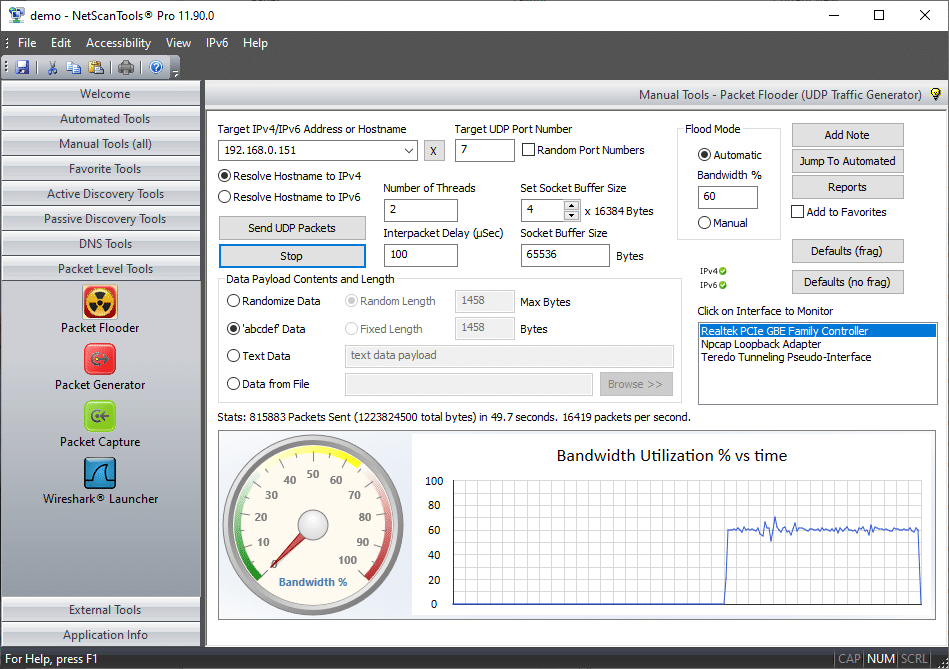
Netscan Tools is a multi-tool that lets you perform various network operations, including packet analysis and trace route operations. It has 2 different versions, the Basic Edition and the Pro Edition.
Why do we recommend it?
NetScanTools is highly recommended for its robust feature set, offering not only traceroute and WHOIS capabilities but also packet analysis, bandwidth utilization monitoring, and an array of network diagnostic tools. Its versatility makes it an essential resource for IT professionals seeking a single, comprehensive solution for network troubleshooting and analysis.
It has been around for quite a while and was originally developed back in 2009 but has undergone various updates over the years. It is still under active development and has received updates this year.
There is a bandwidth utilization graph that shows you how much data is being consumed over certain time frames, as well as the ability to send specific data packet types to specific IP addresses. This makes this tool very useful for security professionals that are trying to perform penetration testing.
There is a built-in packet flooder, packet generator, as well as various packet sniffing tools. This is an advanced tool with a great interface that will make any network or security professional glad that they have everything that they need in a single application.
Other things you can do with this tool you can use DNS, Ping, Scan tools, Trace Route and WhoIs. This makes it very useful because it is all wrapped in a usable GUI that has a lot of information. The interface is easy to use and has a lot of features that are all integrated into it.
The Pro version has additional tools including IPv6 support and is a firm favorite among network professionals that need a Microsoft Windows based tool to let them get the job done.
Who is it recommended for?
NetScanTools is recommended for IT professionals, network administrators, and security experts who require a comprehensive suite of network diagnostic and troubleshooting tools. It’s suitable for both small and large organizations looking to efficiently manage and maintain their network infrastructure.
Another valuable side of NetScanTools is its ability to perform DNS resolution and Whois lookups. This is particularly useful for cybersecurity professionals investigating suspicious domains or network administrators trying to identify the owners of specific IP addresses, enhancing network security and management.
Price: NetScanTools Basic is freeware, while NetScanTools Pro starts at $249 for 1 license, $498 for 2 licenses, $710 for 3 licenses, and $1,155 for 5 licenses. These licenses come with a 1-year maintenance plan.
If you would like to try out the software then you can download the trial version of the full license from here. If you would like to try out the basic version then you can download it from here.
Conclusion
We have looked at a wide array of tools that help you to get your trace route operations completed quickly and easily. There are many options out there regardless of what your budget is. There are plenty of free tools to choose from, as well as some very useful paid for and premium solutions. The decision you make in selecting the tool of your choice will depend on several different factors.
If you are troubleshooting many different networks, then it makes sense to carry around a tool that does the most in terms of different tools available within the application. You might prefer the way that a certain tool performs a trace route, while the visual maps of another tool work better for you. There is no reason why you can’t run many different tools from the same laptop, depending on your requirements.
The key thing to remember is that no matter which tool you choose, it has to work for you and perform all of the necessary trace route operations that you need. We hope that this guide has been helpful, and that you have learned a little more about what is available in 2020 for your trace route needs.