

Managing multiple servers using the remote desktop is a day-to-day task of any system administrator
Connecting to each server one by one and performing system administration tasks is very painful for any user, as you’ll need to switch between multiple RDP sessions quickly, and it can become rather cumbersome to click through each taskbar tab to find the server you need to manage!
You can resolve this by using a Remote Desktop Connection Manager tool or software!
Here is our list of the Best Remote Desktop Connection Manager Tools:
- ManageEngine Remote Access Plus – FREE TRIAL Access operating systems and desktops and keep multiple sessions to different devices open simultaneously. Runs on Windows Server and is also available as a SaaS package. Get a 30-day free trial.
- RemoteNG A free tool for secure remote access with a tabbed interface for multiple simultaneous connections. Runs on Windows
- Royal TS This package is an envelope for other remote access systems, such as TeamViewer. Runs on Windows and Windows Server.
- Devolutions Free for individuals, but the team version has to be paid for. Runs on Windows, macOS, Android, and iOS.
- Dameware Remote Support This lightweight remote access system runs on Windows and Windows Server, but it can connect to devices running Linux and macOS as well as Windows.
These tools will help you to connect multiple servers at a time and perform any tasks, all within 1 program with a tabbed layout.
There are lots of remote desktop software tools in the market, and selecting the right tool is the challenging part, but we’ll help you navigate the field quickly!
A good remote desktop manager tool allows you to store and manage RDP connections, and also supports other protocols such as SSH, Telnet, and VNC.
In this tutorial, we will show you some Best Remote Desktop Connection Manager tools for managing multiple RDP sessions.
The Best Remote Desktop Connection Manager of 2026:
1. ManageEngine Remote Access Plus – FREE TRIAL
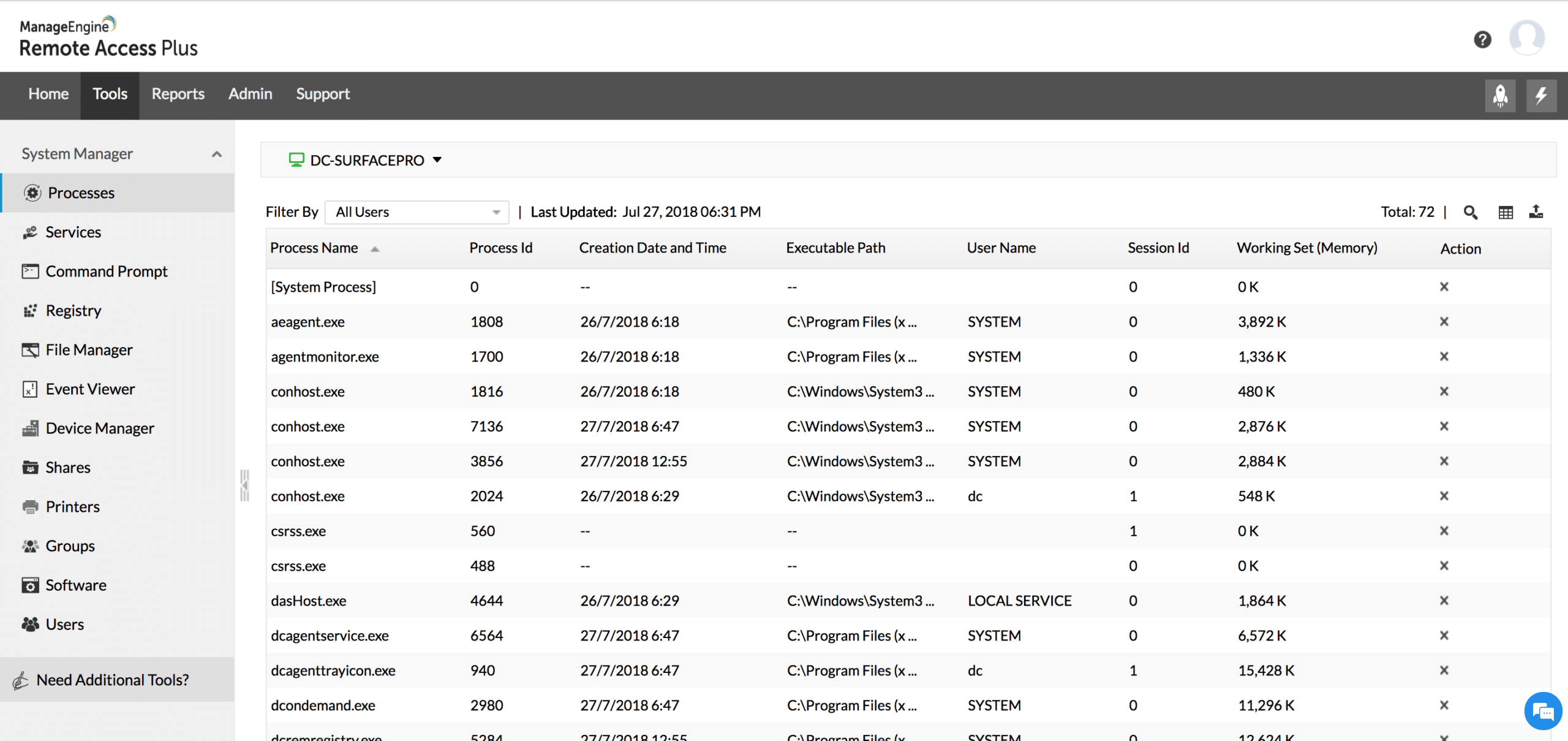
ManageEngine Remote Access Plus is a package of tools for support technicians. The bundle includes a remote connection service that offers access to the operating system or the desktop of a remote device.
Why do we recommend it?
ManageEngine Remote Access Plus is recommended for its comprehensive set of tools designed for support technicians. It allows for simultaneous connections to multiple devices, offers diagnostic tools, features video and text communication with users, and supports remote devices running Windows, macOS, and Linux. The availability of a free edition and a 30-day free trial for the full version makes it a versatile and accessible solution for remote desktop management.
A side panel in the dashboard enables a technician to be connected to multiple devices simultaneously and switch between windows to attend to each.
The system is offered as a cloud platform or for installation on Windows Server. Either way, the technician gets a browser-based dashboard, which includes diagnostic tools as well as remote access windows.
Tools within the dashboard include a chat window for video or text communication with the users of accessed devices and Wake-on-LAN and remote shutdown functions. The system can work with remote devices running Windows, macOS, and Linux.
Who is it recommended for?
ManageEngine Remote Access Plus is recommended for support technicians and IT professionals in businesses of various sizes. It is suitable for individuals as well as teams responsible for providing remote support and managing devices running different operating systems, including Windows, macOS, and Linux. Because it includes a free edition, it caters to the needs of both small and large organizations.
When an IT support team needs to remotely troubleshoot and provide assistance to employees using various devices and operating systems, the tool’s ability to connect to multiple devices simultaneously, perform diagnostics, and facilitate video or text communication streamlines remote support operations across a diverse IT environment.
The Remote Access Plus service is available in three editions, and one of these is free. The Free edition is limited to accessing 10 remote devices. You can access a 30-day free trial of the full version from the link below.
Download: https://www.manageengine.com/remote-desktop-management/
2. mRemoteNG

mRemoteNG is a free and multi-protocol support remote desktop connection manager that can be used to manage remote connections centrally. It supports RDP along with other popular protocols, including SSH, VNC, Telnet, Rlogin, and ICA.
Why do we recommend it?
mRemoteNG is recommended for its versatility as a free and multi-protocol support remote desktop connection manager. It enables users to centrally manage remote connections, supporting protocols such as RDP, SSH, VNC, Telnet, and more. With features like grouping and nesting folders, credential saving, and a tabbed interface for multiple simultaneous connections, mRemoteNG offers a robust solution for efficient remote desktop management.
It comes with a rich set of features, including grouping and nesting folders, full screen, importing from ADC, saving credentials for auto logons, organizing multiple connections, and many more.
It uses an XML file to store all connection information. This will help you to export to another machine or share with your team. Each new connection opens in a separate tab, so you can easily switch between the different connections.
Who is it recommended for?
We recommend mRemoteNG for IT professionals and system administrators who need to manage remote connections across various protocols, such as RDP, SSH, VNC, and Telnet. It is suitable for individuals or teams responsible for maintaining and accessing remote servers and devices efficiently. Its free and open-source nature makes it a cost-effective choice for businesses of different sizes.
One example of using it is when a system administrator needs to connect to multiple servers and devices across different protocols to perform maintenance tasks, troubleshoot issues, or manage remote infrastructure efficiently from a single interface.
Download: https://mremoteng.org/download
3. RoyalTS

RoyalTS is available in both a free and paid version. A free version is limited to only 10 connections, and it supports several protocols, including RDP, VNC, Telnet, SSH, SFTP, TeamViewer, and many more.
Why do we recommend it?
It’s recommended for its user-friendly interface, support for multiple protocols including RDP, VNC, SSH, and more, and features such as custom icons and colors for device organization. It offers convenient credential management, dynamic folders, and integration with password management tools like KeePass and LastPass, making it a versatile and efficient choice for managing remote desktop connections.
RoyalTS interface is a very simple, clean, and fully customizable tool that allows you to use custom icons and colors for each device. It comes with a rich set of features including built-in credential management, safe team-sharing, connection sharing without sharing credentials, dynamic folder, and many more.
You can integrate RoyalTS with KeePass and LastPass for storing passwords and task automation.
Who is it recommended for?
RoyalTS is recommended for IT professionals, system administrators, and remote desktop users who need to manage multiple remote connections efficiently. It is suitable for individuals or teams working with various remote protocols and devices, providing a user-friendly interface and robust credential management features.
It’s particularly recommended for when a system administrator or IT professional needs to seamlessly manage and switch between multiple remote desktop connections to different servers, devices, and protocols while maintaining organization and security through custom icons, colors, and credential management.
Download: https://www.royalapps.com/ts/win/features
4. Devolutions

Devolutions is a remote desktop connection manager for managing different protocols. It is available in both a free and paid version. The only difference between the versions is that you can not share the connection file in the free version.
Why do we recommend it?
It’s recommended for its versatility in managing remote desktop connections across various protocols, including VNC, Citrix, HTTP, FTP, LogMeIn, and TeamViewer. It offers robust features such as two-factor authentication, centralized credential management, split-screen functionality, and the ability to handle multiple connections, making it a comprehensive solution for remote desktop management.
It has the ability to handle different protocols, including VNC, Citrix, HTTP, FTP, LogMeIn, TeamViewer, Putty, etc. Credentials are saved in the local database with AES encryption. You can also integrate it with other tools like LastPass or KeePass.
It comes with a rich set of features, including two-factor authentication, managing servers from a mobile application, centralized credentials, built-in split screen functions, and the ability to open multiple connections and many more.
Devolutions is a good choice for you if you are looking for managing remote desktop connections with other remote technologies, as we mentioned above!
Who is it recommended for?
Devolutions is recommended for IT professionals, system administrators, and remote desktop users who require a versatile and feature-rich solution for managing remote connections involving various protocols and technologies. It is suitable for both individual users and teams working in diverse remote desktop environments.
When a network administrator at a medium-sized business with multiple branch offices across the country needs to securely access and manage various network devices, servers, and workstations remotely, Devolutions provides a centralized solution that allows them to organize, connect to, and control all these devices from a single interface.
Download: https://remotedesktopmanager.com/
5. Dameware Mini Remote Support
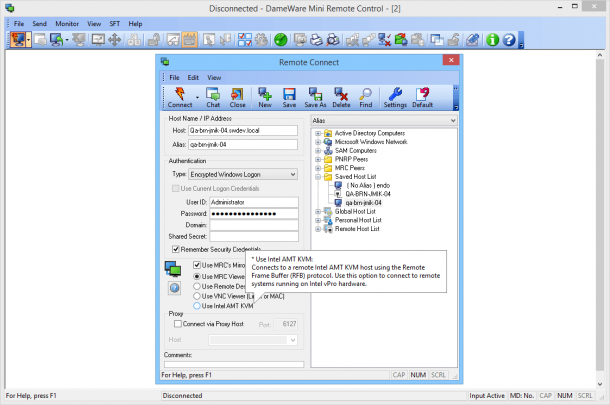
Dameware is one of the Best, if not the Best Tool on the market for RDP consolidation, which offers great remote-access and management capabilities.
Why do we recommend it?
We recommend it for its robust remote access and management capabilities. It allows system administrators to efficiently consolidate multiple RDP sessions, connect to Linux and macOS systems, automate help desk tasks, and provides features like interactive remote support with chat, active directory management, and more. Additionally, it offers a 14-day free trial, making it an accessible and powerful tool for managing remote servers.
It is available in two versions, Dameware Remote Support and Dameware Remote Everywhere. It is available in both a free and paid version from SolarWinds.
You can use this tool as a remote desktop manager as well as connect to Linux and macOS systems, which is an added bonus!
You can add the interactive remote support functionality by installing the connection agent on the remote system and switching from RDP to interactive with chat.
This tool offers several features, including the ability to manage Active Directory, automate help desk and support tasks, an in-house ticketing system, authentication management, and many more.
Who is it recommended for?
Dameware Mini Remote Support is recommended for system administrators and IT professionals in companies of various sizes, from small businesses to large enterprises. It offers a user-friendly experience with its tabbed interface for managing multiple RDP sessions, making it suitable for both individuals and teams responsible for remote server administration. Small businesses, mid-sized companies, and large enterprises can all benefit from its capabilities to streamline remote server management.
When an IT administrator needs to efficiently manage and troubleshoot multiple servers across a company’s network, the tool’s tabbed layout allows them to easily switch between RDP sessions, making server administration tasks more organized and productive.
Download: https://www.solarwinds.com/remote-support-software/
Conclusion
In the above tutorial, we’ve learned about Several remote desktop manager software that will make Windows server administration easier in the long run.
All Software and tools listed above are great options for you if you’re looking to have all RDP Sessions in one program without having to use the Windows built-in program (MSTSC).
Each software has its own features and capabilities, and we suggest you try some of them from above and find the best tool that suits your needs.
Most of these Remote Desktop Managers have Free Trials or a Freemium version that will work in your environment for testing! Give them a download and try for yourself!
Above remote desktop connection manager tools are good. Additionally, one can also use tools like R-HUB remote support servers, logmein, Teamviewer etc. for remotely accessing computers from anywhere anytime. They work on all platforms and are easy to use.
Thanks Jashua – We’ll add your recommendations to the list as well!