


SFTP is a secure shell protocol that users can adapt to send files and directories over the secure channel. This product is often installed in the Linux operating system by default. When compared to a Linux system, it can be more difficult to set up an SFTP server on Windows.
Implementing an SFTP server on Windows requires the need for third-party software. For this reason, Cygwin is essential. After all, it ensures that users can run a UNIX shell on Windows. This open-source and free product provides a Unix-like environment and a toolset besides the Windows operating system.
This product consists of a Unix system emulation library and other free software applications that are well-arranged into numerous optional packages. Cygwin also ensures that developers can migrate applications to the Windows operating system from Linux. Cygwin adopts the use of DLL to serve as a Linux emulator. The toolsets provide a Linux environment.
This comprehensive guide will discuss how to set up an SFTP server using Cygwin on Windows Server. With Cygwin, administrators can log in to a Windows system through SSH protocol while fixing user problems. With this tool, it becomes easier for developers to offer more remote support for different applications operating on the Windows operating system.
How Does SFTP Work?
As the name implies, SFTP (Secure File Transfer Protocol) allows all files to be securely transferred over the internet and runs in a client-server architecture. It uses a combination of the SSH protocol and public-key cryptography to set up a secure connection when files are being transferred.
Connecting to an SFTP server allows a user to authenticate with a password and username. After the authentication is done, files can then be transferred to and from the server. SFTP adopts a separate channel when it comes to transferring data. This ensures that your data is secure and encrypted.
On the other hand, SSH keys ensure that users can create a more secure connection. However, this must be done in advance, since it ensures that imposters are prevented from connecting with the SFTP server. This method ensures that all data and files are safe, making them inaccessible to authorized users.
What is Cygwin?
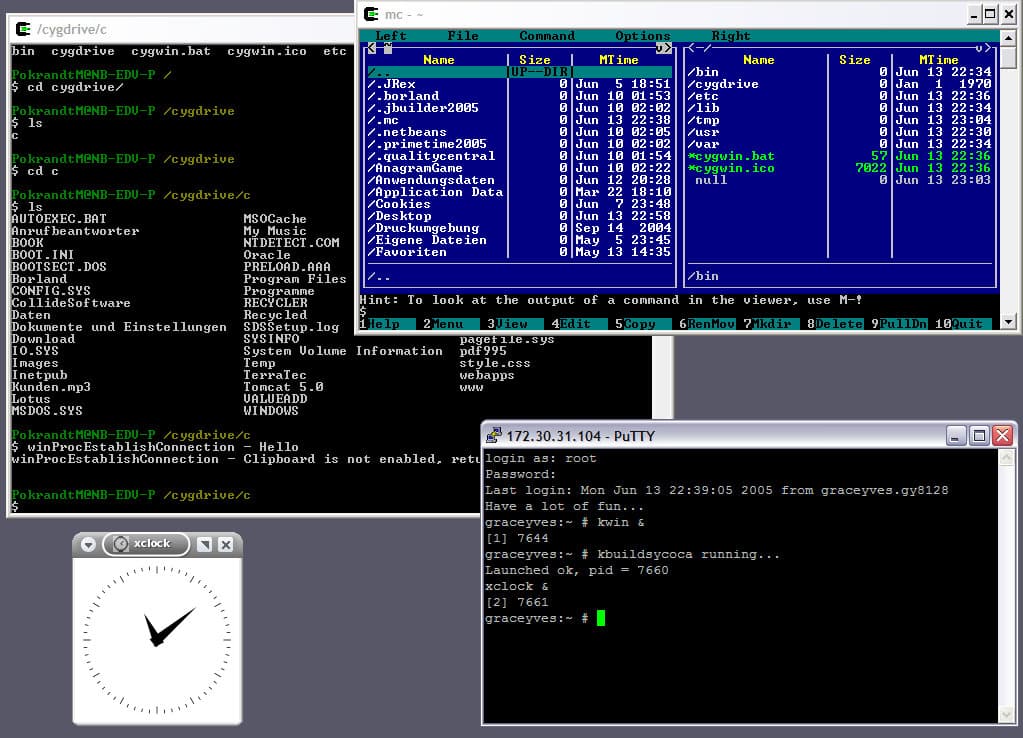
Cygwin is free, open-source software that ensures that a Unix-like environment can be made available for Microsoft Windows. This consists of operating systems and programming tools that can help users compile Unix-like applications while running them on Windows.
It should be noted that Cygwin is produced by Cygnus Solutions, a subsidiary of Red Hat. It comprises a library that offers a Portable OS Interface, or POSIX-compliant Application Programming Interface (API), as well as a set of tools that emulate Unix programs.
Cygwin provides a wrapper around Win32, ensuring that Unix-like operating systems can be emulated within Windows. This also ensures the recompilation of software designed for Unix systems.
Cygwin was released under the GNU Lesser General Public License version 3, and the environment is available in two distinct versions, including the 32-bit and 64-bit versions. The major benefit of having Cygwin is that users can shell their scripts across Linux and Windows platforms.
In addition, it is portable and easy to handle while offering access to scripting languages, including Python, Ruby, and Perl.
How to Install Cygwin on Windows
The first course of action is to download the latest Cygwin version from their official website. Once you have downloaded the Cygwin setup file, then the following steps will help you install Cygwin on the Windows system:
- Double-click on the Cygwin setup file.
- Select the Next option. Then, the next thing will be to choose a download source
- Choose the Install option from the internet. Then, click on the Next button. You will be asked to select the installation directory.
- Provide the path of the Cygwin installation and select the Next option. Then, you have to choose the Local Package Directory.
- Select the Next option. Then, you have to select your Internet connection
- Select the Next option. Then, you must choose a download site
- Select your nearest site and select the Next option. You will need to choose a package
- Choose the OpenSSH package while selecting the Next option. Then, you have to review and confirm any changes.
- Then, select the Next option. Then, Create Icons.
- Choose your desired options and select the Finish option to complete the installation process.
Once the installation process is complete, Cygwin creates a Linux-like file system in the C: drive => cygwin64 directory as shown below:
Setting up Cygwin SFTP and Its Sftp Users
It is important to run Cygwin as an administrator, especially when launching the Cygwin terminal. You can create the home directory and file structure the first time you open Cygwin.
Create Passwd and Group Files
The first thing to do is to right-click on the Cygwin Terminal and select to run it as an Administrator. This will launch Cygwin. Launching Cygwin for the first time can create a home directory structure.
The next thing you do is to create a passwd and group file inside /etc. directory. Both files are very important since they store user account and group information. To create a group and passwd files, run this command on the Cygwin terminal:
mkgroup > /etc/group
mkpasswd -cl > /etc/passwd
After this, you must enable read/write permissions to passwd and group files. The following command can help you achieve this:
export CYGWIN=’ntsec tty’
chmod +rw /etc/group
chmod +rw /etc/passwd
chmod 0755 /var
The passwd and group files will be generated. Then, you can start configuring the SSH daemon.
Configure SSH Server
After this, you must configure the Cygwin SSH daemon to gain access to the Windows system through the SSH protocol. The following command in the Cygwin Terminal can be run to configure the SSH daemon:
ssh-host-config
Once you configure the Cygwin SSH daemon, then you can start the SSH service with this command:
net start cygsshd
This should generate the following output:
The CYGWIN cygsshd service is starting.
The CYGWIN cygsshd service was started successfully.