


One of the most effective tools on Windows is Group Policy. It is what helps users control every single user account within an organization. This also encourages the system administrator to manage and control configurations on all systems within a network from a central location.
Many benefits are associated with Group Policy, making it a powerful tool for many users over the years. Yet, this comes with many drawbacks as well. One of these is that Group Policy needs to be updated in the background every 90 minutes. If not, the system needs to be restarted to update the Group Policy.
In many cases, users may need an immediate Group Policy Update without waiting for the computer device to restart. With this in mind, it is highly efficient to update Group Policy remotely. To lend you a hand, this guide will explain more about this. So, keep on reading!
What is a Group Policy?
Group policy is a system that ensures that administrators can control user and machine configurations remotely in a domain by adopting a wide range of policy settings and preferences. Besides this, a Group Policy Object (GPO) is a set of Group Policy settings connected to a certain AD site, domain, or OU.
Security settings, including password policies and account lockout policies, administrative templates, and many more, are some examples of Group Policies coupled with a GPO. Group Policies help in updating these GPOs.
Group policies represent a set of security and management directives, which are updated and managed to ensure that a network is kept secure and running smoothly. These Group Policies may require immediate revision for many reasons.
Users must also be able to understand the default schedule of the Group Policy update. Besides this, users must also acquaint themselves with the importance of Group Policy updates and how to force this action. For this reason, Group Policy upgrades are compelled by tools included by Microsoft.
Default Process of Group Policy Update
Once the Group Policies have been modified, a Group Policy update takes 90 to 120 minutes. Yet, if you cannot afford to wait for that amount of time, you must force the GPO update process. There are numerous ways to enforce a GPO update. However, you must consider a few instances in which you need to do so.
How to Use Your Group Policies Update With GPUpdate/Force Command
There are lots of reasons why users can force a Group Policy update. It might be a result of neglecting an essential policy setting. It could also result from an organization’s reorganization process, resulting in modified policies that must be enforced immediately.
Whenever there is a need to log off and on, Group Policies are likewise refreshed. Yet, not all users can log out and then log back on. When this happens, forcing Group Policy updates can help users to perform quick renewal of Group Policies.
Why Should You Demand a Group Policy Update?
The command GPUpdate can be employed to force an organization’s group policies to be updated. Any changes that can be made to the Group Policy cannot be executed immediately. Rather, they can take as long as 90 minutes to be effective.
By adopting the GPUpdate command, users can force the policy update. To administrate systems while altering security settings, Group Policies can be adopted, much like implementing mapping network drives or printers. Users must occasionally alter the group policy manually, especially when resolving IT difficulties.
Steps for Forcing Group Policy Update Remotely
Often, there are many changes you can make to create new Group Policy Objects. These changes might need to be done immediately. Many methods can be embraced to update Group Policy remotely. Some of these are introduced as follows:
First Method
By employing the gpupdate command with PsExec. This uses a built-in command on the client computers, which is regarded as gpupdate. This method is considered to be best for older clients.
To force a group policy update immediately on the local computer, this command can be inputted:
gpupdate /force
The /force will ensure that all policies are forced to update – and not only the new ones. Now, if a user wishes to update a bunch of computers, it can be quite stressful and frustrating to log into everyone while running the command.
If you wish to run this on a remote computer, it is possible to embrace the PsExec command from the Sysinternals toolset.
Second Method
Adopting the Group Policy Management Console with Windows Server 2012 and other newer versions makes it possible to force a Group Policy update remotely on computers from the Group Policy Management Console. This is a very easy method, which ensures that you can run an update on all OUs. Certain steps can help in achieving this. Some of these include:
Step 1
Open the Group Policy Management Console
This can be done on a computer equipped with the RSAT tools. You can also make use of a server that runs the DHCP role.
Step 2
To update, simply right-click an OU. This will update all sub-OUs. It is also possible for users to also update an individual OU or a parent OU.
Third Method
By Embracing Powershell, Invoke-GPUpdate
For users of Windows 2012, it is possible to force an instant update by making use of the PowerShell invoke-GPUpdate cmdlet. This command allows a user to update Windows 10 and Windows 7 clients. You must install Powershell alongside the Group Policy Management Console (GPMC).
Use the Command Prompt to Force a Group Policy
As mentioned in the guide, updating Group Policy can be very important. Forcing a Group Policy can be done by instructing the client to bypass the common period of background processing while performing an immediate update of all new and altered Group Policy Objects on the server. With this, administrators can control all users’ accounts in an organization.
Yet, the first thing to do is to reach out to every user’s machine and manually run the GPUpdate command. This will refresh the GPO and other new and altered GPOs. When called without any parameters, the gpupdate command will perform an update on both the User and Computer portions of the Group Policy objects. The following syntax can be used to refresh only one half:
Gpupdate/Target:Computer,/Target:User
Even though a user can be signed on to a computer device, performing GPupdate delivers Windows the new GPO settings immediately. However, this can only be achieved if the domain controller has all replicated GPO information.
You can default enable Fast Boot, Software Distribution, and Folder Redirection in Windows XP. With this, changes can be implemented only at the next login time. Furthermore, gpupdate can determine if there is a need for a reboot or logoff for newly updated objects to be active, especially if you make use of the proper switches:
In addition, adopting the /Logoff switch, alongside the GPUpdate, will determine whether any change in policy in Active Directory requires the user to log off. If this is not the case, the new settings will be implemented instantly. However, if they don’t, the users will be required to log off. This will ensure that the adjustments made to the Group Policy adjustments will be implemented when the user logs back in
Also, if the user enables Fast Boot, applying GPOs with Software Distribution settings is important. Operating GPUpdate with the /boot switch will quickly determine if a policy requires a reboot and restart the machine automatically. The changes in the Group Policy Object are executed, while the user can stay logged in if the modification in the GPO does not require a reboot.
Using an Automated Tool
Probably, the easiest option is to use an automated tool like ManageEngine ADManager Plus that comes with a force GPO update feature. With this tool, you can force apply GPOs on multiple computers at the click of a button.
The steps for forcing a GPO update are:
- Download and install the tool.
- Log in to ADManager Plus.
- Navigate to the Management tab > GPO Management > Force GPO Update.
- Select the required domain from the drop-down.
- You can view all the linked computers in the domain. Select the required computers. Note that you can also use the Import CSV option to import a custom list.

- Click “Apply” to force the GPO update.
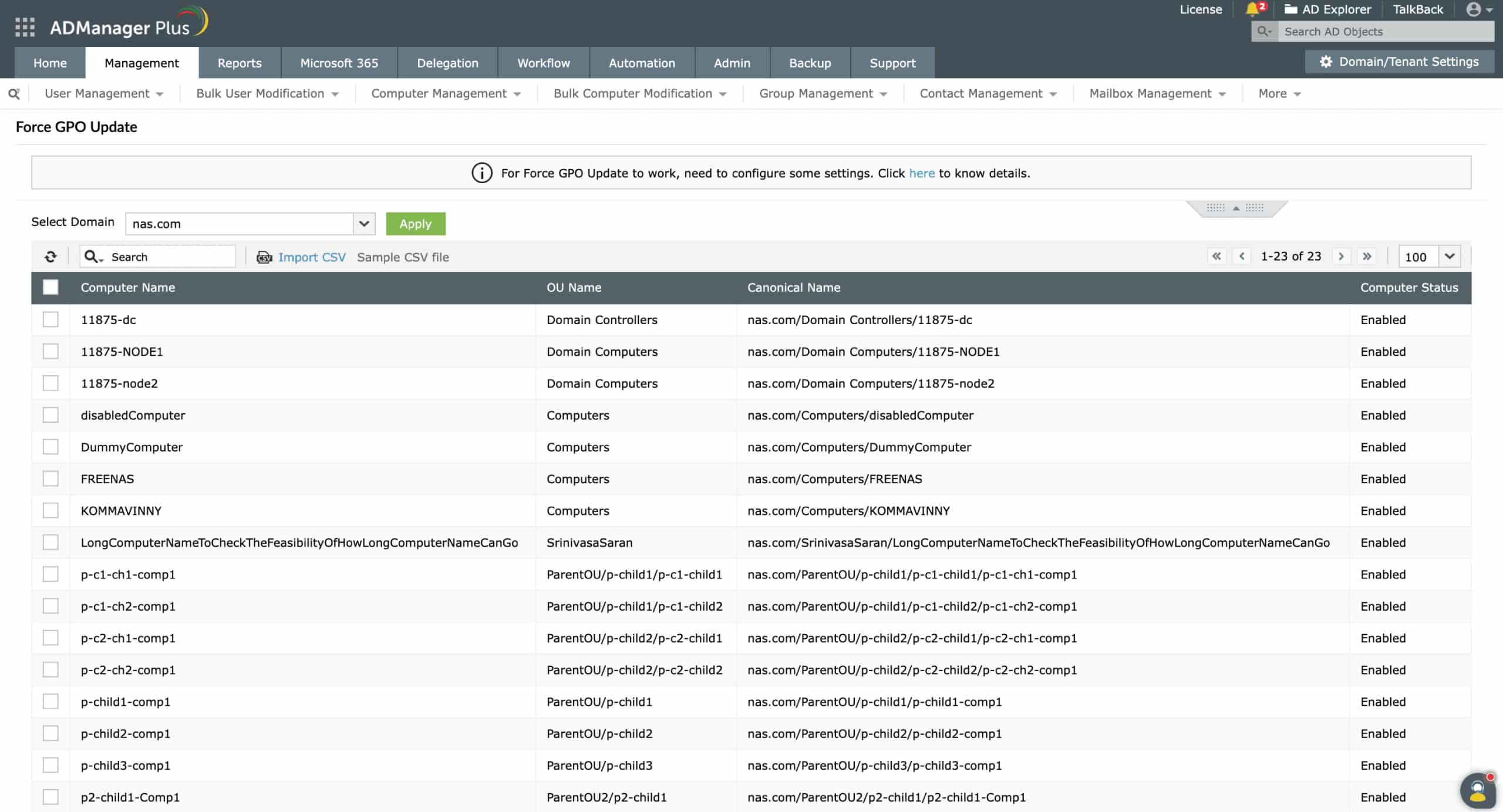
With these steps, you can perform GPO updates and even have better control and visibility into your AD environment by using ADManager Plus.
Download a 30-day free trial.