


Network monitoring and troubleshooting is an essential part of any Network administrator’s job and task list. There are lots of tools available in the market to troubleshoot a variety of different network conditions, outages, issues, and connectivity problems.
In this tutorial, we will discuss some commonly used Network Troubleshooting Tools that will help you diagnose most networking issues.
Here is our list of the best Linux network troubleshooting tools:
- ManageEngine OpManager – EDITOR’S CHOICE A full-feature network monitoring and management system with a professional graphical user interface. OpManager can supervise the normal operations of your network and alert you when problems arise. Installs on Linux and Windows Server. Start a 30-day free trial.
- Site24x7 – FREE TRIAL A hosted monitoring package that includes connection testing services and can also verify the availability of Linux servers. Start a 30-day free trial
- ManageEngine OpManager Plus – FREE TRIAL An advanced server monitoring platform that provides deep insights into the health and performance of your Linux servers. Its dashboards display the relevant data in an easy-to-understand format. Download a 30-day free trial.
- Ping A very widely used command line utility that tests remote host availability and reports on roundtrip time, packet loss, and jitter.
- Ifconfig A command line system query that returns the current host’s IP addressing statuses.
- NetStat Displays both incoming and outgoing connections active on the current system.
- Dig A utility that enables you to test your current DNS server.
- NSLookup A DNS lookup and reverse lookup mechanism.
- Route View or alter entries in the local routing table.
- Host A DNS name lookup and reverse lookup tool.
- ARP Address Resolution Protocol implementation checker. Reads the mapping between IP addresses and MAC addresses.
- EthTool A command line tool that enables the Ethernet adapter settings to be viewed or edited.
- IWConfig View a wireless adapter configuration and edit it.
- Hostname View and change the host name of the current system.
The Best Free Linux Network Troubleshooting Tools & Utilities
1. ManageEngine OpManager – FREE TRIAL
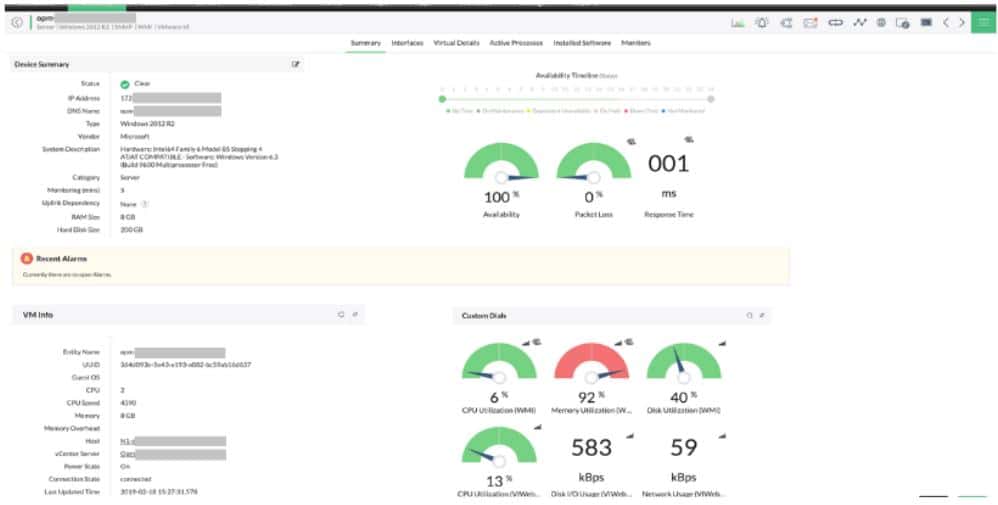
Before looking at simple commands to query network information from your network card or operating system, we’ll take a look at a full network monitoring package that will perform ongoing network performance supervision. ManageEngine OpManager will perform all of your network monitoring tasks on your behalf, freeing up your time for other tasks. This utility also includes an automated server status checker as well.
Why do we recommend it?
ManageEngine OpManager is highly recommended for network administrators and IT professionals due to its comprehensive network monitoring capabilities, featuring real-time performance monitoring for devices, servers, and applications.
With automation, SNMP support, and proactive alerting, OpManager saves time, optimizes network performance, and offers a 30-day free trial, making it an invaluable tool for ensuring network reliability and efficiency.
The systems underlying the functionality of OpManager are those commands that you are going to read about in the next sections of this guide. However, rather than sitting and constantly issuing commands to discover network data and check on performance, you can let the OpManager package do that. It will also collect and collate all results and display them in a pleasing graphical interface.
One of the network systems that isn’t covered in the following sections is the Simple Network Management Protocol (SNMP). This is a network data communication system that gathers status information from network devices and also enables the collection of traffic statistics and switch configuration and connection information.
The information that the SNMP standard can supply gives a network administrator just about all the information that needs to be discovered about network operations. OpManager sets thresholds of reasonable performance and then compares each status check feedback with those levels of expectation.
If a specific condition deteriorates, OpManager will raise an alert. The system console displays those alerts but can also forward them to you by SMS or email. That means that you don’t have to sit and watch network performance data all day. You will be able to get back to the dashboard to fix things in time to head off disaster should OpManager notice that standards are slipping.
OpManager also performs the same status checks with alerts on servers. It is able to communicate with all servers across a network – it doesn’t just monitor the server on which it is resident.
The OpManager software needs to be downloaded and hosted. It will run on a Linux server and you can also get a version that runs on Windows Server.
Who is it recommended for?
Its user-friendly interface simplifies network management, catering to both seasoned administrators and newcomers.
We recommend ManageEngine OpManager for network administrators, IT professionals, and organizations of all sizes that rely on network infrastructure to ensure optimal performance, troubleshoot network issues, and maintain high availability.
ManageEngine offers a 30-day free trial of OpManager.
EDITOR'S CHOICE
ManageEngine OpManager is our top recommended pick for a Linux troubleshooting tool, as it provides a broad set of monitoring and diagnostic features suited to Linux environments. It includes a range of network troubleshooting tools, such as packet sniffing, traceroute, and ping tests, which are useful for diagnosing connectivity issues within Linux systems. Automated alerts and notifications support proactive monitoring by highlighting threshold breaches before they develop into more serious problems. The platform delivers real-time visibility into server metrics such as CPU usage, memory consumption, disk health, and network performance, helping administrators identify and address issues efficiently. Its diagnostic capabilities also allow deeper investigation into processes, helping to uncover resource bottlenecks, configuration issues, or hardware-related faults that may be impacting performance. Customizable dashboards present Linux server health and performance data in a clear, configurable way, and OpManager integrates with other monitoring tools to provide a more unified view of the wider IT infrastructure.
Download: Get a 30-day FREE Trial
Official Site: https://www.manageengine.com/network-monitoring/download.html
OS: Windows, Linux, AWS, and Azure
2. Site24x7 – FREE TRIAL
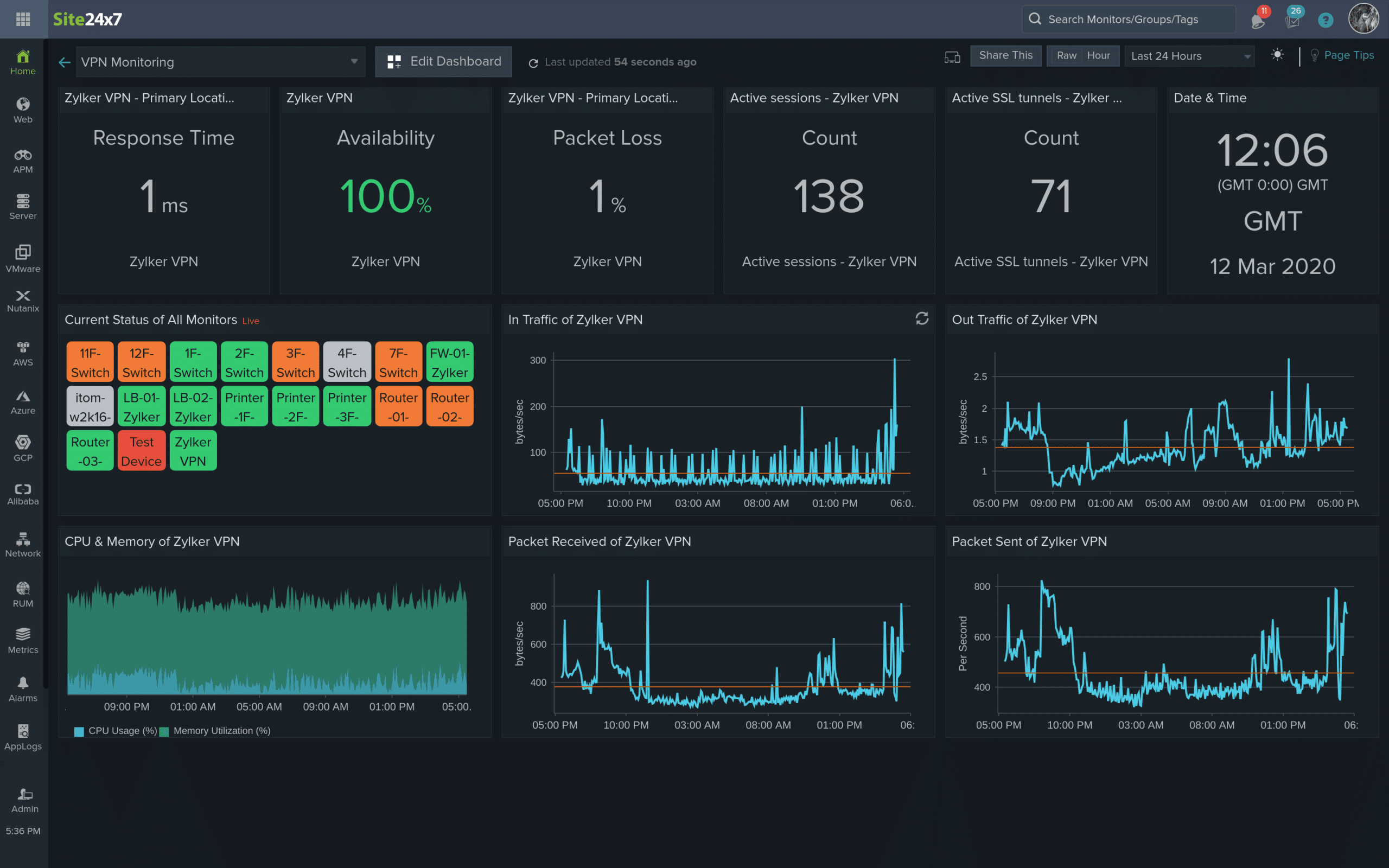
Site24x7 provides a hosted platform for network troubleshooting and Linux server availability monitoring. Its diagnostic and monitoring functions track the condition of both network devices and Linux-based servers in real time, which helps IT teams spot problems quickly. For Linux systems, the service follows core indicators such as processor load, memory consumption, disk capacity, and network bandwidth use.
A major part of its troubleshooting value begins with automated discovery. Site24x7 scans the network to identify connected assets, including Linux servers, routers, switches, and firewalls, then builds a live inventory from those findings. That removes the need for manual tracking and helps ensure no important device is missed, while giving administrators an up-to-date picture of the network estate.
The platform also generates a topology map automatically, giving teams a visual representation of device relationships and network paths. That view is useful during fault investigation because it shows how systems connect and how traffic moves between them. If performance drops or a Linux server becomes unreachable, the map helps technicians narrow down where the problem is occurring.
Site24x7 also uses Simple Network Management Protocol for continuous device status monitoring. By polling devices regularly, it tracks the health and availability of connected equipment, including Linux servers, and can surface problems as soon as a device fails or begins to degrade. That ongoing watch helps reduce downtime by giving teams earlier warning of operational trouble.
Traffic analysis adds another layer of visibility. The service records bandwidth consumption, traffic volume, and packet loss across both Linux servers and network devices, which helps administrators identify bottlenecks and areas of congestion that may be affecting server availability. For Linux hosts specifically, it also reports on inbound and outbound traffic, making it easier to determine whether a server is under excessive load or whether the fault lies elsewhere in the network.
Customizable alerts and reporting strengthen the package further. Teams can define thresholds for conditions such as high processor usage, low disk space, or network congestion, and have notifications sent by email or SMS as soon as those limits are crossed. Site24x7 also produces detailed reports for longer-term analysis, helping administrators refine troubleshooting methods and improve both server and network performance over time. You can assess Site24x7 through a 30-day free trial.
3. ManageEngine OpManager Nexus – FREE TRIAL
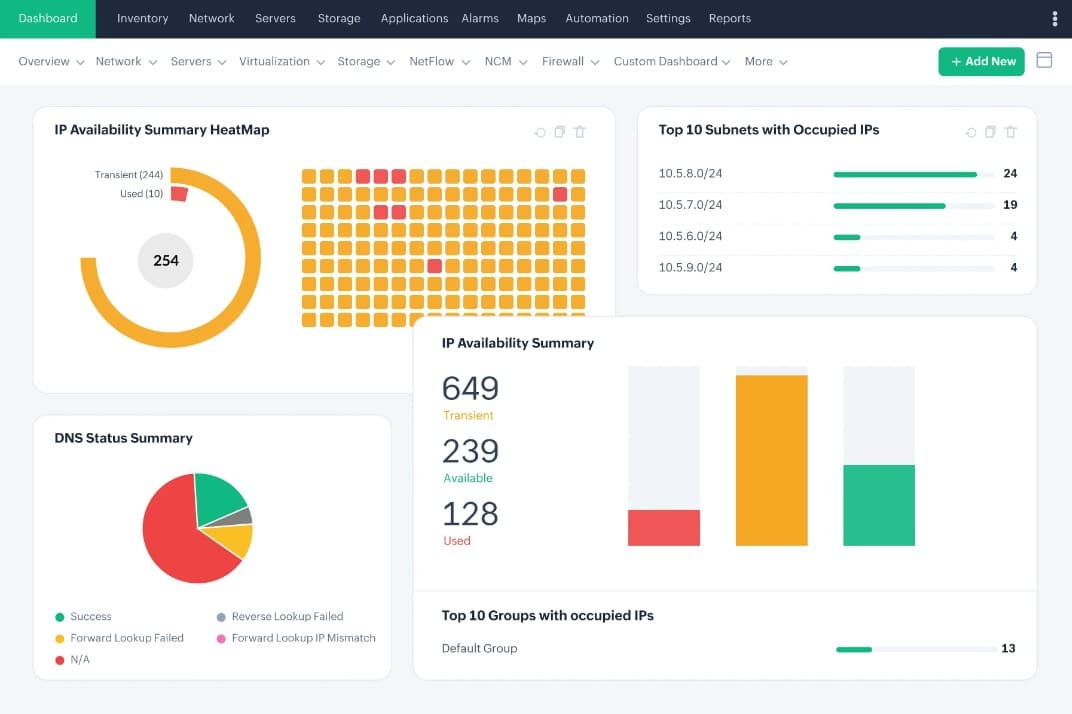
ManageEngine OpManager Nexus, formerly OpManager Plus, is a full-stack visibility platform tracks the availability and resource usage of your Linux infrastructure. It supports both agentless and agent-based monitoring to collect and analyze data.
OpManager Nexus comes with thousands of pre-configured device templates to track multiple metrics. It helps understand the availability of critical services and potential issues in your servers. It provides real-time alerts about resource consumption and potential threats, so you can address them right away. You can set custom and threshold-based alerts as well.
A distinct feature of this platform is its adaptive thresholds. This feature uses machine learning to automatically change baseline values and reduce false alarms.
This tool’s dashboard provides a holistic view of the status of your server. It also enables you to quickly drill down to the root cause of the issue. You can customize this dashboard based on your needs.
This platform is priced at $1,233 for the Professional edition and $19,995 for the Enterprise edition. Start a 30-day free trial.
4. PING
PING also known as a “Packet Internet Groper” is a most commonly used network diagnostic tool that can be used to provide a basic connectivity test between the source host and a destination host. It is commonly used in conjunction with Server Monitoring Tools to ensure uptime is present at all times for critical infrastructure!
Why do we recommend it?
Ping is recommended because it’s a fundamental and versatile network diagnostic tool that provides a quick and simple way to check the connectivity and reachability of hosts and servers on a network. Ping’s ease of use and effectiveness make it a valuable tool for maintaining network reliability and uptime.
We’ve created an Online Ping Tool to assist in troubleshooting WAN, Hosting, and VPS Server hosting issues if you need – and its 100% Free to use!
PING uses an ICMP protocol to send an echo packet to a destination host and a mechanism to listen for a response from this host.
You can use ping command with hostname or IP address as shown below:


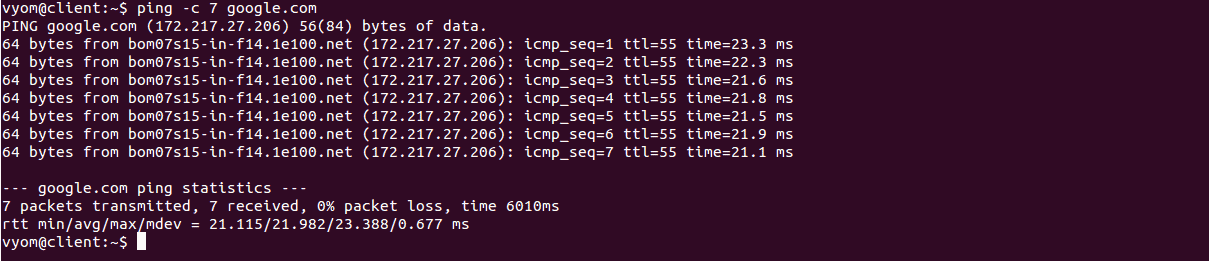
You can also use ping with -c option to exit after a specified number of request:
Who is it recommended for?
Ping is recommended for network administrators, IT professionals, and anyone responsible for managing and maintaining network infrastructure.
It is a fundamental network diagnostic tool that can be used by individuals and organizations to quickly test and verify the connectivity and reachability of hosts and servers on a network. Whether you’re troubleshooting network issues, monitoring server availability, or ensuring the smooth operation of critical infrastructure, Ping is a valuable tool for anyone involved in network management.
5. Ifconfig
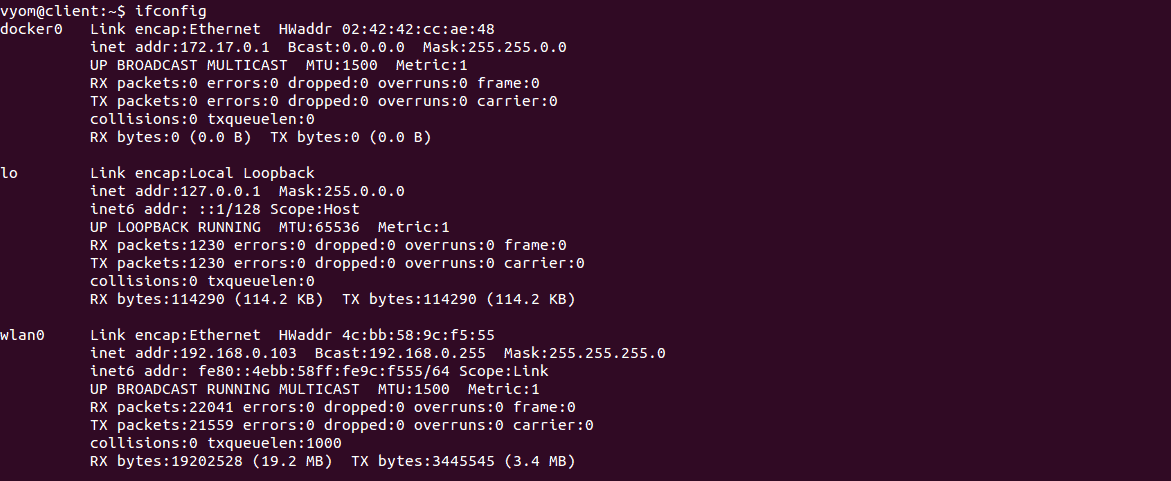
ifconfig is a command line tool that reports the IPv4 and IPv6 addresses, subnets, and default gateways for all network adapters on your system. You can also assign IP address, enable and disable network interface with this command.
Why do we recommend it?
This tool is crucial for managing and diagnosing network-related issues, including configuring, enabling, disabling, or assigning IP addresses to network interfaces.
You can list IP address of all the network interface connected to your system with the following command:
You can list IP address of specific interface with the following command:

You can assign an IP address to specific interface with the following command:
ifconfig wlan0 192.168.0.123 netmask 255.255.0.0
You can also disable and enable network interface with the following command:
To enable interface wlan0:
ifup wlan0
To disable interface wlan0
ifdown wlan0
Who is it recommended for?
It is a fundamental tool for individuals who need to configure network interfaces, check IP configurations, and maintain network connectivity. Whether you are working in a corporate IT environment or managing your home network, ifconfig is a valuable utility for maintaining network health and diagnosing connectivity problems.
6. NETSTAT
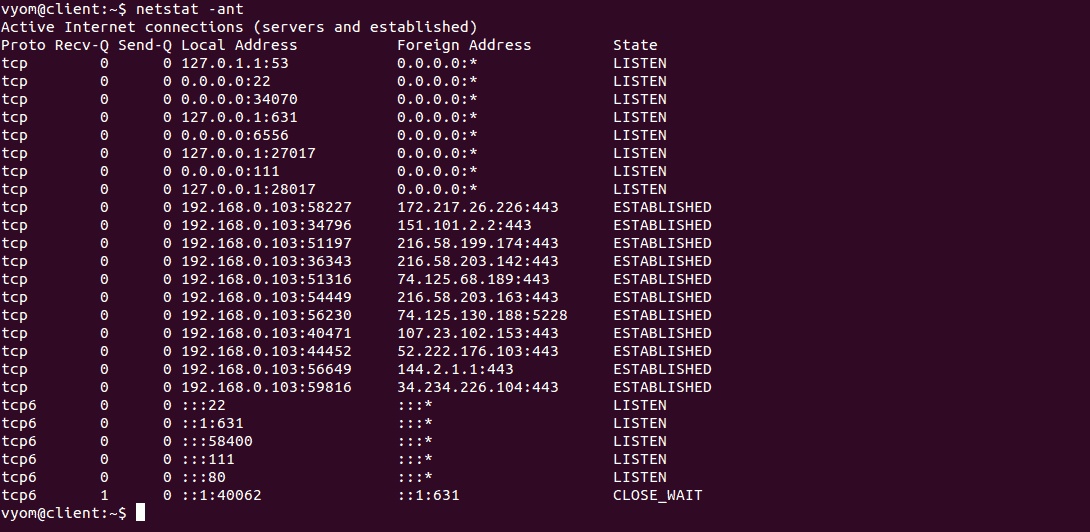
Netstat is a command line tool that can be used to displays active connections on your system both incoming an outgoing.
Why do we recommend it?
This command-line tool provides valuable information about active network connections, routing tables, and network statistics, helping users diagnose network-related issues and ensure optimal network performance. Whether you’re managing a server, diagnosing connectivity problems, or investigating network security, NetStat is a versatile and powerful tool for gaining insights into network activities.
Netstat is very useful when verifying the status of a listening port on a system and see what remote systems are connected to a local host on a specific port.
You can see all the active connections on your system with the following command:
You can also see routing table information with the following command:

Who is it recommended for?
NetStat is a valuable tool for network administrators, system administrators, and IT professionals. It is recommended for those responsible for monitoring and troubleshooting network connections and services. NetStat offers critical insights into active network connections, routing tables, and network statistics, making it an indispensable resource for diagnosing network issues, ensuring efficient network performance, and maintaining network security.
7. DIG
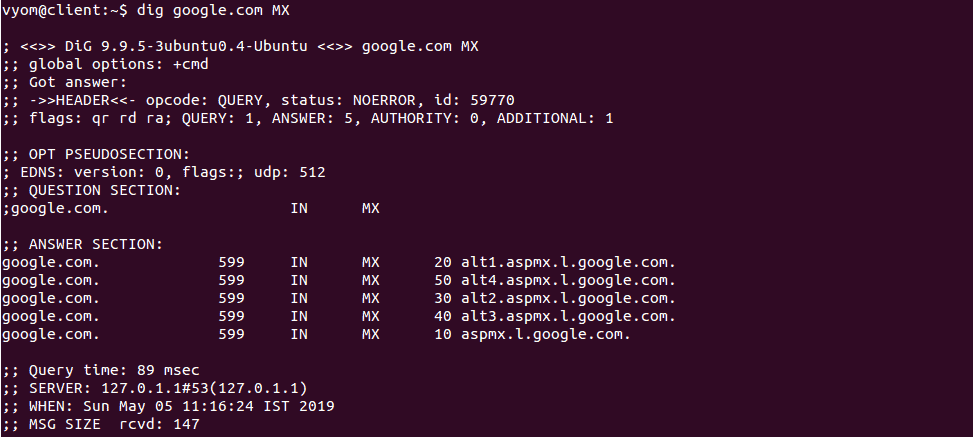
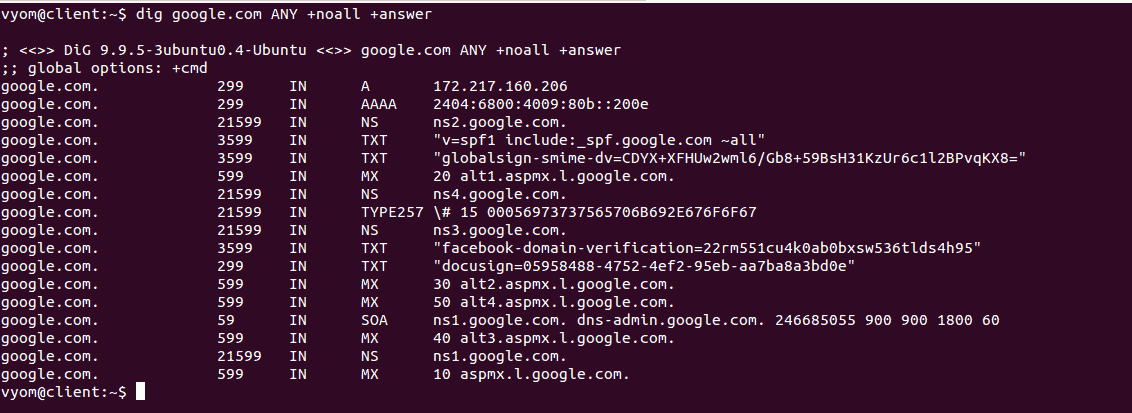
Dig also known as “domain information groper” is a command line tool that can be used to verify DNS resolution. You can troubleshoot DNS related query and see DNS related information like A Record, CNAME, MX Record with the help of Dig command.
Why do we recommend it?
This command-line tool provides essential functionality for querying and obtaining DNS-related information such as A Records, CNAMEs, and MX Records. With Dig, you can efficiently diagnose DNS-related queries, making it an invaluable tool for maintaining a reliable and well-functioning network infrastructure.
You can look up the A records for the domain name google.com with the following command:

You can look up the MX record for the domain name google.com with the following command:
You can look up all the record for the domain name google.com with the following command:
Who is it recommended for?
Dig is recommended for network administrators, system administrators, web developers, and IT professionals who need to troubleshoot and verify DNS resolutions. This command-line tool is essential for anyone responsible for maintaining and troubleshooting network infrastructure, ensuring accurate and reliable DNS information.
8. NSLOOKUP
nslookup is another command line tool to query and verify DNS name resolution. It can be used to obtain domain name or IP address of computers in the internet.
Why do we recommend it?
NSLOOKUP is recommended for its utility in performing DNS queries and troubleshooting, allowing users to verify DNS name resolution, retrieve IP addresses or domain names, and inspect various DNS records. This versatility makes it an essential tool for network administrators and anyone needing to diagnose and maintain DNS-related functionality in their network infrastructure.
You can use nslookup with the domain name to display the “A Record” (IP Address) of the domain:

You can also do the reverse DNS look-up by providing the IP Address with nslookup command:

You can see NS records of domain google.com with the following command:

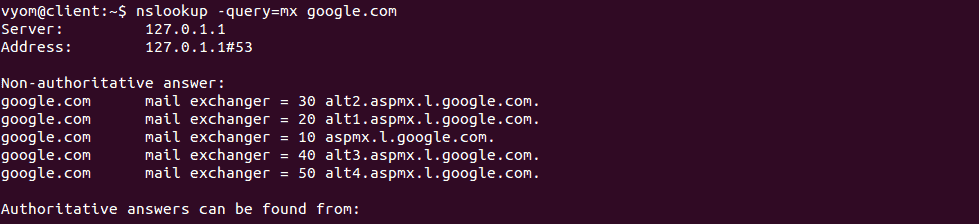
You can see MX records of domain google.com with the following command:
Who is it recommended for?
NSLOOKUP is recommended for network administrators, IT professionals, and anyone involved in managing or troubleshooting network and domain name system (DNS) configurations. It’s a valuable tool for those responsible for maintaining DNS records, diagnosing DNS-related issues, and ensuring the smooth functioning of network services.
9. ROUTE
Route is a command line tool that can be used to show/manipulate the IP routing table. You can also setup static routes to specific host or networks via an interface.
Why do we recommend it?
It allows network administrators to view, manipulate, and configure routing information, making it essential for optimizing network traffic and ensuring efficient data routing within complex network environments. Whether setting up static routes or examining routing details, the ROUTE command provides valuable insights for maintaining network connectivity and resolving routing-related issues.
You can use route command without any argument to see the details of the kernel routing table entries.

You can add the routing entry with the following command:
route add -net 192.168.0.0 netmask 255.255.0.0 gw 192.168.0.100
You can add the default gateway with route command as shown below:
route add default gw 192.168.0.100
You can also delete the default gateway with the following command:
route del default gw 192.168.0.100
If you want to reject routing the packets to a particular host/network, run the following command:
route add -host 192.168.0.201 reject
Who is it recommended for?
The ROUTE command is recommended for network administrators, IT professionals, and anyone responsible for managing and optimizing network traffic and routing. It is particularly useful for those dealing with complex network environments where configuring, monitoring, or troubleshooting routing tables is essential to ensure efficient data flow and network connectivity.
10. HOST
Host is a simple command line utility for performing DNS lookups. It can be used to convert names to IP addresses and vice versa.
Why do we recommend it?
The HOST is recommended for its simplicity and effectiveness in performing DNS lookups, making it an essential tool for swiftly resolving hostnames to IP addresses, thereby aiding in network configuration and ensuring seamless communication between devices.
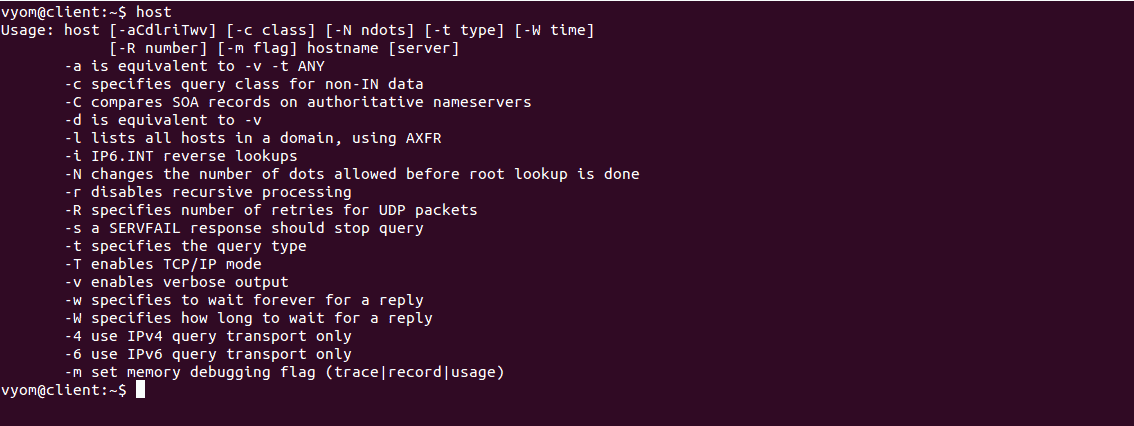
You can use host command without any argument gives a brief description about each option:
You can resolve domain name to IP address and IP address to domain name with the following command:

You can use host command with -t to see the NS records of domain google.com:

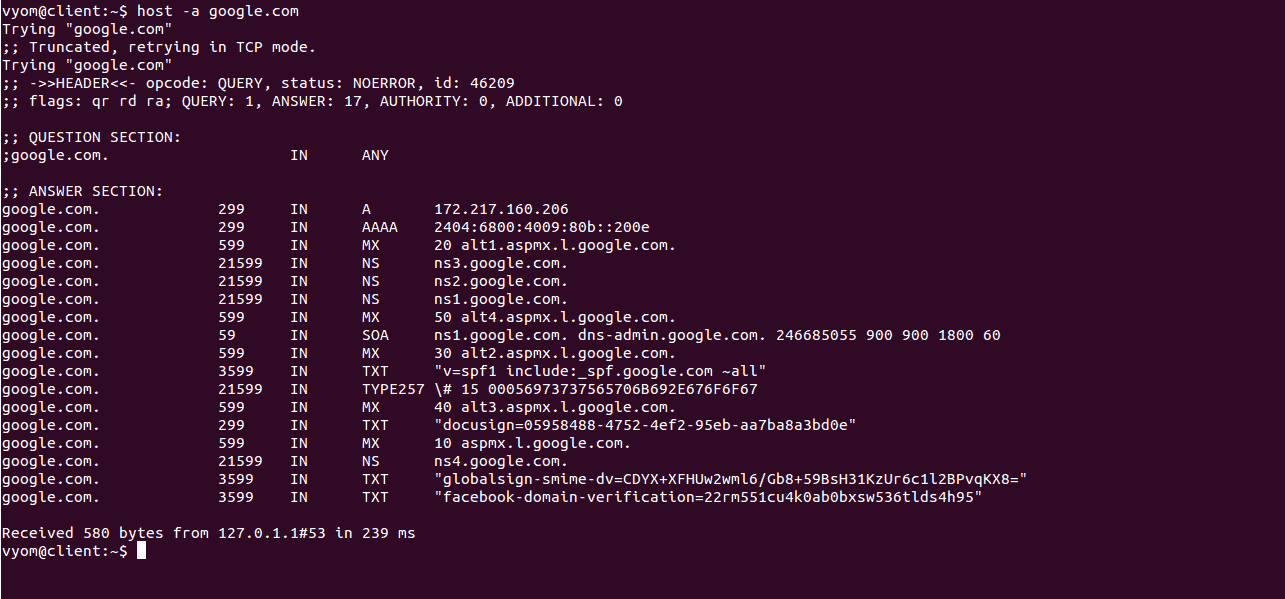
To print all the details of domain google.com with the following command:
Who is it recommended for?
The HOST command is a valuable asset for network administrators and IT professionals, as well as anyone engaged in the management and optimization of network configurations. With its user-friendly features, it simplifies the process of DNS lookups and contributes to the seamless operation of networks.
11. ARP
ARP also known as “Address Resolution Protocol” is a very useful tool to find IP to MAC address mappings. It is also used to manipulates or displays the kernel’s IPv4 network neighbor cache.
Why do we recommend it?
We recommend ARP (Address Resolution Protocol) due to its crucial feature of mapping IP addresses to MAC addresses, making it an essential tool for diagnosing and resolving network connectivity problems, which can benefit network administrators and individuals troubleshooting network issues.
Useing ARP without any argument will display the current content of the table.

You can find the MAC address of specific host with the following command:
arp 192.168.0.1
You should see the following output:
Address HWtype HWaddress Flags Mask Iface

192.168.0.1 ether c8:3a:35:59:49:b0 C wlan0
You can list all the options available with arp command as shown below:

Who is it recommended for?
ARP is a valuable tool suitable for network administrators and IT professionals across a wide range of company sizes, from small businesses to large enterprises. It helps in effectively managing and troubleshooting network issues, making it indispensable for anyone responsible for maintaining network connectivity.
12. ETHTOOL
The ethtool is a command line tool to display and change the Ethernet adapter settings. Using ethtool, you can change network card speed, auto-negotiation, duplex mode and wake on LAN setting.
Why do we recommend it?
Its ability to configure and manage Ethernet adapter settings, including network card speed, auto-negotiation, duplex mode, and wake-on-LAN, is essential for optimizing network performance and ensuring smooth operations in complex networking environments.
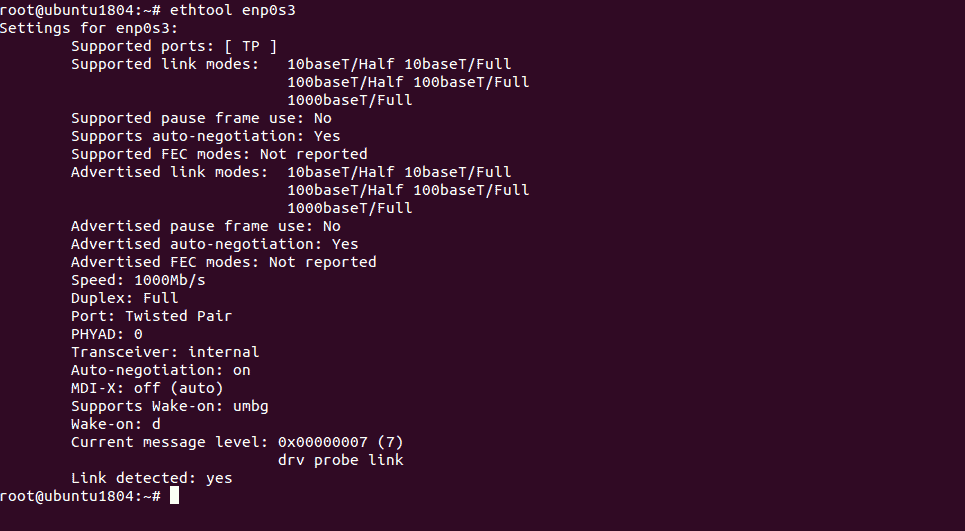
You can use ethtool command with network interface card (enp0s3) to displays ethernet card properties as shown below:
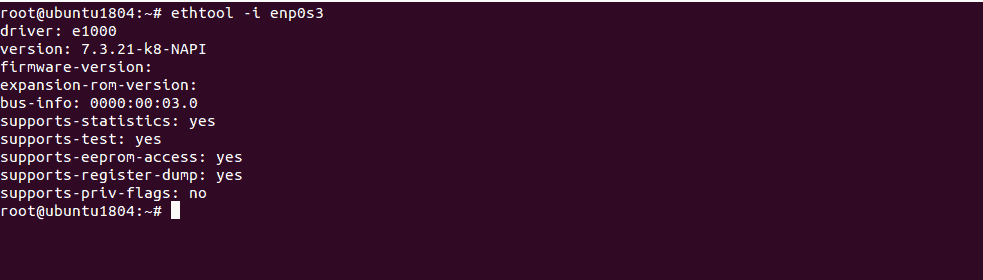
You can also see driver information of network interface card (enp0s3) as shown below:
Who is it recommended for?
ETHTOOL is recommended for network administrators, IT professionals, and server maintenance personnel who need to manage and optimize Ethernet adapter settings, making it particularly valuable in medium to large enterprises where network performance and configuration are critical.
13. IWCONFIG
iwconfig is a command line tool that can be used to configure and manage your wireless network interface.
Why do we recommend it?
IWCONFIG is recommended for its command line capabilities, making it a valuable tool for configuring and managing wireless network interfaces on Linux systems. It’s particularly useful for those who need to fine-tune wireless network settings and troubleshoot connectivity issues.
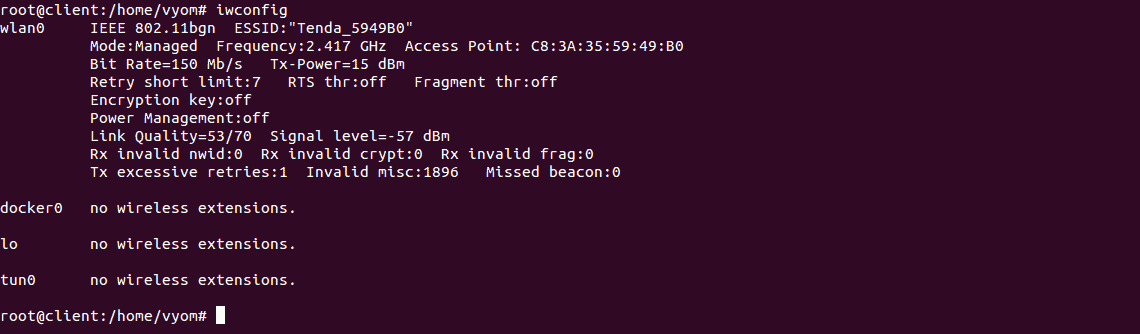
You can your wireless network information with the following command:
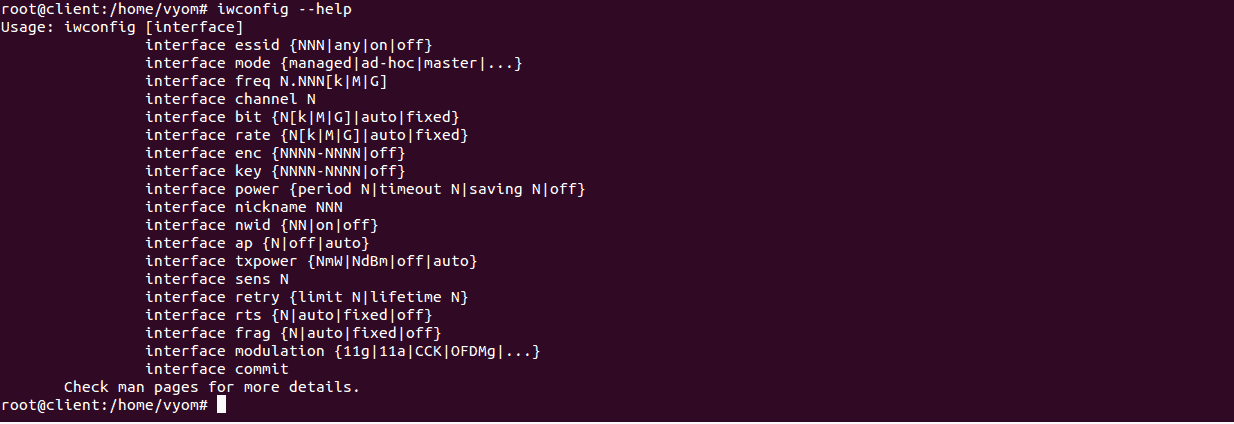
You can list all the options available with iwconfig as shown below:
Who is it recommended for?
IWCONFIG is recommended for both small and large companies with Linux-based networks. Its user-friendly interface makes it accessible for individuals and small businesses, while its scalability and versatility suit the needs of larger enterprises.
14. HOSTNAME
hostname is a command line tool used to see the hostname of your system.
Why do we recommend it?
We recommend HOSTNAME for its simplicity and efficiency in managing system hostnames. It allows users to quickly retrieve and set hostnames, making it an essential tool for system administrators and IT professionals seeking a hassle-free way to manage system configurations.
Run the following command to see the hostname of your system
hostname
You should see the following output:
ubuntu1804
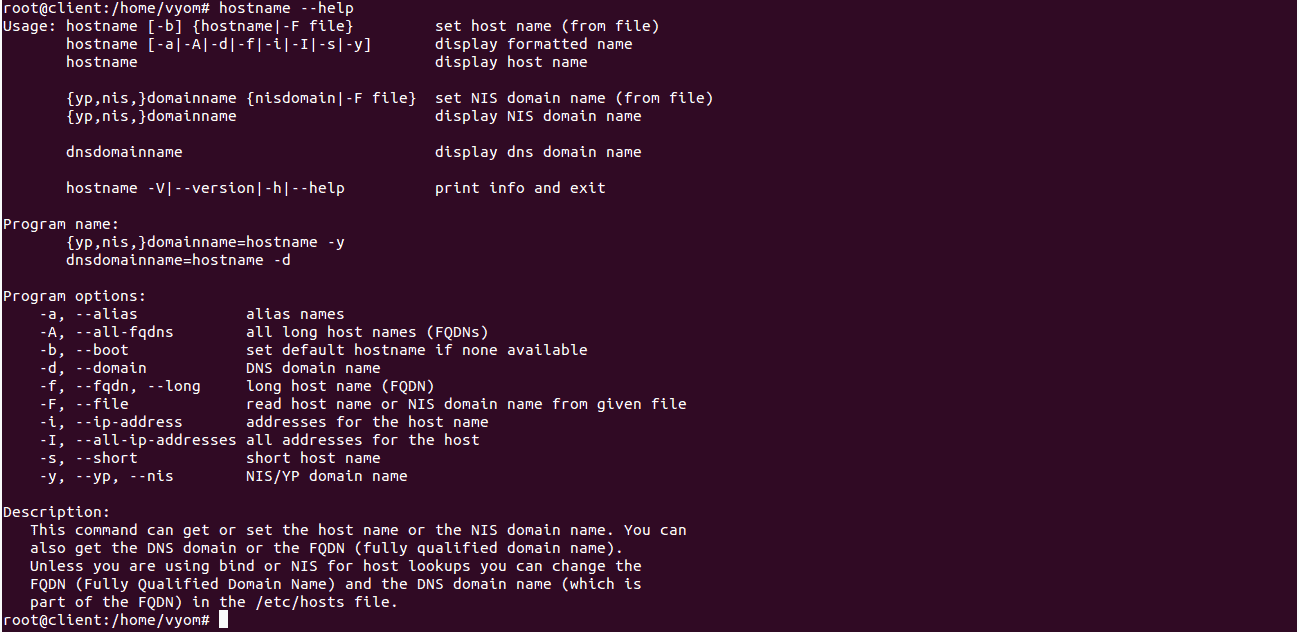
You can list all the options available with hostname command as shown below:
You can see all the information about your host with the following command:
hostnamectl status
You should see the following output:
Static hostname: ubuntu1804

Icon name: computer-vm

Chassis: vm

Machine ID: 9ce42836ca1e4a63959b17e47fca28e8

Boot ID: 0a63735b83e746609eacb75652f34994

Virtualization: oracle

Operating System: Ubuntu 18.04.1 LTS

Kernel: Linux 4.15.0-47-generic

Architecture: x86-64
You can also set hostname of your system with the following command:
hostnamectl set-hostname newhostname
Who is it recommended for?
HOSTNAME is recommended for users of all experience levels, from beginners to seasoned IT professionals, who need to manage and customize system hostnames with ease. It is beneficial for both small and large companies looking to efficiently maintain and standardize hostnames across their systems.
Conclusion
We hope you have now enough knowledge to use the above tools to manage and troubleshoot network-related problems as well as connectivity issues within your servers.
These tools can help you to fix network-related problems in minimal time and we them on a daily basis when helping customers troubleshoot issues with their Linux and even Windows systems!