


Packet loss happens when packets of data aren’t able to reach their assigned destination within a network. Generally, packet loss happens due to network congestion and can have a variety of causes and consequences.
Today, we’ll be looking at 8 different steps you can take in order to fix packet loss issues. Then, we’ll go over the best network monitoring tools to help you get past packet loss and get the experience you deserve.
Here’s our list of the best network monitoring tools for fixing packet loss:
- Site 24×7 – EDITOR’S CHOICE Offers a single-console solution for tracking network traffic and performance, with modules for various IT needs. Start a 30-day free trial.
- Paessler Packet Loss Monitoring with PRTG – FREE TRIAL A sensor-based system ideal for those who want to take a modular approach to their network monitoring. Start a 30-day free trial.
- Nagios XI Based upon open-source software, the Nagios XI GUI is well worth the money and offers the longest free trial.
- Progress WhatsUp Gold A great all-rounder tool with excellent presets and alert customization.
- SolarWinds Network Performance Monitor The SolarWinds company has a giant presence in the cybersecurity industry for a reason. The performance monitor can be paired up with the SolarWinds VoIP and Network Quality Manager to give you unparalleled network monitoring. Furthermore, it’ll even help you fix packet loss issues on your network remotely!
If your answer to any of the questions below is “yes,” then you’re in the right place. Today we’ll be looking at 8 ways you can fix packet loss and answering some common questions about the topic. We’ll also be taking a detailed look at some of the best network performance monitoring tools to help you anticipate future issues and solve them more efficiently.
- Does your network overload frequently?
- Does your connection act jumpy hopping onto a video call?
- Did you feel your network’s packet loss issues impacting company performance?
The Causes of Packet Loss
Packet loss can have a variety of different causes. It could be caused by the inefficiency of a data carrier in your network. For example, loose cable connections, a poor WiFi signal, or the like can cause packet loss. There are also situations where you might want to intentionally cause packet loss. This is especially common in VoIP calls, video streaming, and the like, in order to avoid time lags. This goes double for times when there’s high network congestion.
However, too much packet loss can lead to streams lowering in video quality, calls starting to develop a “robotic” voice, and other issues. Generally speaking, packet loss issues are rarely experienced on private, wired networks. However, in long-distance internet connections, it’s almost a certainty.
Router Packet Loss
Some companies rely a bit too hard on their individual routers to handle routing decisions. This means that every access point needs to have a database of preferred directions for every destination.
Although this disconnected approach can work, routers aren’t able to recognize routers later in the chain that might be experiencing issues. All routers will inform all devices around them about their status conditions at regular time intervals. Then all other routers near it will recalculate their directions. When a router gets notified of, say, a traffic block, it’ll cause all neighboring routers to recalculate the ideal path for data to take so that it doesn’t have to go through the congested router. This takes time, causing packet loss in the process.
Rerouting overload
Sometimes, a router’s calculations show that the best route for a packet to take is through a blocked route. When the packet gets to the block, the routers surrounding the problem router will already know about the issue and reroute the packet. This process can sometimes happen even though there were more optimal paths for the data to take.
This is especially troublesome when a router malfunctions and is unable to send status notifications to other routers around it. This results in packets being sent to it regardless of the fact it is no longer operational.
The reason packet loss happens more often in distant connections is that the more distance a packet needs to cover, the more routers it’ll need to go through. This, in turn, means that there are more places that can potentially suffer malfunctions. This, in turn, leads to packets being delayed or dropped entirely.
When Is Packet Loss A Problem?
It’s pretty much impossible to get to a point where your network’s infrastructure has absolutely no packet loss. There will always be some performance drag, especially with connections dealing with the internet.
Once you’ve understood the causes of packet loss, making your network healthier becomes easier. Now, although there’s a lot of things you can do to help with packet loss, the biggest one is implementing a network monitoring tool.
Packet loss becomes a true problem when it starts costing your business a significant amount of money. At that point, you’ll have to take advantage of every tool at your disposal to avoid having to purchase more infrastructure or more internet bandwidth.
The 8 Steps:
- Look Over Physical Connections: You’ll need to ensure that all of your ports and cables are installed and connected correctly. If they aren’t, that might be the cause of your packet loss.
- Restart Network Hardware: Sometimes, fixing packet loss can be as simple as restarting routers and other devices across the network.
- Prioritize Cable Connections: When given the choice, you should be picking cable connections over wireless, as that ensures a more consistent, higher-quality connection.
- Search For Sources of Interference: Some objects can interfere with your data transfers by virtue of simply being there. This applies to wireless devices, power lines, cameras, and the like.
- Try A Wired Connection: If you’re running on WiFi, try out a wired connection and see if that fixes the issue.
- Keep Software Up To Date: Outdated software can sometimes be the cause of packet loss, so you should ensure all of your devices are kept up to date.
- Replace Faulty Hardware: Sometimes, hardware doesn’t have to be malfunctioning to need replacing. Simply being too old can cause network issues. Because of this, you should be reviewing the hardware in your network for malfunctions or age issues routinely.
- Take Advantage of QoS Settings: You can use QoS settings to help prioritize the traffic that means the most to your business, thus lowering packet loss in those locations.
What Are The Best Tools To Fix Packet Loss?
There are, of course, some generic things you can do to help alleviate packet loss. A tightly managed network with excellent routers and connections is less likely to experience packet loss than a network with outdated hardware and no one monitoring it.
With that being said, there’s no avoiding the Internet Protocol, and in those cases, you can’t have an objective view of the whole situation.
This is where network monitoring tools come in. They help you monitor packet loss both internally in your network and externally when connecting to the internet.
Our Criteria
We’ve scoured the market for the best tools to fix packet loss so you don’t have to. We used a specific set of criteria to separate the diamonds from the rough:
- Ping-sweeping test capabilities
- SNMP monitoring ability to check devices for their status
- Whether the tool supports queueing or not
- How good its Link testing utilities are
- Whether or not it has a free trial for you to see if you like it before purchase
- How effective it was at eliminating packet loss in our testing
The Best Tools To Fix Packet Loss
1. Site24x7 Network Monitoring Tool – FREE TRIAL
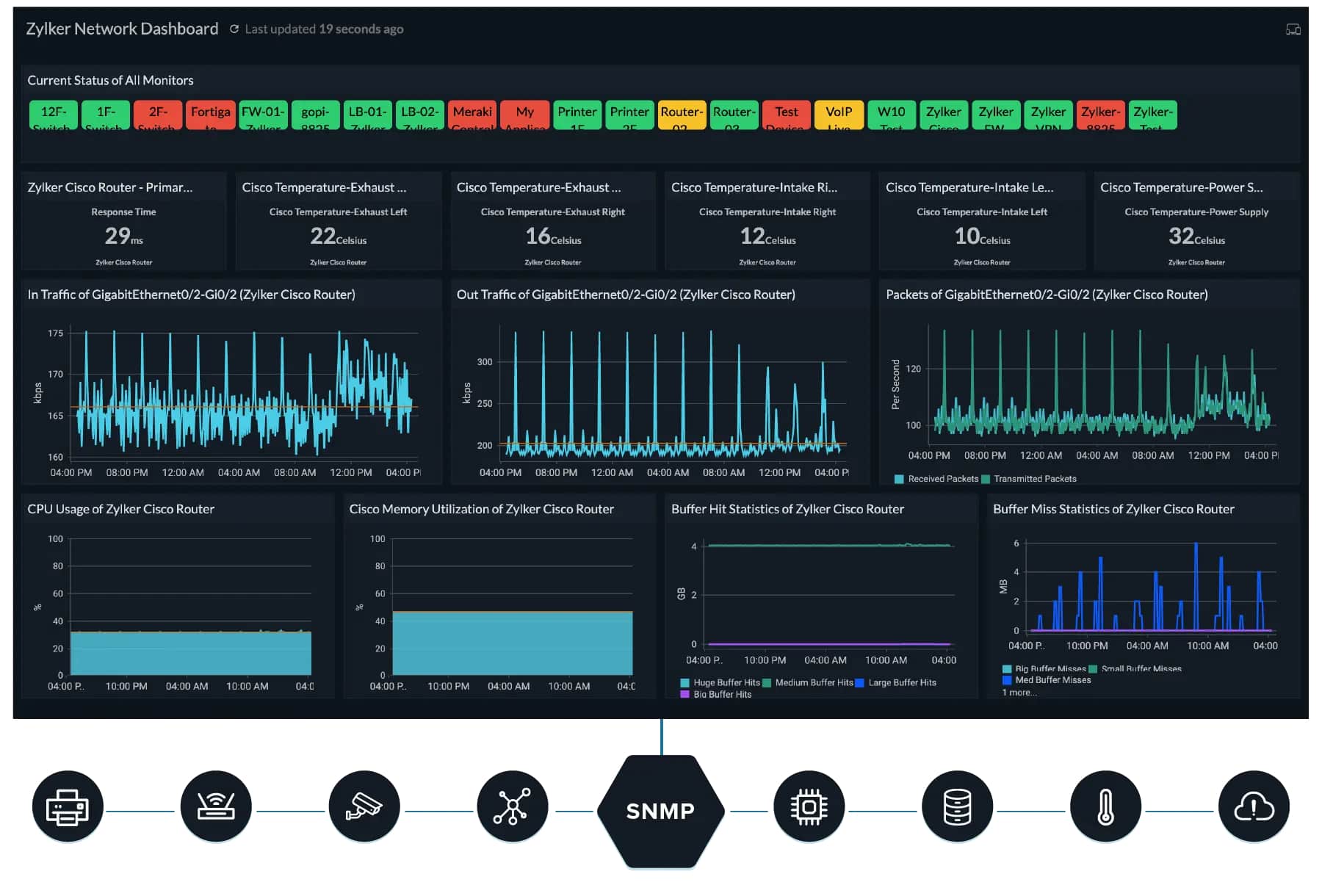
Site24x7 is one of the top tools for packet sniffing as it offers access to several features and capabilities, unlike other tools. Businesses of any size can use the tool to track their network device traffic, performance, and availability all from a single console. The tool even offers access to different modules for applications, websites, and servers. Users can subscribe to different modules and use the tool at a larger scale to improve overall performance.
Key Features
- Management of device configurations
- Device templates are available
- Monitors both device and interface networks
Why do we recommend it?
Whether your business wants to track the performance of a network at the device level or the interface level, administrators can easily perform these actions using Site24x7. It provides detailed insights into the packet loss, traffic, resource usage, and other key metrics of a network.
Apart from tracking insights into the traffic and other metrics, the tool provides quick solutions to device issues. SNMP monitoring and VoIP monitoring are a few other features that a user can access using this tool.
Who is it recommended for?
Any business with small or complex network can use the Site24x7 tool to track the availability and performance of their network devices. Its comprehensive set of features helps discover network errors in real-time and prevents security misconfigurations.
Pros:
- Collects traffic details and draws network schema using Layer 2 maps for better analysis
- Keeps account of all key metrics that might affect the performance of a network
- Identifies issues and detects threats in advance before it causes downtime or any other issue
- Clear visibility into the networks makes it easier to track the network activities and operations
Cons:
- Navigating through the wide range of features offered by the tool might take some time
Site24x7 comes with a 30-day free trial.
2. Paessler Packet Loss Monitoring with PRTG – FREE TRIAL
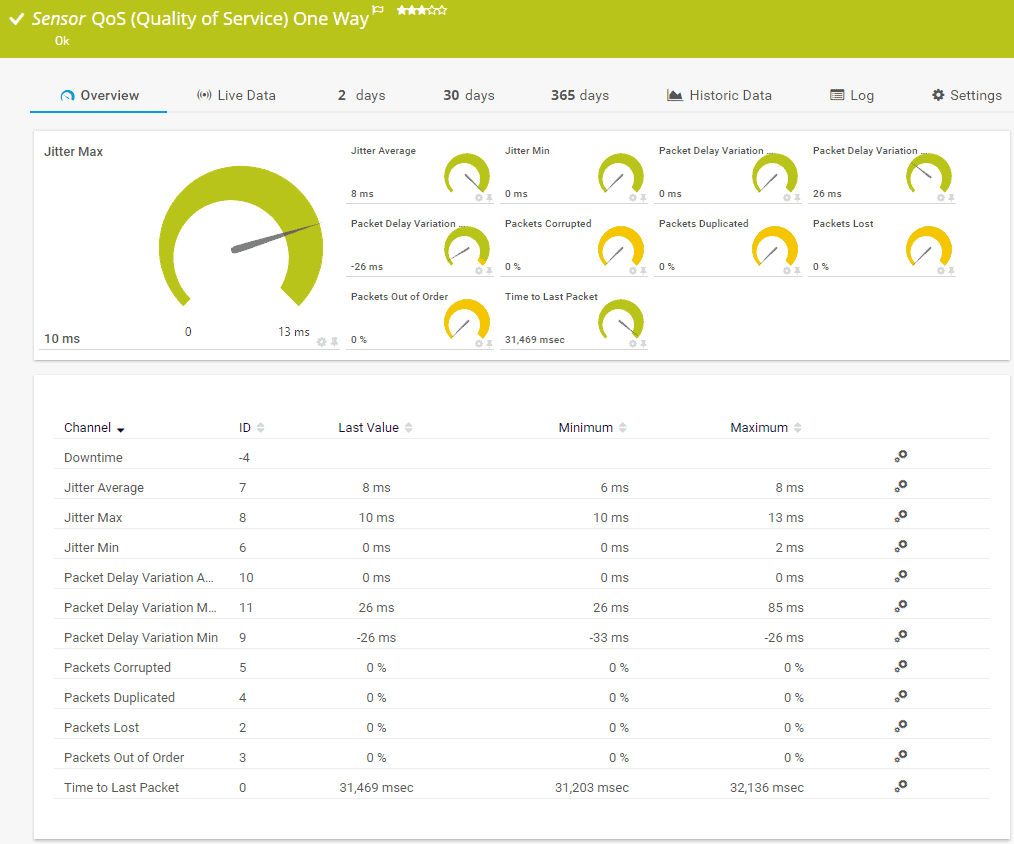
Paessler is another big name in network security software. They’ve put all of their resources into their central project- PRTG. This is the ideal tool for those looking for modularity in their packet loss solution, as they price their utilities per sensor.
Key Features
- Excellent traffic monitoring utilities
- PRTG’s modular design lets you only pay for the parts you need
- Constant upkeep
- Fully customizable alerts system
- Can monitor app performance in addition to packet loss
- Its mapping tool lets you make your own network representations
Why do we recommend it?
In our rigorous testing, Paessler Packet Loss Monitoring with PRTG stood out as an excellent choice for those seeking a modular approach to network monitoring. This sensor-based system allowed us to customize our monitoring based on specific network conditions. We utilized the ping test sensor to determine packet loss rates and total trip times at every device, ensuring a thorough analysis of network performance. The Quality of Service (QoS) sensor helped in identifying packet loss on each link within the network, offering a comprehensive solution to address issues.
A “sensor” refers to a network, hardware feature, or device condition. For you to use PRTG to solve and prevent packet loss issues it’ll take you at least 3 sensors:
- Ping Test: The ping test sensor determines the rate of packet loss, as well as the total trip time at every device involved.
- QoS: The QoS or Quality of Service sensor looks at the packet loss on each link within your network
- Cisco IP SLA: This sensor reads detailed information off of Cisco devices.
The PRTG takes advantage of SNMP agents in order to perpetually scour your network for any error conditions on any of your network devices.
You can customize the conditions in which the software will alert you of a potential issue. This is much easier to do due to the PRTG’s capability to show most of the data you’re likely to need in one intuitive dashboard.
The PRTG is also capable of paying attention to how specific applications are performing. Sometimes, temporarily closing or blocking an app is all it takes to stop a network overload. Furthermore, you can block specific endpoints on the network if necessary.
The PRTG can take advantage of its Cloud capabilities in order to help you monitor your remote sites. It can be installed on Windows OS, or be accessed on the cloud, in both cases, a 30-day trial is available.
Who is it recommended for?
Paessler Packet Loss Monitoring with PRTG is recommended for businesses and individuals who prefer a modular and customizable approach to network monitoring. Its sensor-based design makes it ideal for those wanting to pay for specific functionalities they need, making it cost-effective and tailored to individual requirements. This tool is suitable for a range of sectors, including IT professionals, network administrators, and businesses of various sizes. Its constant upkeep, fully customizable alerts system, and ability to monitor application performance make it versatile for diverse network monitoring needs.
Businesses aiming for cost-effective and tailored network monitoring solutions can benefit from its sensor-based approach. The tool’s ability to monitor application performance makes it valuable for optimizing overall network efficiency. Whether you’re managing a small network or a complex infrastructure, Paessler Packet Loss Monitoring with PRTG offers a scalable and effective solution to address packet loss and enhance network performance.
3. Nagios XI
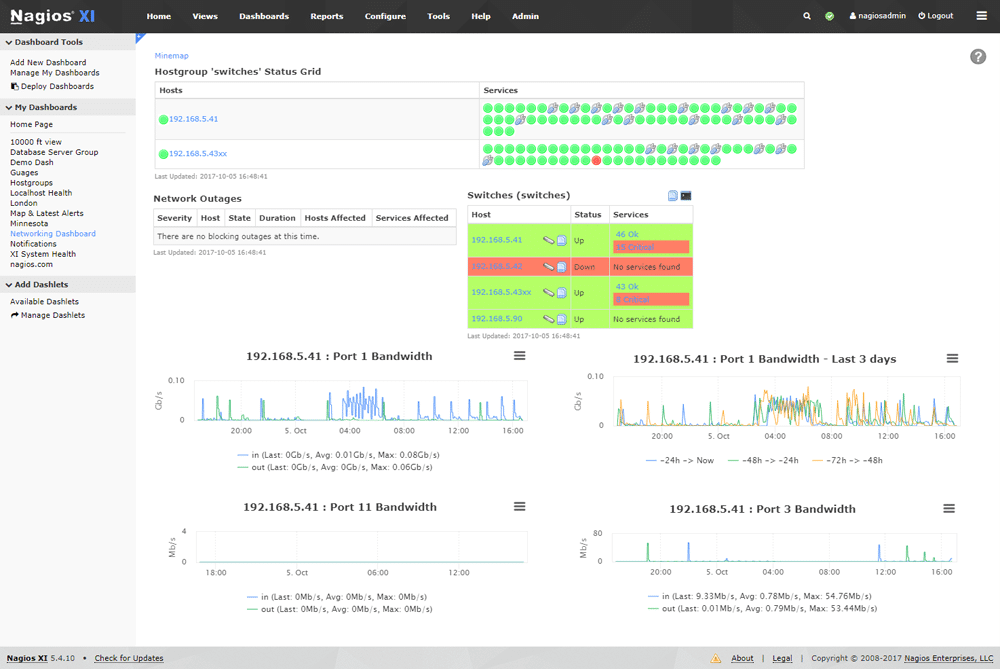
Nagios XI is built on top of the Nagios Core system, which is both free and open-source. With that being said, to get a proper GUI, you’ll need to pay for Nagios XI.
Key Features
- Nagios XI lets you create different versions of the dashboard
- The Core system is available for free and is open-source
- There’s a variety of free plugins, making customization a breeze
- Versatile coverage, you can cover cloud, wireless or virtual systems, remote sites, as well as wired LANs.
Why do we recommend it?
The Nagios XI GUI, while requiring an investment, proved to be well worth the money during our evaluation. The tool’s Configuration Management module automatically tracked changes in network device configurations, facilitating quick identification and resolution of performance-detrimental settings. The color-coded graphical representation and versatile coverage, including cloud, wireless, virtual systems, and remote sites, made Nagios XI a valuable asset in maintaining a robust network.
Rather than using SNMP, Nagios XI checks your statuses through its Nagios Core 4 system. With that being said, Nagios offers unparalleled customization with its plugin system, with a free plugin being available to change it to an SNMP-based monitoring system.
Its Configuration Management module automatically looks at how each network device is set up and logs the data. If any configs are changed, Nagios logs that as well, which lets you quickly roll back settings that turn out to be detrimental to performance.
Nagios XI makes itself worth the price tag by offering a great GUI to go with the Nagios Core system. Giving some excellent visualizations with their color-coded graphical representation of its monitoring. It’s easy to customize the dashboard, and you can even make different versions of it, so that you can have one for your tech-savvy IT team, and another for less technical managers.
Who is it recommended for?
Nagios XI is recommended for advanced users and IT professionals seeking a powerful network monitoring solution with unparalleled customization. The open-source Nagios Core system, on which Nagios XI is built, provides a solid foundation for robust monitoring. The GUI enhances user experience, offering excellent visualizations and color-coded representations of network status. Nagios XI is suitable for various sectors, including IT teams, tech-savvy professionals, and managers overseeing network operations. While it may require CentOS or RHEL Linux for installation, the tool offers a two-month free trial, allowing users to explore its features and customization options.
The GUI’s visualizations make it suitable for managers overseeing network operations, providing a clear and comprehensive view of network status. The tool’s versatile coverage, including cloud, wireless, and virtual systems, caters to a wide range of network monitoring needs. Whether you’re running a small LAN or managing complex infrastructure, Nagios XI offers a robust solution to identify and address network issues efficiently.
With that being said, Nagios XI can only be installed on CentOS and RHEL Linux. If you don’t have either of these, you’ll have to use a virtual machine in order to run it. On the bright side, its free trial is two whole months long!
4. Progress WhatsUp Gold
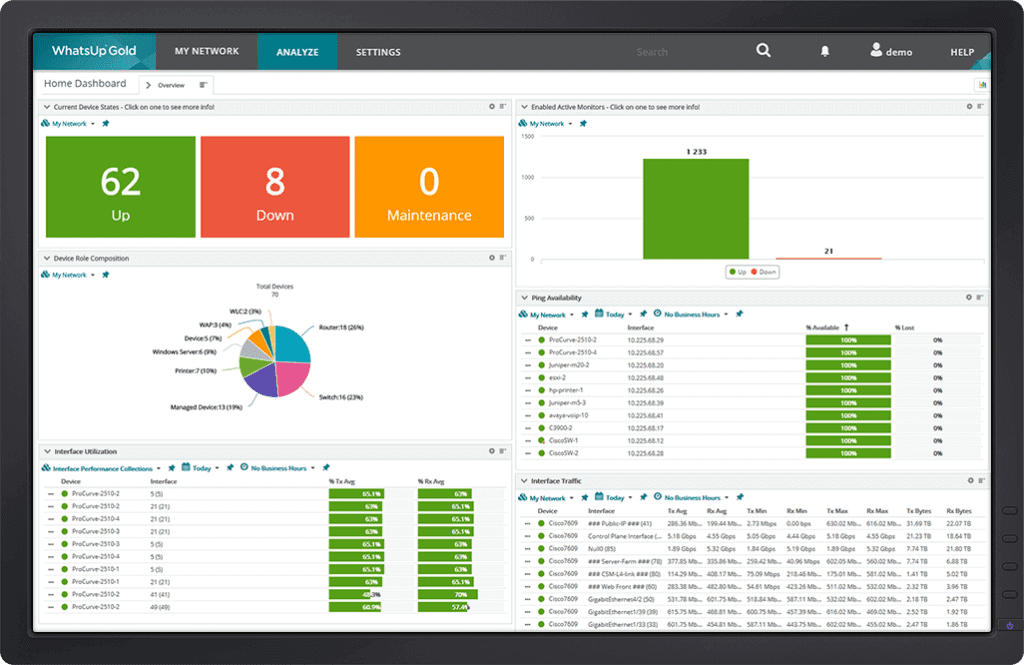
WhatsUP Gold, formerly known as Ipswitch, monitors your network devices and alerts you if any error conditions arise. It uses SNMP to manage these alerts, and has default presets for when to notify you.
Key Features
- Uses SNMP to monitor your network
- Color-coded device statuses
- Excellent network discovery features
- Live alert support
Why do we recommend it?
In our evaluations, Progress WhatsUp Gold emerged as a great all-rounder tool with excellent presets and alert customization, making it suitable for diverse network monitoring needs. The use of SNMP to manage alerts, coupled with default presets for timely notifications, ensured effective monitoring of network devices. The tool’s network discovery capabilities provided a continually updating topology of our LAN, aiding in the quick detection of any changes in device behavior. One key problem it solved for us was the live alert support, enabling instant notifications for unfavorable device statuses. The color-coded device statuses and integration with Slack for team notifications enhanced its overall utility.
Its network discovery capabilities help it collect all of the data needed for its monitoring. With a continually updating topology of your LAN, it’ll easily detect any inventory addition, removal, or relocation. If any of your devices are displaying unfavorable behavior, they’ll be shown in red on the tool’s map. The mapping features of the WhatsUp extend to your cloud and virtual devices, as well as wireless ones.
The tool can also integrate with Slack to send notifications to team members in case an issue arises.
The Progress WhatsUp Gold is available on Windows Server with a free trial.
Who is it recommended for?
Progress WhatsUp Gold is recommended for users seeking a versatile and user-friendly network monitoring solution with strong presets and customization options. Its SNMP-based monitoring and live alert support make it suitable for individuals and businesses of varying technical expertise. The tool’s mapping features extend to cloud, virtual, and wireless devices, offering a comprehensive view of the entire network infrastructure. WhatsUp Gold is accessible on Windows Server, providing flexibility in deployment.
The tool’s user-friendly interface and customizable alerts make it suitable for individuals and teams with varying technical expertise. The mapping features cater to a wide range of devices, including cloud, virtual, and wireless, providing a holistic view of network status. Whether you need to monitor a small network or a complex infrastructure, Progress WhatsUp Gold offers a reliable solution to identify and respond to network issues promptly.
5. SolarWinds Network Performance Monitor
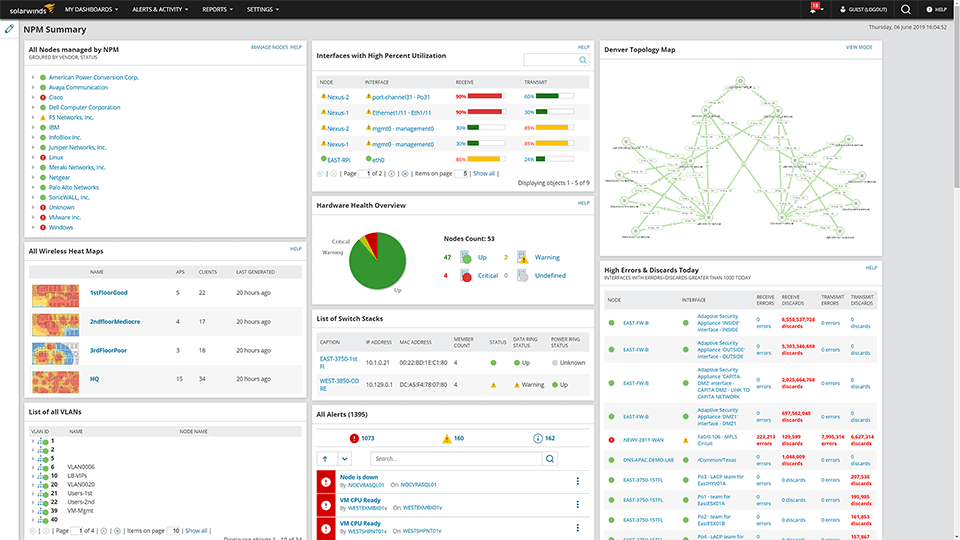
Made by the reputable SolarWinds company, the SolarWinds Network Performance Monitor is one of the best tools out there for managing packet loss on your network.
Key Features
- Detailed reports on every device’s status
- Very user-friendly given its depth
- Will alert you on issues based on customizable thresholds
- Automatically discovers devices on your network, and updates its network map
- Excellent path analysis functionalities
- Continually updated graphics of your network, helping you find problems quickly
- It lets you adjust device settings remotely, letting you fix packet loss problems without even being near the network.
Why do we recommend it?
During our extensive testing, SolarWinds Network Performance Monitor proved to be an invaluable tool for addressing packet loss issues on our network. With its autodiscovery feature, the tool mapped our entire network automatically, providing a comprehensive view of device performance. It excelled in detecting SNMP messages, allowing us to customize alerts based on specific thresholds and take control of network issues remotely. One key problem it solved for us was efficiently managing packet loss, ensuring a smooth and uninterrupted network experience. The intuitive dashboard, detailed reports, and path analysis functionalities made it a standout choice for network monitoring.
The tool has an autodiscovery function, mapping your entire network automatically. It will also recur this function for as long as it is on, meaning you won’t need to input more data about the network manually. You can see the performance of your VM systems and other devices in its intuitive dashboard. Furthermore, the SolarWinds can detect SNMP messages reporting on conditions on all devices in the network. You can customize at what point you would like it to notify you. It also lets you take control in these situations with ease, helping you avoid going over capacity.
The SolarWinds is great at graphically representing not just your network, but its issues and their potential causes too. Every router and switch is shown as a single node in a given path. When you look at a node, it’ll automatically show you the latency and packet loss statistics for that specific node. It goes even further, looking at other nodes on the internet. It’ll even report on the nodes inside your service provider’s network if you need that.
In case you’re running a voice system over your network, then the SolarWinds VoIP and Network Quality Manager utility will help you a lot. It’s specifically geared towards improving the parts of your network critical for a great VoIP experience. Packet loss is one of these major problems, and this utility is equipped to help you measure and deal with it. It has a visualization module that helps you see all of the paths followed by the VoIP, in addition to the health of all of the notes.
These two products are run on the same platform, meaning you can integrate them together to get the best experience out of them. These tools will run on Windows Server 2016 and above.
Who is it recommended for?
SolarWinds Network Performance Monitor is highly recommended for businesses and IT professionals seeking a robust solution to address packet loss and enhance overall network performance. Its user-friendly interface makes it suitable for both beginners and experienced users. Small to enterprise-level businesses can benefit from its extensive features, including VM system performance monitoring. The tool is particularly valuable for those running voice systems over their networks, thanks to the specialized utility SolarWinds VoIP and Network Quality Manager.
It ensures the smooth operation of voice systems, making it ideal for businesses relying on VoIP. IT professionals can utilize its path analysis and device status reporting features to troubleshoot and optimize network performance. The tool’s graphical representation of the network and its issues provides a visual understanding, making it suitable for managers overseeing network operations.
The SolarWinds company is quite confident in these two products, offering a 30-day trial for both of them.
Download: https://www.solarwinds.com/network-performance-monitor/registration
Packet Loss Frequently Asked Questions
How Is Packet Loss Calculated?
We calculate packet loss by counting the number of packets sent from a chosen point in the network and compare it to the number received at a different node. When we subtract these two and divide it by the total number of packets we sent, that’s our rate of packet loss.
How Does Packet Loss Happen On Ethernet Connections?
Although Ethernet generally has minimal packet loss, it’s possible to suffer from it if there’s some damage on the cable, the connectors aren’t properly plugged in, or if there’s a significant source of interference involved.
Does packet loss affect ping?
Although packet loss can be measured by using the Ping utility, the slang term “ping” actually refers to the round-trip time. Although these are sometimes correlated, packet loss doesn’t affect RTT directly.
Is Some Packet Loss Expected?
Some packet loss should always be expected, and it generally isn’t a cause of concern. The rate of packet loss you should be expecting depends on the size and reliability of the network in question. The more hops within a transmission, the higher the chances of packet loss. This means private networks generally experience a lot less packet loss than networks working with the internet. Furthermore, smaller networks are less prone to packet loss than larger ones.
Usually, rates of packet loss between 1 and 2.5% are considered acceptable.
Is 2% A High Rate Of Packet Loss?
Although any amount of packet loss will slow response times, on the internet, it’s practically impossible to achieve 100% delivery success. You should be ready to be faced with at least some packet loss, however, anything below 5% is generally considered good.
Does Using A VPN Prevent Packet Loss?
A VPN actually doesn’t help much at all with packet loss if its cause is an ISP’s equipment performance or if a router is facing overload. A VPN encrypts your packets and changes their path to their destination. Those packets are still passing through your gateway in order to get to their destination, and still go through your ISP’s equipment. If that’s where the source of your packet loss is, a VPN won’t be able to help at all.
Closing Words
Being able to pay close attention to packet loss will help your networks run more smoothly and make your job easier. While the tools we’ve listed above might seem a bit costlier than you would’ve expected, in the long run, they pay for themselves by helping you increase productivity.
If you don’t believe us, they all offer a free trial of at least a month. The Core version of Nagios XI is even completely free of charge!
Packet loss can cause a variety of issues on a network, which in turn reflects poorly on your business. Don’t let it go unchecked, and take advantage of the 8 steps and 4 tools we’ve shown you to prevent it.