


WiFi signal fluctuation is very common. This happens because WiFi signal strength depends on a variety of things. This can range from the weather to the materials your environment is made out of. On some days, you’ll find yourself using it without a hitch, while others will have you struggling to maintain a connection at all.
This issue is exacerbated if you don’t have access to the right tools to help you diagnose your WiFi issues. This is where WiFi analyzers come in.
Here’s our list of the best WiFi analyzers available on Windows:
- ManageEngine OpManager – EDITOR’S CHOICE A monitoring tool for networks and servers that includes WiFi signal tracking for APs. Available for Windows Server, Linux, AWS, and Azure. Get a 30-day free trial.
- Site24x7 – FREE TRIAL This cloud-based monitoring suite is particularly effective for network oversight and includes a dedicated WiFi analysis component. Get a 30-day free trial.
- ManageEngine NetFlow Analyzer – FREE TRIAL A flow-based network traffic monitoring platform that provides real-time visibility into network bandwidth performance. Download a 30-day free trial.
- Paessler PRTG – FREE TRIAL A sensor-based tool that lets you pay only for the sensors you’re using. It’s the most customizable, non-open-source option out there. Download a 30-day free trial.
- NetSpot A heavily specialized tool with an easy-to-use and intuitive interface.
- InSSIDer A cheap and intuitive tool for home users and SMBs.
- WiFi Analyzer The simplest tool on the list, the pro version provides some additional complexity if necessary.
- SolarWinds Wi-Fi Analyzer It provides auto-discovery, full coverage of your networks, heatmap generation, and many other valuable features.
- Acrylic Wi-Fi An excellent tool for finding hidden networks that comes with a free version.
- Wireshark A free and open-source packet analyzer that can be a great boon if appropriately configured.
A WiFi analyzer is essentially just a tool that simplifies the information transferred between access points and quantifies them onto your screen.
WiFi analyzers are used to create a visual display of your network’s WiFi data and its surrounding channel. It can help you use a device as an analytics program helping you find the issues within your network.
This can help you find critical issues quickly and let you know what the optimal WiFi channel to connect to is. There are even tools that will show you the heat map of how a signal is distributed in your environment so you can perch your devices at the right location for them.
The Best WiFi Analyzers for Windows Networks
1. ManageEngine OpManager – FREE TRIAL
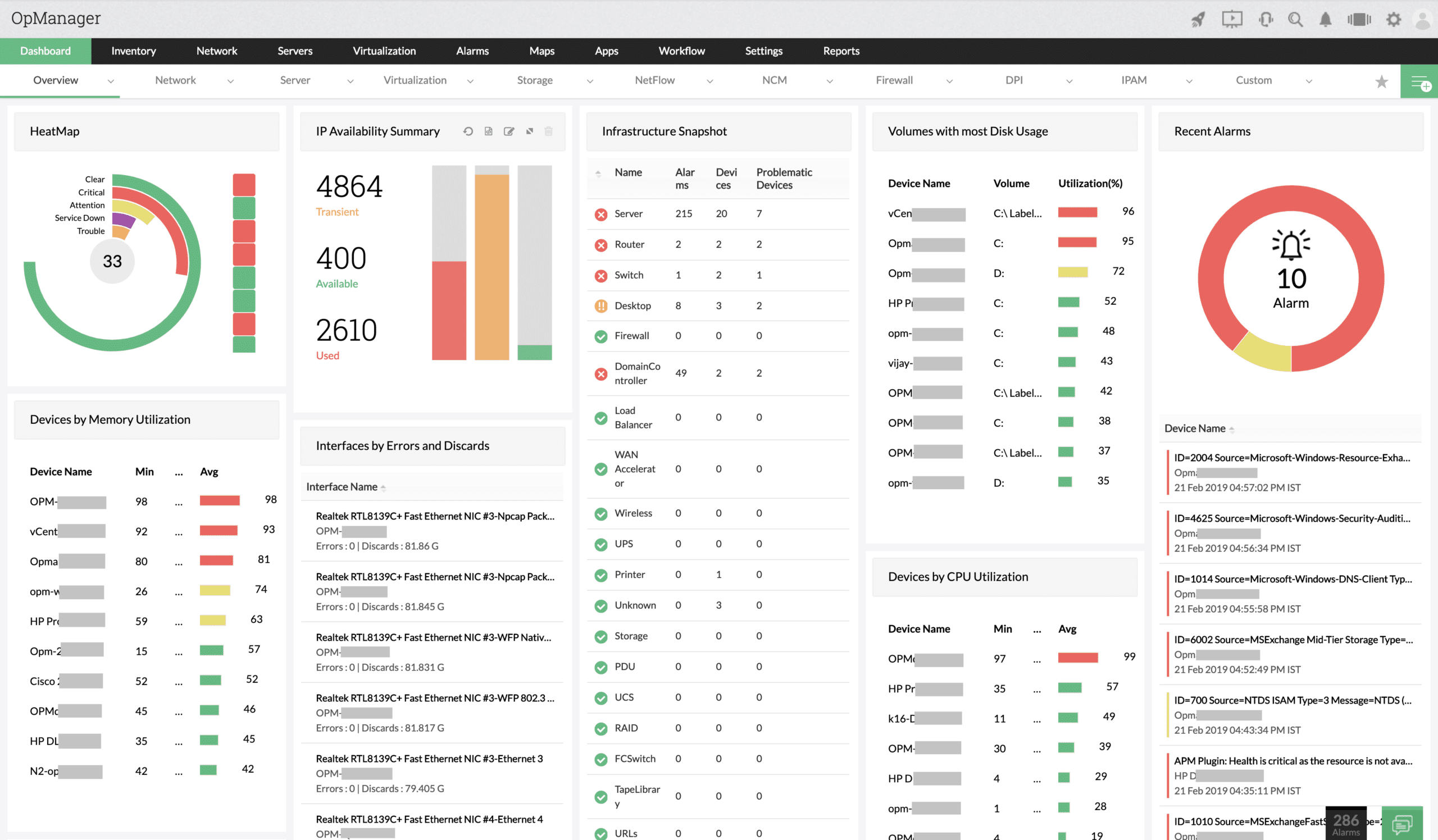
ManageEngine OpManager is a network monitoring system that also monitors virtual systems, servers, and wireless networks. The package includes a discovery routine that periodically sweeps the network and generates a network inventory. This process also identifies any wireless APs and it will record all of the characteristics of each device, such as make, model, speed, and capacity.
The ManageEngine system queries each wireless AP for packet loss and response times while also recording its availability. The service isn’t able to generate a wireless signal footprint map. However, ManageEngine provides a free WiFi Analyzer and Surveyor for Android that does include such graphical signal footprint representations.
Main Features
- Wireless AP discovery
- Inventory of all network equipment
- Availability, packet loss, and response times
- Monitoring for virtual and physical servers
- VoIP quality of service measurements
Why do we recommend it:
During our evaluation of ManageEngine OpManager, a network monitoring system, it effectively tracked WiFi signals for access points, providing detailed information on characteristics, availability, packet loss, and response times. While lacking a wireless signal footprint map, it delivered a thorough network inventory and monitoring for both virtual and physical servers. OpManager addressed the need for continuous network sweeps, identifying APs and recording vital device details.
OpManager is a software package and you can run it on Windows Server or Linux. Alternatively, you can sign up for the system on AWS Marketplace or Azure Marketplace. There is a Free edition but that is limited to monitoring only three devices. Paying customers have a choice of three editions that cater to businesses of different sizes. You can assess OpManager with a 30-day free trial.
Who is it recommended for:
ManageEngine OpManager is recommended for businesses of varying sizes requiring network monitoring, including virtual systems and servers. It caters to those in need of comprehensive network sweeps, making it suitable for SMBs to enterprises. Network administrators and IT professionals benefit from its ability to record detailed characteristics of devices, enhancing overall network management.
EDITOR'S CHOICE
ManageEngine OpManager is our leading choice for a WiFi analyzer in Windows-based environments, offering a unified approach to monitoring, analysing, and troubleshooting wireless performance. It integrates with Windows networks to provide real-time visibility into WiFi health, helping teams maintain stable and reliable connectivity without unnecessary complexity. The platform tracks key metrics such as CPU and memory utilization, disk usage, and total bytes transmitted by clients, giving administrators the data needed to identify issues like slow speeds, connection drops, and network congestion. Real-time alerts notify administrators when issues arise, enabling faster response and helping to reduce downtime across the wireless network. Network visualization features help map the wireless environment, making it easier to identify coverage gaps and areas of weak signal. Alongside live monitoring, OpManager provides detailed reporting and historical trend analysis to support capacity planning and ongoing optimisation of the WiFi setup.
Download: Get a 30-day free trial
Official Site: https://www.manageengine.com/network-monitoring/download.html
OS: Windows Server, Linux, AWS, and Azure
2. Site24x7 – FREE TRIAL
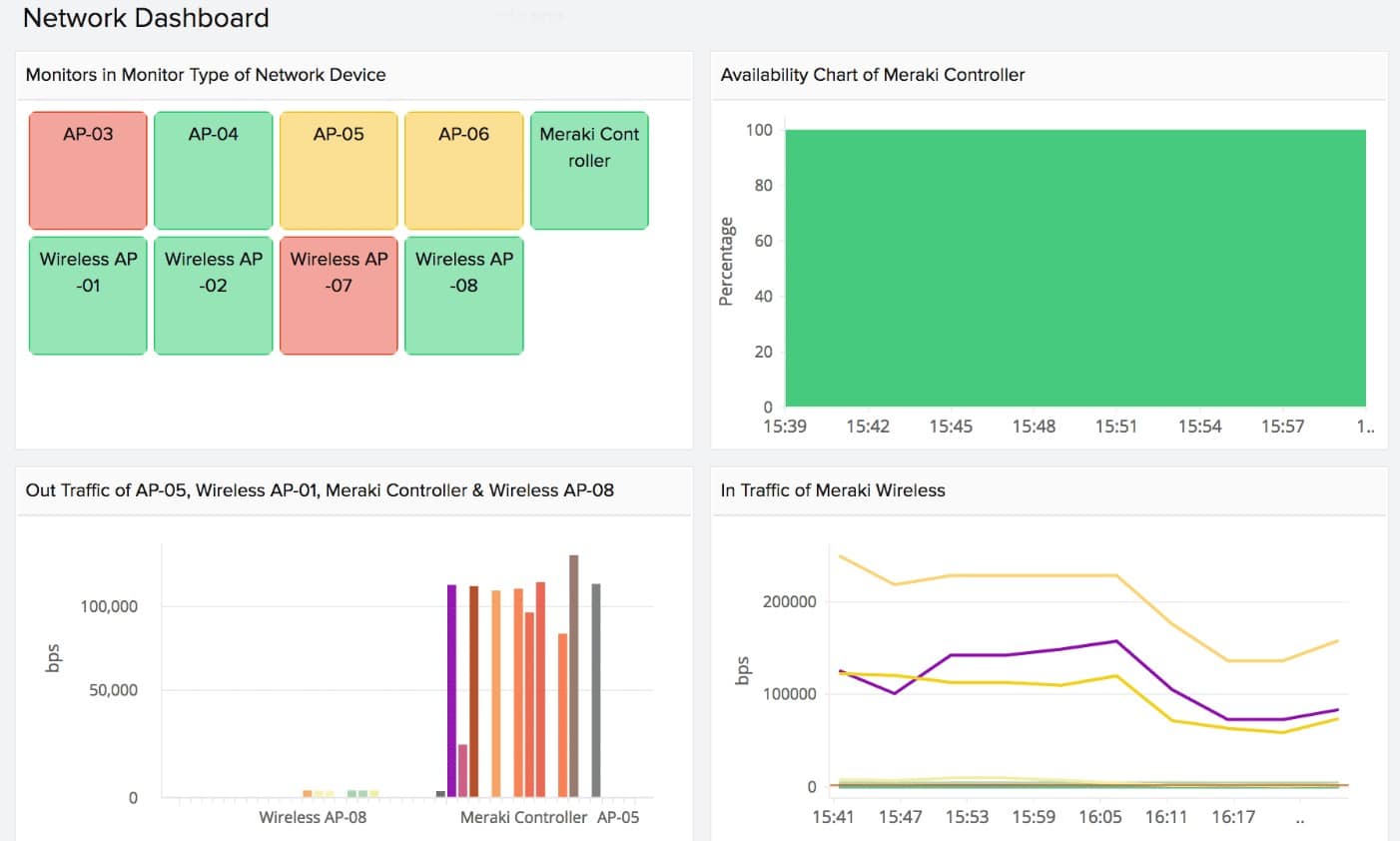
A WiFi analyzer is included within the broader Site24x7‘s network monitoring suite, giving IT teams a way to watch wireless performance as it happens and adjust it when needed. The tool measures key indicators such as signal strength, bandwidth consumption, and coverage, making weak areas and connectivity problems easier to identify across the wireless environment. That level of visibility helps organizations deal with network issues before they begin to affect productivity or the user experience.
For troubleshooting, the analyzer includes tools for investigating interference, slow links, and congestion. It also presents WiFi channel usage visually, which helps administrators spot overlapping channels that may be creating interference and then refine settings for better performance. The service also tracks the condition and behavior of individual access points, providing detailed visibility into their current status.
Main Features
- Network discovery, including identification of wireless controllers and access points
- System documentation covering the full network infrastructure
- Wireless performance tracking
- Historical storage of collected metrics
- Included within a full-stack observability package
Because the WiFi analyzer sits inside the wider network monitoring platform, teams get a unified way to manage network performance rather than a separate point tool. Customizable alerts, live monitoring, and detailed reporting are all part of the package, which makes investigation and remediation easier for IT teams. In both small offices and large enterprise environments, the platform helps organizations keep wireless networks stable, efficient, and properly tuned. You can examine Site24x7 with a 30-day free trial.
3. ManageEngine NetFlow Analyzer – FREE TRIAL
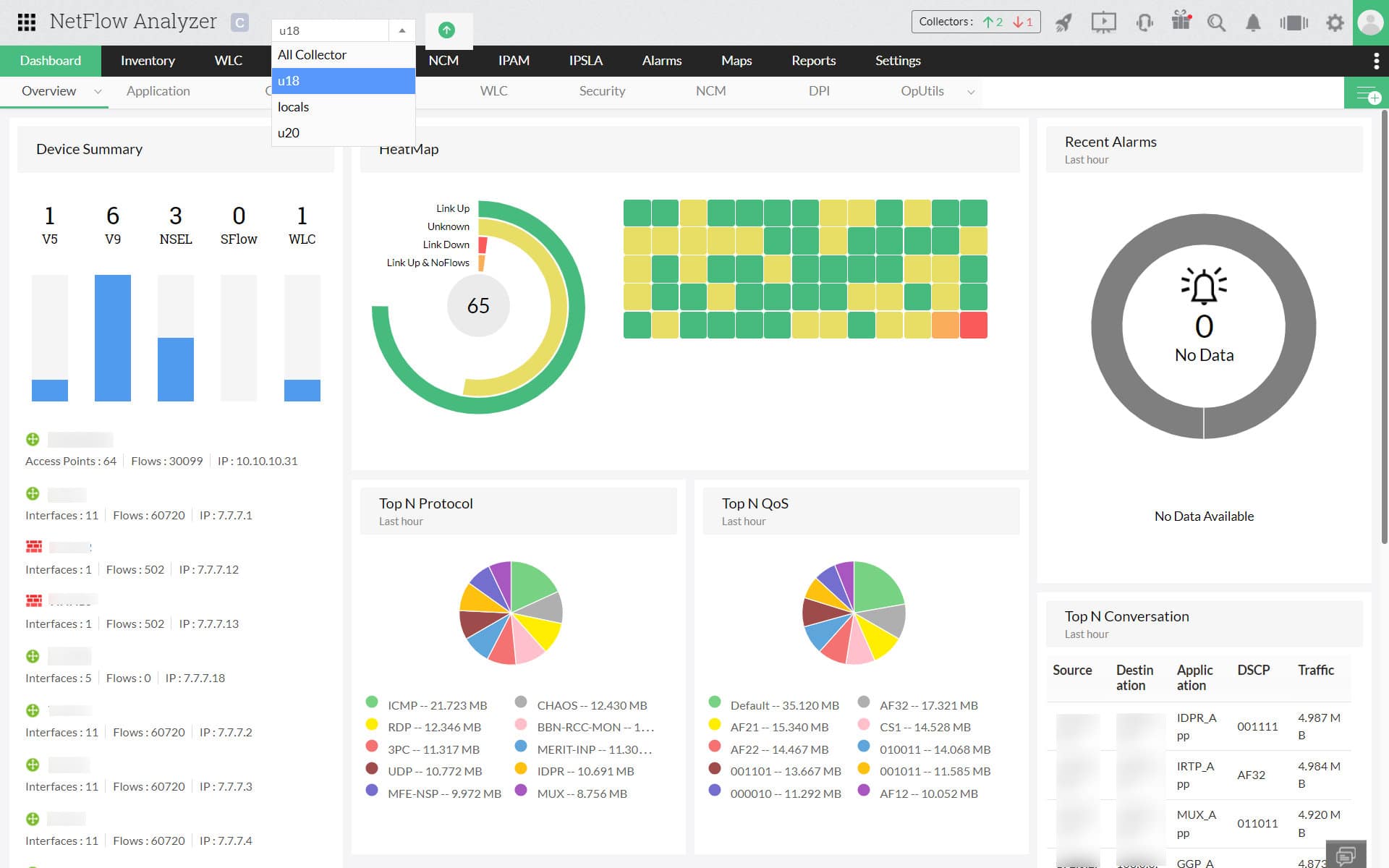
ManageEngine NetFlow Analyzer is a traffic analytics tool that uses flow technologies to optimize bandwidth usage. It collects information about your bandwidth and analyzes it for insights about how your bandwidth is used and by whom. These findings are displayed on reports and dashboards for easy understanding of the issue.
It provides real-time insight into your network bandwidth at an interface-specific level. Also, you can get granular reports that can help you drill down into traffic patterns and device performance.
Main Features
- Uses ML and behavior-based security analytics to detect anomalies.
- Integrates with MITRE ATT&CK mapping to track every stage of an attack.
- Classifies non-standard applications that could hog your bandwidth.
- Supports capacity planning with granular reports.
- Leverages Cisco NBAR to provide deep visibility into Layer 7 traffic.
- Supports all major flow formats.
Why do we recommend it?
NetFlow Analyzer effectively monitors your bandwidth to provide information about the traffic patterns, devices using your bandwidth, the top talkers, and more. It displays all this data on intuitive dashboards, and you can click on specific metrics to further drill down. Its granular reports also help with easy understanding and stakeholder communication.
A distinguishing aspect of this tool is its focus on security. It offers ML-based analysis to uncover potential hidden threats in your environment. Also, its algorithms are integrated with the MITRE ATT&CK framework, so every stage of adversary tactics can be identified and mitigated.
Moreover, you can use this tool for informed capacity planning. It can even generate on-demand billing for accounting and departmental chargebacks.
Who is it recommended for?
It is well-suited for organizations operating on limited bandwidth and those that require large bandwidth for running multiple mission-critical operations. It works well for organizations that require high security and have stringent compliance requirements. A good choice for MSPs as well.
NetFlow Analyzer comes in three editions – Standard (starts at $172 for 10 interfaces), Professional (starts at $245 for 10 interfaces), and Enterprise (starts at $3795 for 100 interfaces). Download a 30-day free trial.
4. Paessler PRTG – FREE TRIAL
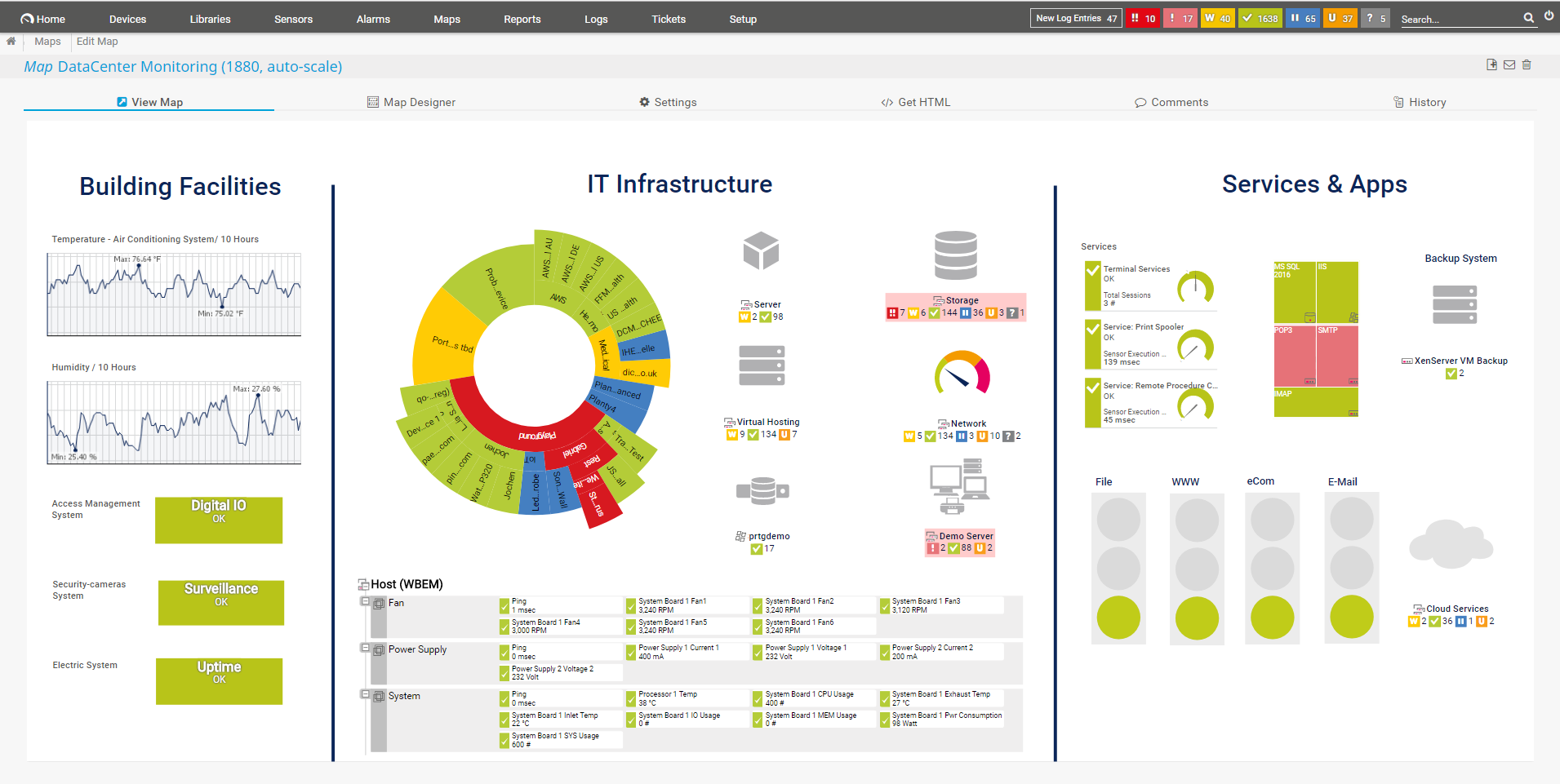
Paessler PRTG is a sensor-based network monitoring tool. This means you can get only the features that interest you without paying for anything past that. It also boasts automatic discovery features and will generate a map of your network, letting you see what devices are connected to which routers.
Main Features
- You can pay just for the sensors you need
- The tool helps you measure the volume of your WiFi traffic
- Autodiscovery features help you create a list and maps of all of your devices
- SNMP and packet sniffing help it gather a lot of detailed data
- There are a variety of different reporting templates and dashboard configs, helping you curate your visual experience
- A customizable, robust alerts system enables you to stay on top of any troubles that may arise
- Over 100 free sensors are available for a free trial
- Extremely scalable, excellent for all businesses ranging from SMBs to enterprises
- Available both on-prem and as a cloud-based service
Why do we recommend it:
Paessler PRTG, a sensor-based network monitoring tool, impressed us with its customizable approach, allowing users to pay for specific sensors. Our testing revealed its efficiency in measuring WiFi traffic volume, autodiscovery features for creating device lists and maps, and utilization of SNMP and packet sniffing for detailed data gathering. It addressed issues promptly through a robust alerts system, ensuring proactive monitoring.
The Paessler PRTG utilizes three different methods to look at your WiFi routers.
- The Simple Network Management Protocol(SNPM) is used to inform the central collector of the status of your routers. This is information such as the router’s health or throughput capacity.
- The NetFlow Messaging Protocol(NFMP) is used to broadcast the broader traffic metrics in your network and report them to the PRTG collector
- The PRTG Packet Sniffer is used to look at the headers of all of the packets within your network. This protects your privacy by only reading the headers but still maintains robust monitoring.
The PRTG interface then interprets all of this data and makes a graph of it in real-time, in addition to giving you ways to visualize historical data.
All problems that crop up in a router that tend to cause interruptions will be reported to the monitor when they crop up. The tool will highlight any failures or equipment overloads. You can also set up a robust alerts system so that you’re notified if a metric crosses a critical threshold.
The PRTG’s main flaw is that it practically requires you to have a lot of technical expertise to use it.
Who is it recommended for:
Paessler PRTG is recommended for businesses seeking a customizable network monitoring solution based on their specific sensor needs. Its scalability makes it suitable for SMBs to enterprises, offering in-depth insights into WiFi routers and efficient problem detection. Network administrators and IT professionals benefit from its flexibility and extensive reporting capabilities.
The PRTG is priced based on the number of sensors you need. Up to 100 sensors, and it’s completely free, for any amount past that you will have to pay after a generous, 30-day free trial.
5. NetSpot

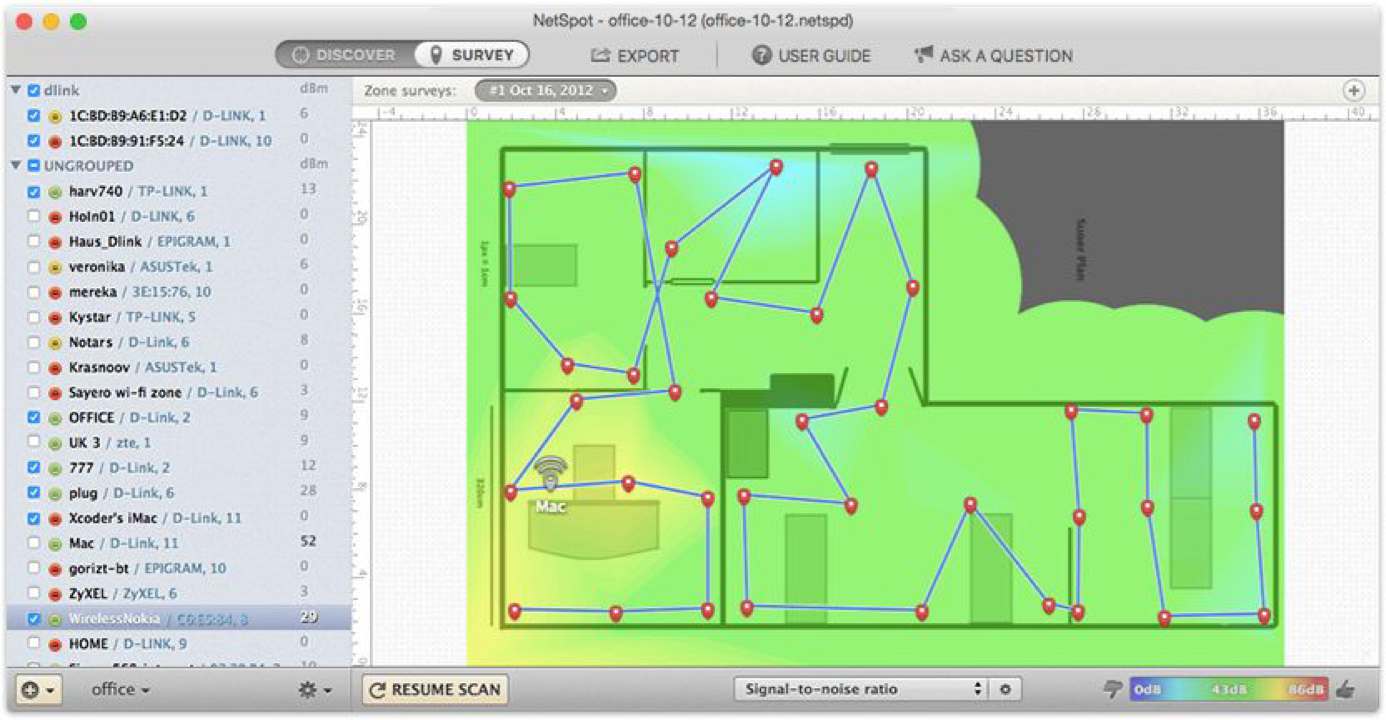
Netspot wifi analyzer is a focused app that narrows its utility down to a select few things, but it does those things a cut above the rest of its competition. Uploading maps and generating heat maps is trivial with NetSpot, so is running surveys. When a survey is completed, all of the zones where you’ve got the most vital connection will be shown in red.
Main Features
- Easy to use
- A slick, intuitive GUI
- Available to both Windows and MAC operating systems
- It offers a balance of higher-level features and simple utility
- It’s carefully honed to be extremely good at the few things it does
Why do we recommend it:
NetSpot, a focused WiFi analyzer, stood out for its ease of use, intuitive interface, and efficient heat map generation. During our testing, it excelled in running surveys and presenting crucial connection zones. However, it falls short in technical utility and reporting features. NetSpot addresses the need for simplified WiFi analytics, making it an excellent choice for users seeking a balance between high-level features and straightforward utility.
NetSpot’s discover mode lets you compile all of the data from the WiFi networks around it and convert it into a simple table. There, you’ll be able to see all of the crucial information you need, like Signal Information, SSID, MAC address, etc.
Who is it recommended for:
NetSpot is recommended for users, including home users and SMBs, looking for a user-friendly WiFi analyzer with a focus on essential functionalities. It is suitable for those requiring straightforward heat maps and survey capabilities but may not meet the demands of more technically advanced users or larger enterprises as NetSpot is very limited when it comes to its technical utility. Its reporting features are lackluster, and there are hardly any means through which you can export data. Also be aware that the free version doesn’t accurately represent the tool’s capabilities.
6. InSSIDer
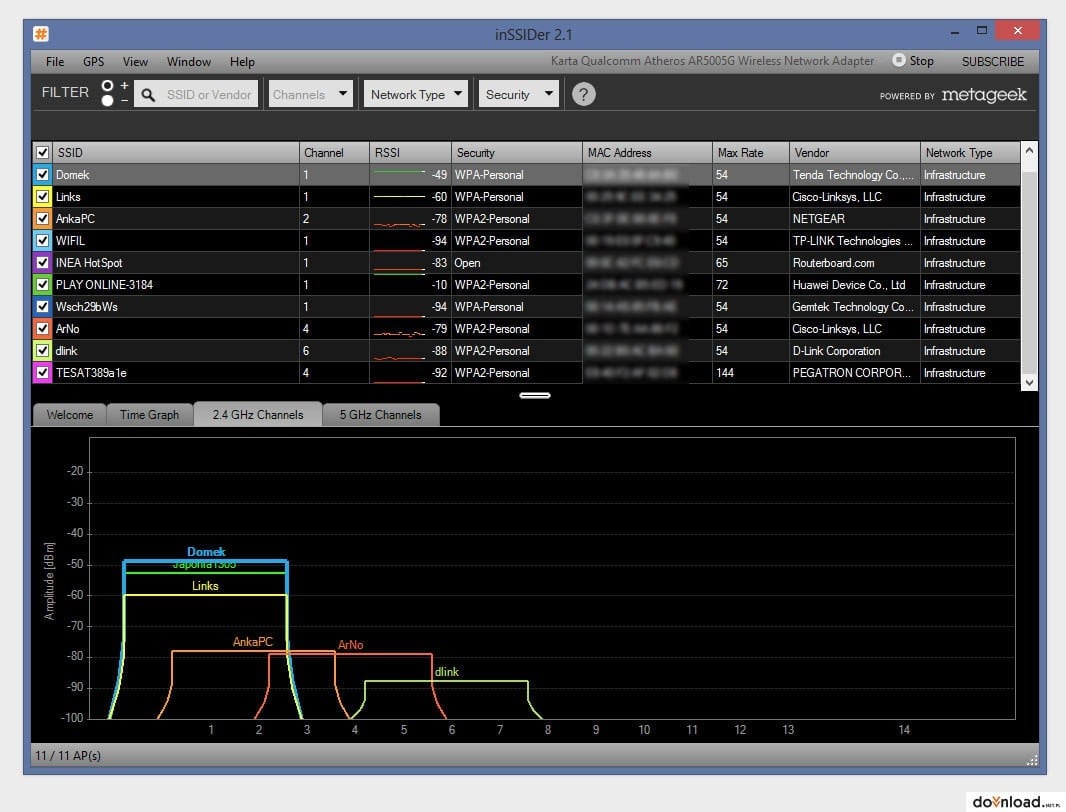
InSSIDer excels at providing simplicity at a low cost to its users. Sitting at just $19.99, it’s one of the best-priced WiFi analyzers out there. It’ll give you a detailed breakdown of the wireless networks around you while providing you with a lot of information about your access points. You can find information ranging from the kind of encryption used to the strength and channel of the signal.
Main Features
- Excellent for home users and SMBs with low technical proficiency
- Extremely easy to use
- Simple and intuitive GUI
Why do we recommend it:
InSSIDer, a cost-effective and intuitive WiFi analyzer, impressed us with its detailed breakdown of surrounding wireless networks. Its simplicity and affordability make it an excellent choice for home users and SMBs. However, enterprises may find its features limited. In our testing, InSSIDer facilitated easy access to information about access points, including encryption details, signal strength, and channel information.
InSSIDer makes WiFi analytics a breeze, letting you right-click on a network to see a menu showing you all of the data you can look at. Then, you’ll see a menu that offers you a variety of different categories.
Who is it recommended for:
InSSIDer is recommended for home users and SMBs seeking an easy-to-use and affordable WiFi analyzer. Its simplicity and intuitive GUI cater to users with low technical proficiency. While lacking advanced features, it addresses the needs of those looking for a budget-friendly tool for basic WiFi analytics. Enterprises and larger businesses will be able to do better than this tool. Although its simplicity is a boon for a less technical user, a sysadmin might find it a burden and the tool itself to be rather lackluster.
7. WiFi Analyzer
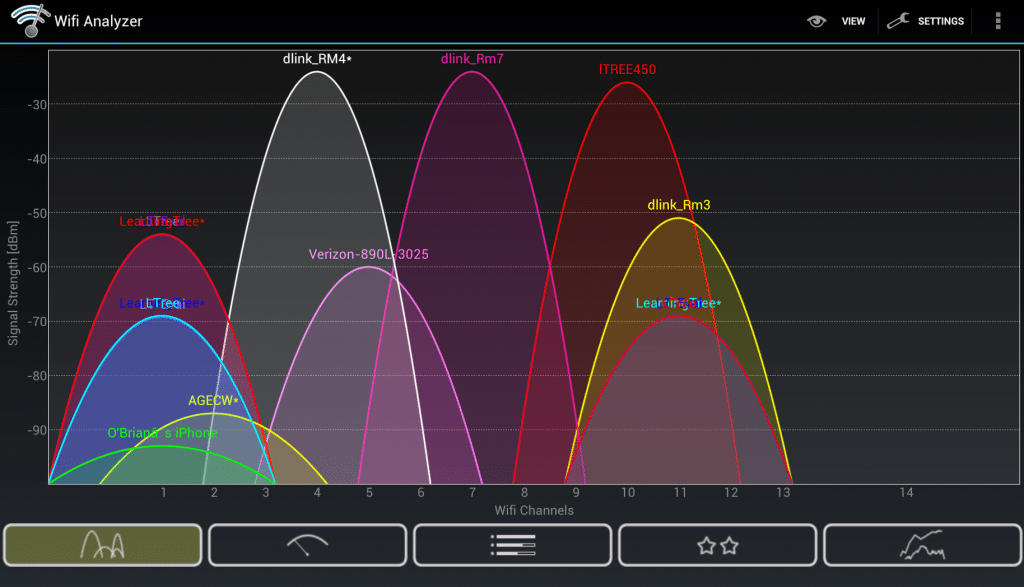
WiFi Analyzer is a WiFi analyzer made by Microsoft itself. If you’re trying to find a WiFi analyzer that puts most of its emphasis on simply being easy to use- this is the tool for you. This tool was made chiefly with home users in mind, which is why you might find some of its features to be relatively simple.
Main Features
- WiFi Analyzer provides the most straightforward WiFi analytics approach in the industry
- The professional version supports alerts and a bit more detailed analytics
- It was optimized for home users, so you’ll have all of the information you need
Why do we recommend it:
WiFi Analyzer, developed by Microsoft, offers a straightforward approach to WiFi analytics with an emphasis on ease of use. In our testing, it proved to be user-friendly, making it suitable for home users. The professional version, at a competitive price, enhances analytics with alerts and more detailed information. It is optimized for home users, providing essential information for assessing and selecting optimal WiFi channels.
The WiFi Analyzer comes with a free version and a professional version, priced very competitively at just $2.99. With that being said, the free version is quite good by itself- giving you everything you need to make assessments about your WiFi situation.
Who is it recommended for:
WiFi Analyzer is recommended for home users seeking a simple and easy-to-use tool for basic WiFi analytics. The professional version caters to users desiring additional features and more detailed insights. While suitable for home use, it may lack the advanced functionalities required by SMBs or enterprises.
8. Acrylic Wi-Fi
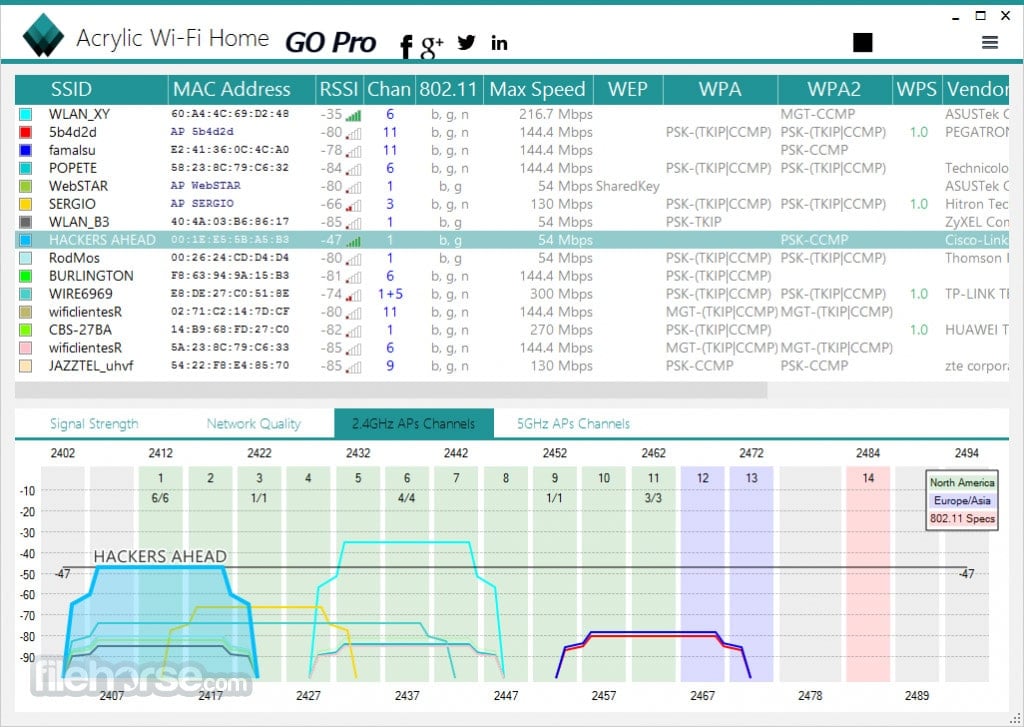
Acrylic Wi-Fi provides an excellent free WiFi analyzer for home users and SMBs. Designed for Windows, the user can scan for local wireless routers and compile a table of the relevant details. The table includes all the core metrics, such as MAC address, SSID, RSSI, channel, and vendor.
Main Features
- Its base version is entirely free
- It has a monitoring mode to help you sift through packet data
- It’s great for finding hidden networks
Why do we recommend it:
Acrylic Wi-Fi provides a free WiFi analyzer with monitoring capabilities, making it a valuable tool for home users and SMBs. During our testing, it excelled in scanning for local wireless routers, compiling relevant details, and identifying hidden networks. Its base version is entirely free, and the monitoring mode assists in sifting through packet data for enhanced visibility.
Its monitor mode allows you to monitor the packets traveling through the network. This is especially useful when looking for hidden networks. However, Acrylic is a free tool exclusively when used for personal use. Businesses will have to acquire their professional version.
Who is it recommended for:
Acrylic Wi-Fi is recommended for home users and SMBs seeking a free WiFi analyzer with monitoring capabilities. Its ability to find hidden networks and its free version make it an attractive option for users with basic WiFi analysis needs. However, its cluttered GUI and lack of tutorials may pose challenges for larger networks or users with specific technical requirements. However, the premium version costs $47.99 and comes with additional features.
9. SolarWinds Wi-Fi Analyzer
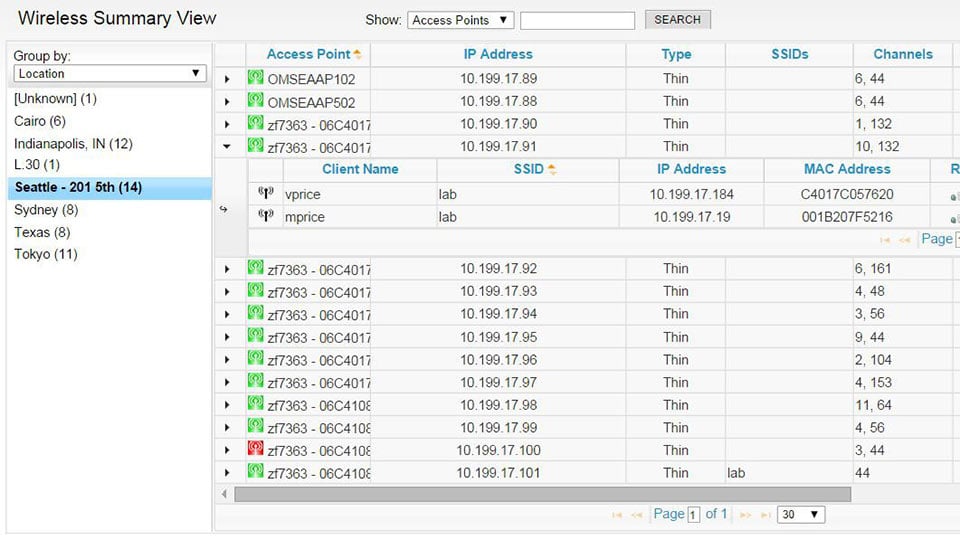
Made by a reputable SolarWinds company, the SolarWinds Wi-Fi Analyzer is a module that comes with the SolarWinds Network Performance Monitor. Like most SolarWinds tools, their WiFi analyzer starts its processes by automatically discovering all of the devices on your network. Its AP detection system is constantly online giving you live updates for all of your networks.
Main Features
- Automatic discovery for all wireless APs
- The tool will give full coverage of all of your networks
- NPM tracks the status of all of the network equipment on your networks
- The tool creates a heatmap for all of your networks
Why do we recommend it:
In our testing of the SolarWinds Wi-Fi Analyzer, it proved to be a robust tool within the SolarWinds Network Performance Monitor, providing auto-discovery, full network coverage, heatmap generation, and root cause analysis. It excelled in supporting extensive networks, making it ideal for enterprises and larger businesses. One key problem it solved for us was swiftly identifying wireless devices, optimizing network performance, and facilitating on-site surveys, leading to a seamless network experience.
Once the tool has completed its autodiscovery phase, it will immediately translate that information into a map of the wireless devices on your premises. You’ll be able to see all of the signals coming from your APSs, and help you look where signals overlap or find areas where there aren’t any.
The NPM will help you look at the status of all of your network equipment holistically. This makes it a lot easier to see how your WiFi frameworks function within the broader confines of your network, including cloud services and remote applications.
The NPM also helps you monitor issues with bandwidth as well as any impairments to your network’s performance. This makes it much quicker to not only find but also repair problems. The NPM contains a report screen giving you a live look at your WiFi signals, in addition to giving you access to PerfStack- their investigative tool. PerfStack uses its intuitive, drag-and-drop interface to make it simple to find the cause of any issues.
If you find this too simple, or it doesn’t suit your needs, the NetPath screen provides an alternative way to look at your performance. NetPath will show you all of the transition points between the links within your network.
Who is it recommended for:
SolarWinds Wi-Fi Analyzer is recommended for enterprises and larger businesses seeking a comprehensive tool for network monitoring and performance optimization. It is particularly valuable for network administrators and IT professionals managing complex networks with diverse devices and configurations.
The WiFi analyzer is only available as part of the NPM module. The SolarWinds NPM offers a 30-day free trial to all of its new users.
10. Wireshark
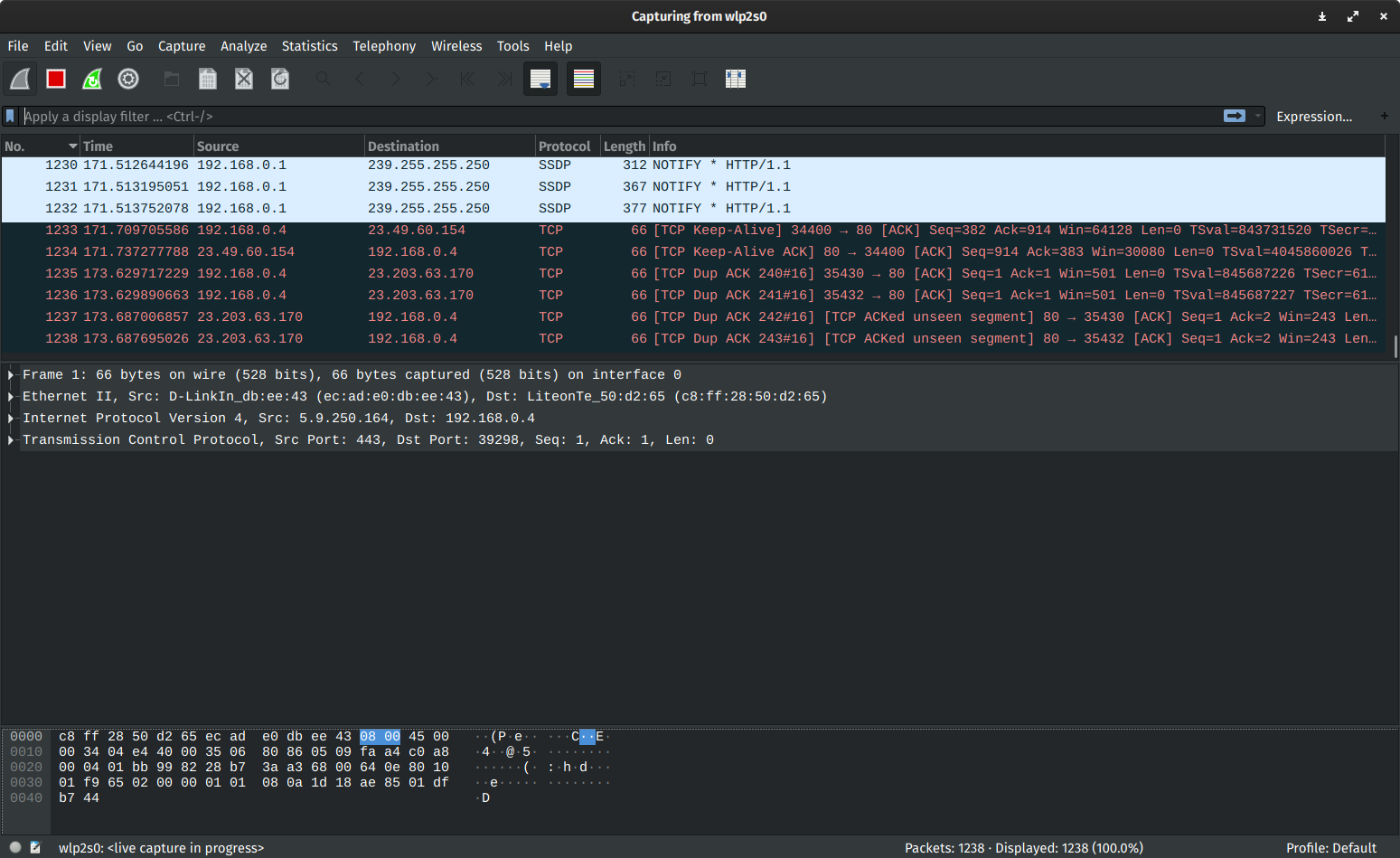
At the end of the list, we’ve got Wireshark. Although this tool is technically a packet analyzer, it can be used as a WiFi analyzer. In addition, due to its open-source and free nature, it’s highly customizable and can be set up to suit your average home user just as well as a more significant business.
Main Features
- In terms of wireless technical analysis, the tool is a cut above most of the competition
- Cloud-based and free
- Extremely lightweight
- Can run on all familiar OS
- Excellent live data capture capabilities
- Supports integration with other data collection tools
Why do we recommend it:
WireShark, while primarily a packet analyzer, can be effectively used as a WiFi analyzer due to its open-source and customizable nature. In our evaluation, WireShark demonstrated advanced technical analysis capabilities, including live data capture, decryption, and VOIP analysis. Its cloud-based and free nature makes it highly versatile, suitable for both home users and larger businesses. It excels in wireless technical analysis, providing extensive data gathering and integration capabilities.
Wireshark is an excellent network analyzer, and it’ll have no trouble gathering and generating information about your entire office network. It features live data capture capabilities and decryption and VOIP analysis, which can help enhance the visibility of your networks.
Who is it recommended for:
WireShark is recommended for users with advanced technical proficiency seeking a highly customizable and versatile tool for network analysis. Its open-source nature and support for various operating systems make it suitable for a wide range of users. While it has a steeper learning curve, its capabilities in live data capture and analysis make it a powerful choice for in-depth network assessments.
Closing Words
All of the tools on this list are great at what they do. Some offer a comprehensive and holistic approach, while others narrow their functionality down to just a few sensors. Some are expensive and made for enterprises, while others are free and geared towards home users.
As always, the most important thing to keep in mind when selecting a tool for any job is your needs. Depending on your level of technical proficiency and the needs of your establishment, your number 1 tool will change. With that being said, the number 1 pick was made so that it’s never wrong to pick it.
Did we miss your favorite WiFi analyzer?
What do you value most in a tool like this?
Let us know in the comments below!