


Ping Monitoring is a technique used by administrators to check and monitor the availability of network devices, servers, and hosts.
For newbies, Ping is basically a request that you send to a specific server/device and wait for the response from it.
The time it takes for your request to bounce back from the other side, which is usually measured in milliseconds (ms), is called the response time or “ping”.
Here is our list of the best Ping monitoring tools:
- Paessler PRTG – FREE TRIAL A bundle of monitoring tools for networks, servers, and applications that includes a number of Ping-based tools. Installs on Windows Server. Get a 30-day free trial.
- Site24x7 Website Monitoring – FREE TRIAL A cloud-based bundle of functions that aims to administer websites and includes a Ping-based availability monitor. Start a 30-day free trial.
- SolarWinds Ping Sweep Tool Engineer’s Toolset A network search tool that scans through a given range of IP addresses and identifies which are in use by devices on the network. The Engineer’s Toolset includes more than 60 system administration tools. Installs on Windows Server.
- Nagios XI A systems monitoring too that can be extended by plugins. A number of the network monitoring functions of this system use Ping. Runs on Linux.
- EMCO Ping Monitoring An easy to use Ping service with a graphical interface and the ability to perform a Ping sweep. Runs on Windows and Windows Server.
- Power Admin A Ping sweep service that can be run constantly, set to raise an alert if a device goes offline. Runs on Windows.
- PingInfoView A free Ping tool with a graphical interface that will perform a recursive Ping sweep to track device availability. Runs on Windows and Windows Server.
The rule of thumb is, the lower the ping, the better it is. But how do you measure your ping?
Well, there are many Ping Monitoring Tools that monitor your devices and let you know whether any device is up or down. This way of monitoring provides you with a clear view of your key devices’ health.
Do you need to test the connection strength of your network? Or you just need to check which of the devices are up or which devices are down – Either way, we’ll provide a list of our favorite tools for you to use in your task!
Let’s jump right into it and find out which of these are the Best Ping Monitoring Tools & Software to help you in your network monitoring tasks!
The Best Ping Monitoring Tools & Software
1. PRTG Ping Monitoring – FREE TRIAL

PRTG Ping Monitor is a well known tool and powerful for delivering an excellent ping monitoring experience. It pings the devices available in your network and measures their availability. By using this tool, you can scan the devices by IP range. PRTG monitoring tool offers various sensors for ping monitoring, including Cloud Ping Sensor, Ping Jitter Sensor, and Ping Sensor.
Why do we recommend it?
Using PRTG helped us optimize resource utilization by tracking bandwidth usage, CPU, memory, and disk space across our network devices. With its deep packet inspection, PRTG enabled us to analyze network traffic patterns, detect anomalies, and ensure efficient data transmission.
Network monitoring based on a sensor model has the advantage that it provides you with much detailed information. The separate pane is there for each sensor to choose between historic and live data before seeing the dial displays’ result. Basics are provided by Ping Sensors like ping time, maximum ping time, minimum ping time, and packet loss percentage. It gives you the basic information that you need to look for it there is any problem with any device.
Who is it recommended for?
PRTG is versatile and can cater to the needs of businesses of all sizes. Small businesses can benefit from its free version with limited sensors, while large enterprises can scale it up to monitor complex networks.
Data center operators can use PRTG to monitor server health, track bandwidth usage, and maintain the integrity of their data and applications.
Schools and universities can benefit from PRTG to keep their networks running smoothly for online learning, student information systems, and administrative services.
Manufacturers can employ PRTG for supervisory control and data acquisition (SCADA) systems, ensuring efficient operations and minimizing downtime.
It’s designed to offer a user-friendly experience, making it accessible to both beginners and advanced IT professionals. It includes preconfigured sensor templates for various types of devices and services, which saves time and effort, especially for beginners, as they can choose from these templates to monitor common network components.
The free version of PRTG Ping Network Monitor is available for the first 100 sensors. But those who have a large network need to go with the paid versions.
Download Link: https://www.paessler.com/download/
2. Site24x7
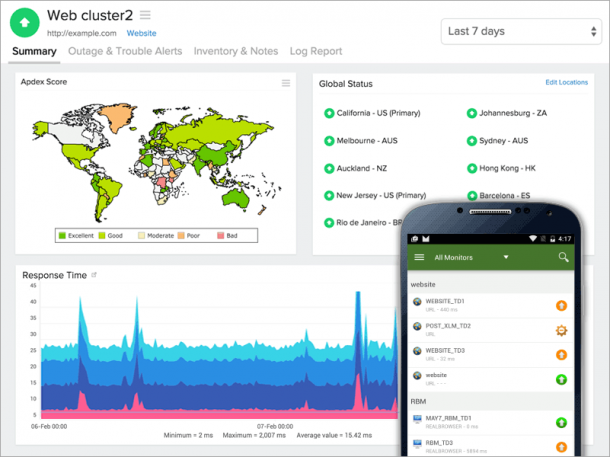
This cloud-based software monitors website performance, applications, IT infrastructure, and user behavior. Site24x7 focuses on the performance of almost all types of IT services. A website needs the support of multiple service layers to avoid failure in any element, as a single failure impacts the performance of the front-end of the web presence.
Why do we recommend it?
During our assessment, Site24x7 flagged issues with cross-browser compatibility, guiding us to adjust our website code and design for a smoother experience across various browsers. The tool identified that our site was not fully responsive on mobile devices, leading us to redesign our website to cater to mobile users effectively.
To successfully deliver a web page, the data traveling speed across the internet and around the network is vital. The time taken for a roundtrip between the two points in a connection is what ping measures.
There are 90 locations across the world from where Site24x7 operates and provides its customers a view of their website delivery speed to different parts of the world. The statistics of speed delivered by this software include connection time, DNS time, SSL shakehand time, download time, and first byte time.
Other than keeping a check on the internet speed, this tool also ensures that it provides early warnings to system administrators when there is likely to be any equipment problem that may impact the website’s delivery.
Who is it recommended for?
Bloggers, news websites, and content creators benefit from Site24x7’s content delivery network (CDN) monitoring to ensure rapid content delivery to users.
Companies offering software as a service (SaaS) can use Site24x7 to monitor the availability and performance of their applications, ensuring a seamless user experience.
Beginners can take advantage of Site24x7’s extensive knowledge base, tutorials, and customer support to help them navigate the platform effectively.
Advanced users can create custom scripts and plugins to monitor complex applications and services, providing a high degree of flexibility. Site24x7 offers API access, enabling advanced users to integrate monitoring data into their existing systems and workflows.
Site24x7 has a free version, but it’s limited to five websites being monitored. Get a 30-day free trial.
Download Link: https://www.site24x7.com/signup.html
3. SolarWinds Ping Sweep Tool Engineer’s Toolset
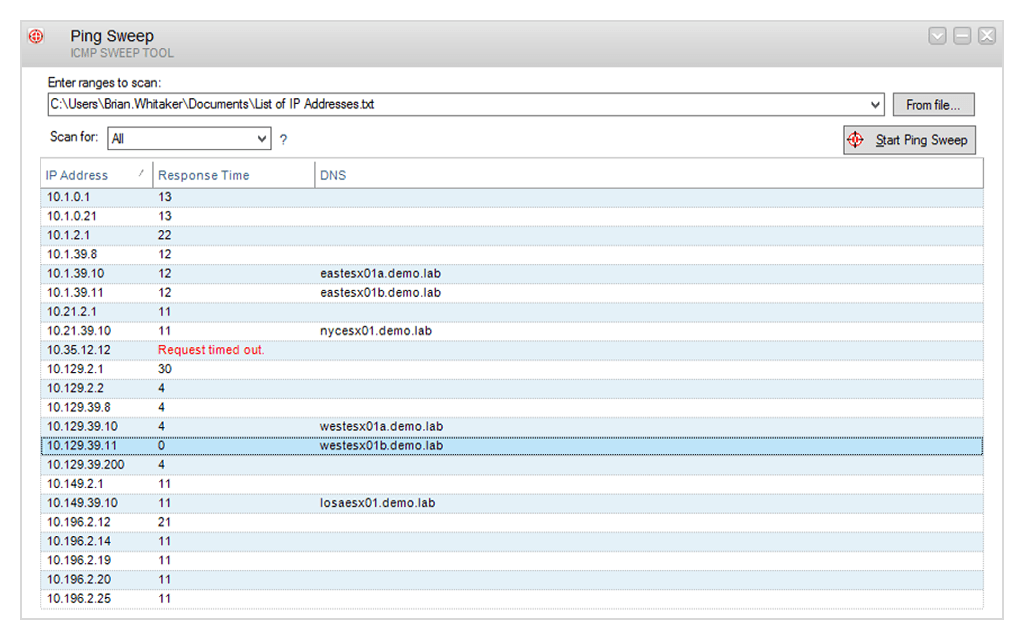
The ping sweep tool by SolarWinds performs a repetitive ping activity on a range or list of IP addresses. The tool pulls back the information, and that information provides insights into the devices on the network as well as your DNS and DHCP server’s performance. It also provides a report of the transfer speed to each of the devices in the network.
Why do we recommend it?
While we were putting it to the test, one key problem it solved for us was quickly identifying the devices on our network and their performance, including our DNS and DHCP servers. This allowed us to address potential bottlenecks and ensure smoother network operations.
A list of IP addresses is required as a parameter by the tool. The IP addresses can also be loaded from a text file, or a range can be loaded that goes from the lowest to the highest possible IP. You won’t get an endless list, as the filtration of non-responsive IP addresses can be specified.
All the IP addresses or the ones that responded are listed by the Ping Sweep in the scan. In each of the records, the node’s response time and its hostname are shown in the results screen. You get to know the problem area from this simple report.
A wide range of administration tools for IP monitoring, diagnostics, configuration management, network monitoring, log management, and security are also included in the Engineer’s toolset.
You can export the result to a TXT, XLS, or CSV file for importing them into any other utilities for analyzing the data and comparing them with other sources.
Who is it recommended for?
Whether you’re working in a small business or a large enterprise, this tool is a valuable addition to your network management toolkit.
The SolarWinds Ping Sweep Tool in the Engineer’s Toolset is designed to be user-friendly, and beginners can certainly use it. It offers a straightforward interface and doesn’t require advanced technical knowledge.
To get the most out of it, users should have a basic understanding of network concepts and be comfortable with basic network troubleshooting. Intermediate and advanced users can also benefit from its more advanced features for in-depth network analysis.
Download Link: https://www.solarwinds.com/engineers-toolset/registration
4. Nagios XI
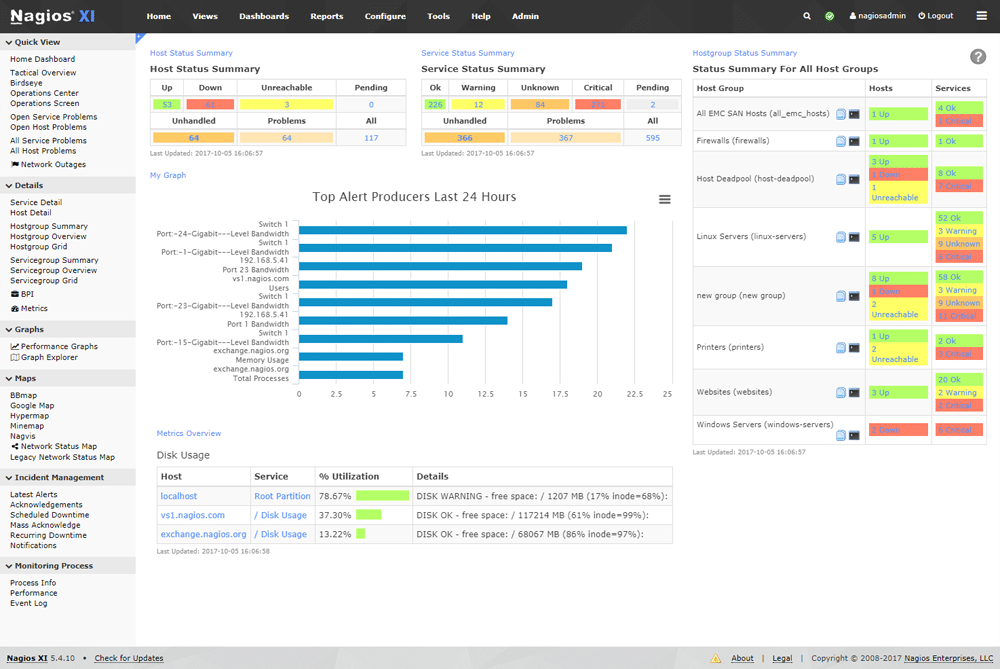
This tool is widely known as one of the best tools in the world for network monitoring. It offers a great ping monitoring experience, also in isolation. With the Nagios XI tool, you can see your devices’ availability and the prevalence of the packet loss while there is a transition in your network. This will help you to dig deeper into the performance of your network devices.
Why do we recommend it?
Nagios XI provided us with insights into our server’s resource utilization, including CPU, memory, and storage. On several occasions, it alerted us to servers nearing resource limits, enabling us to allocate additional resources or optimize software configurations before performance degradation occurred. This proactive approach ensured our applications and services ran smoothly.
Nagios XI ping monitoring tool offers a combination of modernized network monitoring and classical displays, along with advanced displays such as topology network maps. You can also customize each user’s layout if the user’s design is not to your taste. Thus, it ensures that the users get full control over their network monitoring.
Nagios XI is available as a free download for CentOS and RHEL Linux. Also, it can be used on Microsoft, but that’s to be done by using VMware Workstation or a similar service. Due to this, deployment of Nagios XI is simplest with a Linux environment.
Who is it recommended for?
Nagios XI is generally intended for more advanced users and IT professionals with some experience in system administration and network monitoring. It offers a wide range of features and capabilities, which require a certain level of technical knowledge to set up and use effectively.
Network engineers can use Nagios XI to monitor and optimize network performance. It helps them detect issues like congestion, packet loss, or device failures, ensuring smooth data flow across the network.
Security teams can utilize Nagios XI for intrusion detection and to monitor security-related events. It aids in identifying potential security breaches and helps in the timely response to protect sensitive data.
Small business owners concerned about the uptime of their websites, online services, or internal systems can benefit from Nagios XI. It provides peace of mind by ensuring that their digital assets are available and performing well.
Download Link: https://www.nagios.com/downloads/nagios-xi/
5. EMCO Ping Monitoring
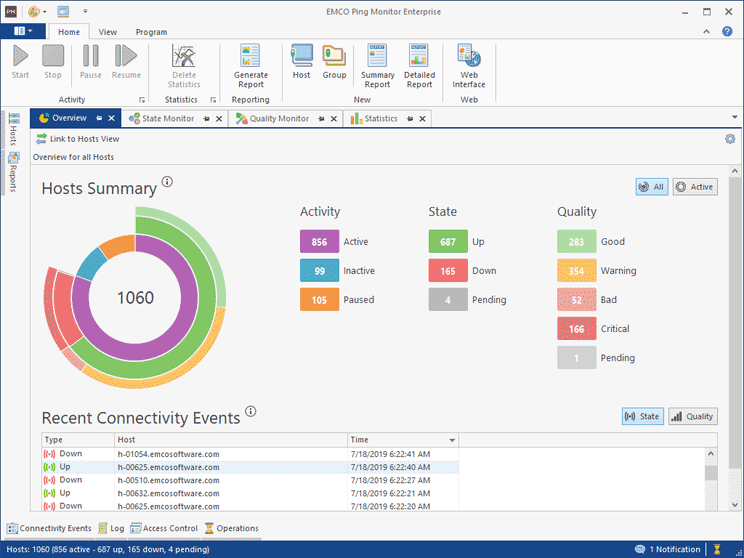
EMCO Ping Monitor is perhaps the most underrated ping monitor tool available now. The overview of host status enables you to see the hosts available across the network, their response rates, status, and outages. Real-time monitoring of each host is also possible with the color-coded graph that helps you to see the changes in your connection over time. This snapshot perspective provided by the tool is very useful for knowing any pressing problems that need your attention.
Why do we recommend it?
We used the tool’s ability to store historical data to help identify recurring issues and optimize our network’s performance over time. During routine monitoring, the tool detected an unusual pattern of packet loss and increased latency associated with one specific switch. With this insight, we were able to proactively replace the failing switch, preventing potential downtime and ensuring uninterrupted network connectivity for our users.
Another perspective this tool offers is the historic host data that you can see just by selecting the time period that you need to go back for monitoring. You can create reports of this retrieved information and send them to your team members either in HTML or PDF format. The setup is simple to help you closely monitor what’s going on, so that no distractions are there due to complex or elaborate displays.
Its script configuration facility is one of the interesting features offered by this tool. The scripts can be configured to run when there is a network event. This allows you to have your monitoring experience a little automated. It’s supported by an email notification that alerts when there are some changes.
Who is it recommended for?
For organizations with multiple remote locations, EMCO Ping Monitoring is a valuable tool for keeping an eye on network health across different sites.
SMBs can benefit from this tool as it provides essential network monitoring features without a steep learning curve. It’s cost-effective and helps ensure network reliability for businesses of all sizes. It’s available for both Windows service and Windows program.
While beginners can use EMCO Ping Monitoring, it also offers script configuration and the ability to automate certain tasks, making it a valuable tool for those with advanced technical skills. EMCO Ping Monitor is free, but the freeware version is limited to five hosts only.
Download Link: https://emcosoftware.com/ping-monitor/download
6. Power Admin
The user interface of Power Admin might look a little outdated as compared to other tools, but the ping monitoring capabilities of this tool are equally proficient in today’s modern networking environments. The ability to simultaneously ping several IP addresses is available in Power Admin. Additionally, tracking data on disk usage, ping test, memory, and CPU is also possible.
Why do we recommend it?
We used Power Admin to keep a close watch on the health of our network devices, detecting issues like overheating, hardware failures, or other potential problems before they caused downtime. The tool aided in diagnosing connectivity problems, helping us quickly isolate and resolve issues like packet loss or latency.
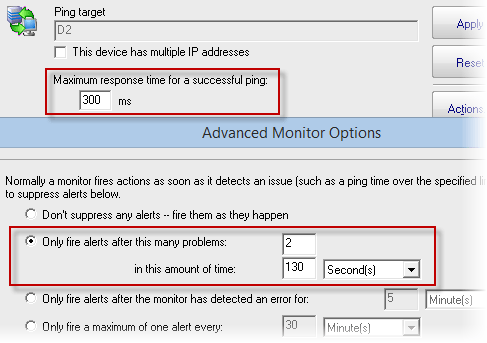
The alert system offered by Power Admin aims to reduce the number of alert notifications that one receives. For example, you receive ping alerts only if the number of non-received ping responses is two or more. A number of additional configurations are also allowed to enter the alert system. For example, the maximum response time can be selected for a successful ping, and also the alerts to events can be limited, where the detection of error is for a specified period of time.
Thus, the configuration alert saves you from getting bombarded with alert notifications every time there is a failure in a ping request. This way, when you get a notification, you always know that something serious is there that you need to address.
Who is it recommended for?
Available on Windows, Power Admin is suitable for a wide range of organizations, from small businesses to large enterprises, as well as service providers and data centers.
Power Admin’s flexibility and comprehensive feature set make it an excellent choice for those looking to optimize network performance, ensure device health, and proactively address network-related challenges.
Users with varying levels of experience, from beginners to advanced IT experts, can benefit from Power Admin as it provides customizable solutions to meet their specific needs.
Users should have a fundamental understanding of networking concepts, including IP addressing, subnets, and network protocols. This knowledge will help in configuring and troubleshooting network devices effectively.
Download Link: https://www.poweradmin.com/products/downloads/
7. PingInfoView

PingInfoView tool is for conducting the ping scans at a basic level. Using this lightweight ping monitoring tool you can multiple IP addresses and host names at once to find if the connection was successful or a failure. You get the information in a table view that shows the ping time and if the connection succeeded or not.
Why do we recommend it?
While we were putting it through its paces, PingInfoView’s ability to generate reports in various formats helped us document network performance and share information with our team. When network outages occurred, PingInfoView helped us pinpoint the affected devices and prioritize troubleshooting efforts.
A green button highlights the devices that are up, whereas a red button shows the devices that are down. Even being a basic tool it offers you the ability to schedule your regular ping scan so that you stay up-to-date with your monitoring.
You can also configure this tool to ping the devices at your specified interval of time. This will ensure that the data of your ping scan is accurate and updated. After pinging the IP addresses and hostnames, you can also save the final results in XML, HTML, or text file formats.
Who is it recommended for?
It’s ideal for system administrators and network administrators who need to maintain the health and performance of their devices and networks. Small businesses can benefit from its cost-effective network monitoring capabilities, while even home users can use it for troubleshooting connectivity issues.
Students, IT enthusiasts, freelancers, and consultants can also find value in PingInfoView for learning, practicing, and offering monitoring services. Educational institutions can incorporate it into networking courses to impart fundamental monitoring and troubleshooting skills.
This tool is free and available on Windows XP, Vista, Windows Server 2008, Windows Server 2003, Windows 7, 8 and 10.
Download Link: https://www.nirsoft.net/utils/multiple_ping_tool.html
Conclusion
Ping monitoring is one of the prerequisites for efficiently managing the network devices in today’s fast and complex networking world. Ping monitoring tools are the best way to find if any device is experiencing performance issues.
By looking carefully, one can avoid downtime as these tools help you to spot the problems even before they arise.